Lead Generation Ads
Social media marketing is the use of social media platforms and websites to promote a product or service. Popular social media sites, Facebook, LinkedIn offer different ways to advertise brands.
Advantages
Advertisers can reach users who are interested in their products. Allows for detailed analysis and reporting. The information gathered is real, not from statistical projections.
Lead Ads
- Lead ads are a type of ad that allows you to run lead generation campaigns on Facebook or LinkedIn
- Lead ads include a contact form that lets people show their interest in a product or service by filling out the form with their details and allowing a business to follow up with them.
- On your lead ads contact form, you can request email addresses or contact information from people who click on your ad.
You can also add custom questions to collect sign-ups for marketing emails, product interest, follow-up calls and business information.

 People
2 |
 Prep time
30 mins |
 Time
10 mins |
 Difficulty
Medium |
STEP 1 - Identifying Request
In GMSS Portal, Oracle Social Network Requests can be raised as OSN request. With GMSS program code.
These OSN requests can be raised with details of Form Name and Account name according to their campaign requirement, which can be mapped in eloqua with the appropriate configuration settings as discussed in the process document below.
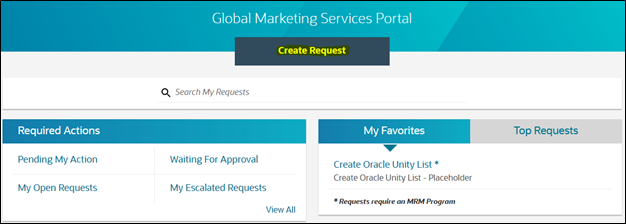
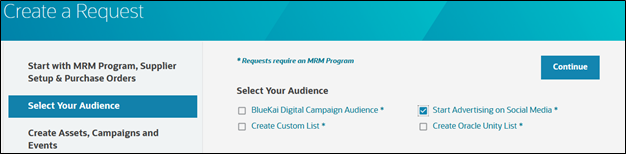
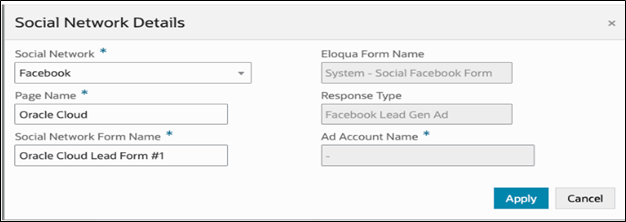
Once the campaign is activated in eloqua for these social media campaigns, marketers will be intimated. They will start initiating the process from their side to start tracking the responses, which is synched with Oracle data server through Eloqua.
STEP 2 - Configuring Facebook Ads
- An effortless conversation starter between you and customers
- Facebook lead ads make customer acquisition easier and more cost-effective.
- Made for mobile
- More conversions, fewer drop-offs
- Generate leads that matter
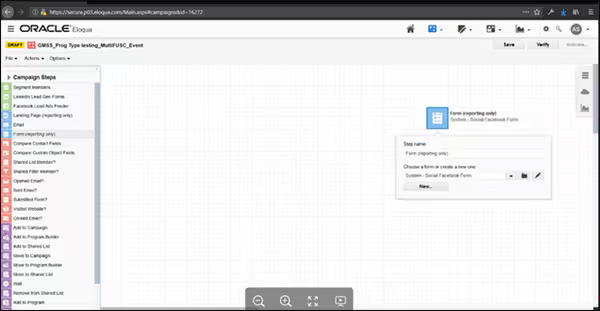
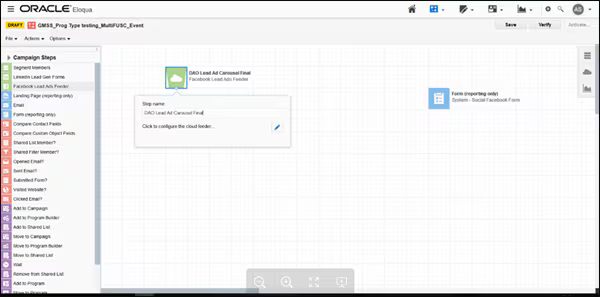
2.1 Configure Facebook Leads Ads Feeder
- Place the "Facebook Lead Ads Feeder" and Select the Form Name which is updated in the request portal. In this case, we are Updating the form name as "DAO Lead Ad Carousel Final".
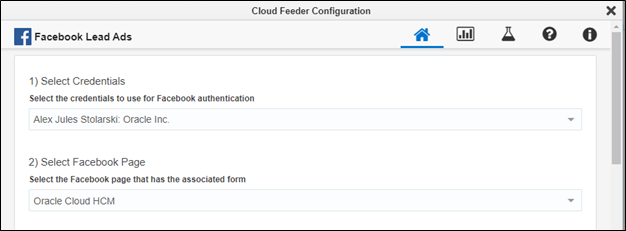
- Click on the pencil icon and update the configuration fields based on the requirement.
Select Credential as "Alex Jules Stolarski: Oracle Inc." - i. Select Facebook Page = Find the page Name provided in the request portal and select from the list.
ii. Select Facebook Form Name= Find the form name provided in the request portal. - Map the Fields against Eloqua Contact fields (refer the below screenshot)
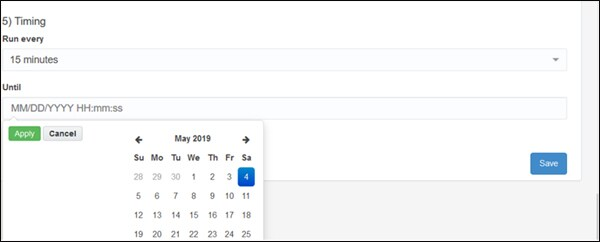
- Set the timing (15 mins) and Until (set 1 year from the requested date) and Save
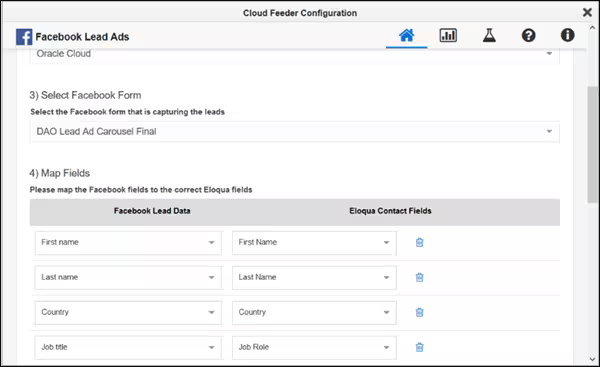
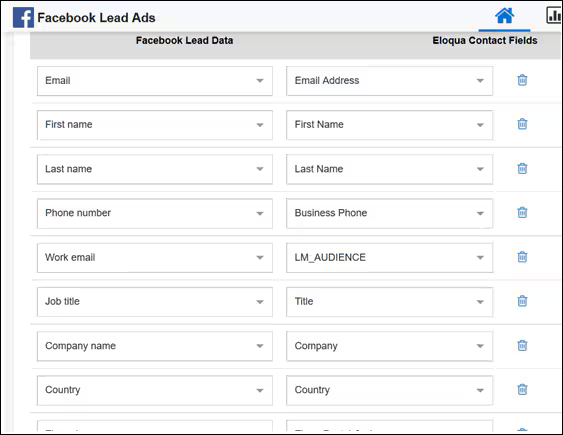
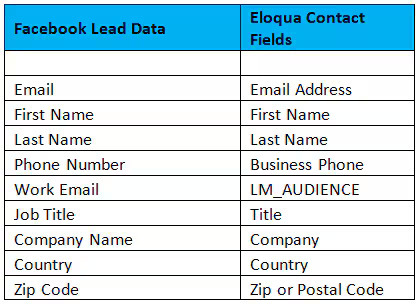
Note: Keep add the Facebook form fields until the + button disappears.
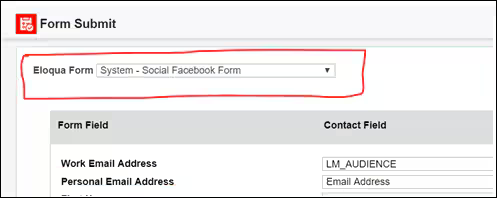
2.2 Configure Eloqua Form Submit for Facebook
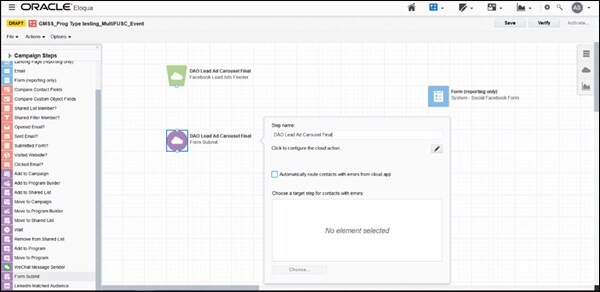
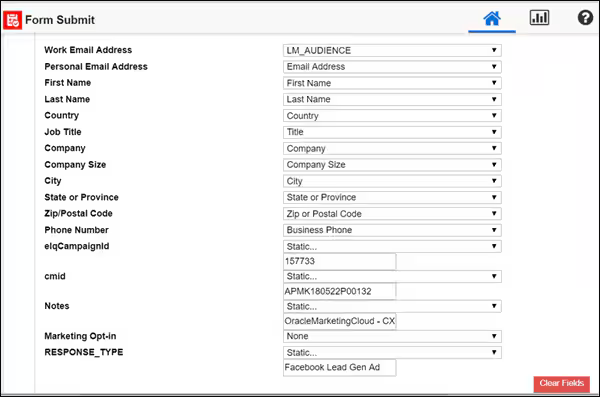
<code><pre><Ad Account Name> - <Form Name></pre></code>
STEP 3 - Configuring LinkedIn Ads
- Deliver personalized ads to the LinkedIn inbox
- Start generating leads in minutes
- Real professional data, for real results
LinkedIn data is differentiated because members have professional incentives to keep their profiles accurate and up-to-date.
Use real, member-generated demographic data to reach the right audience: job title, company, industry, seniority, and more.
3.1 Configure LinkedIn Leads Ads Feeder
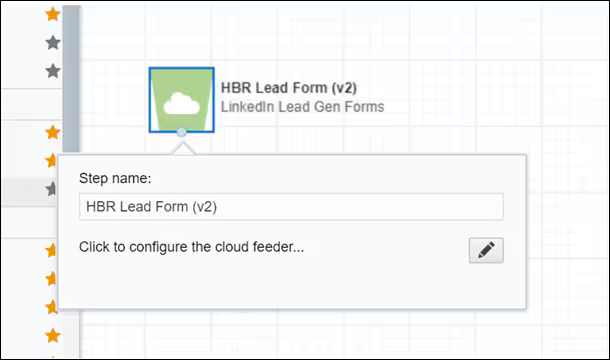
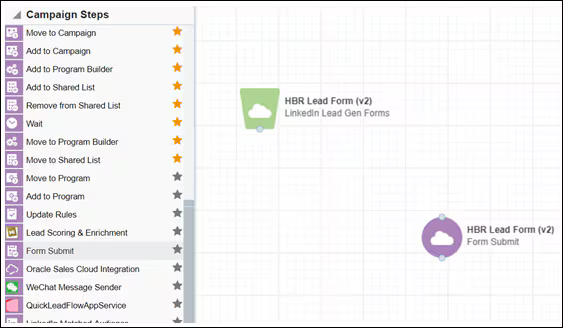
- Place the "LinkedIn Lead Gen Forms" and Select the Form Name which is updated in the request portal. In this case, we updated the form name as "HBR Lead Form (v2)".
- Click on the pencil icon and update the configuration fields based on the requirement.
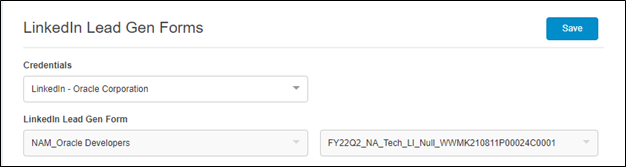
- i. Select Credential as "LinkedIn- Oracle Corporation"
ii. Select "LinkedIn LeadIn Gen Form" = Find the page Name / Ad Account Name provided in the request portal and select from the list.
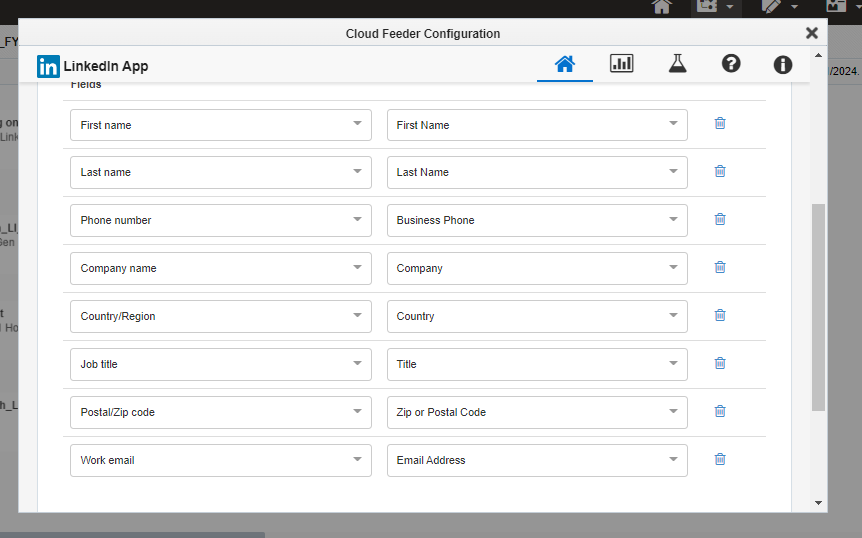
iii. Select Form Name as = Find the form name provided in the request portal. - Map the Fields against Eloqua Contact fields (refer the below screenshot)
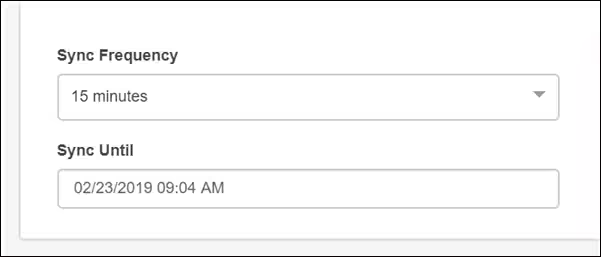
- Set the Sync Frequency (15 mins) and Sync Until (set 1 year from the requested date) and Save
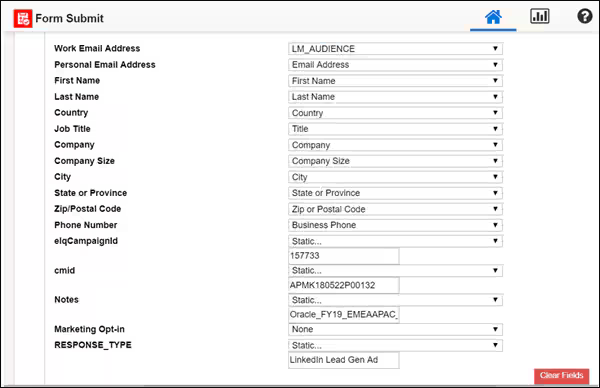
- Eloqua Form Submit – Configuration Settings – Select Form Submit and place into Canvas
- Click on the pencil icon and update the required information as shown in the below screenshot.
Select Eloqua Form as " System – Social LinkedIn Form" and Email Address as "LM Audience" - Update the following fields in the configuration settings. (refer the above screenshot)
vi. elqCampaignId – Eloqua canvas id (select "Static" from the dropdown and update the elqCampaign Id.
vii. CMID – Program code (select the program code from the portal)
viii. Notes: Place the notes with the below format, which helps to flow as a Lead Notes.
<code><pre><Ad Account Name> - <Form Name></pre></code>
ix. Response_Type = LinkedIn Lead Gen Ad. - Save the configuration and Activate once QA is approved, and inform the requester.
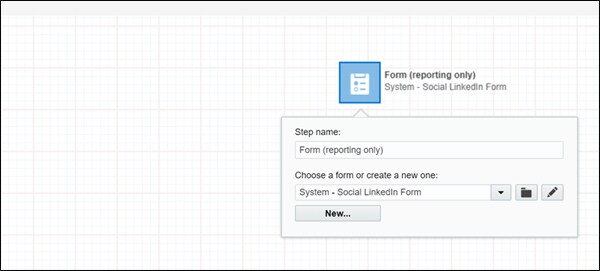
- Place the Form (reporting only) to the Canvas and Select "System – Social LinkedIn Form"
| LinkedIn Lead Data | Eloqua Contact Fields |
| Work Email | Email Address |
| LM_Audience | |
| First Name | First Name |
| Last Name | Last Name |
| Phone Number | Business Phone |
| Job Title | Title |
| Company Name | Company |
| Country | Country |
| Zip code | Zip or Postal Code |
Note: Keep add the Facebook form fields until the + button disappears. Personal Email address and Country is Mandatory in each form, other fields can be varied based on the requirement.
3.2 Configure Eloqua Form Submit for LinkedIn
Related Topics
Nailed it?
If yes, click below to confirm completion of this topic.
Yes, I have understood this topic well