

Follow these steps to make changes to the header text in the online form and group the agenda sessions.
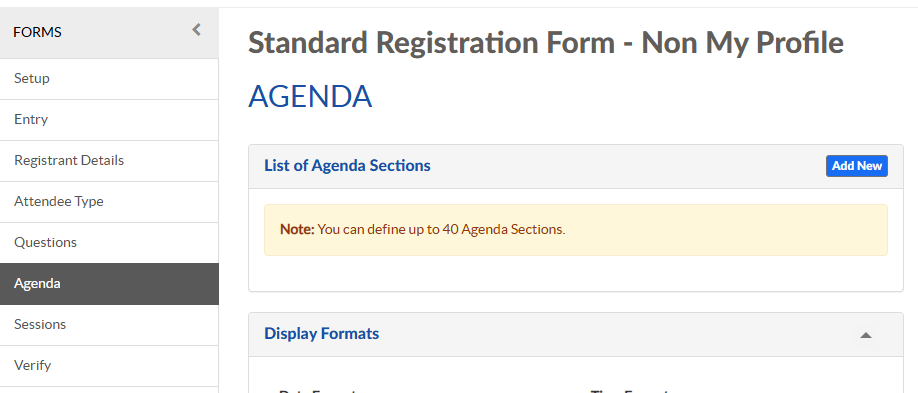
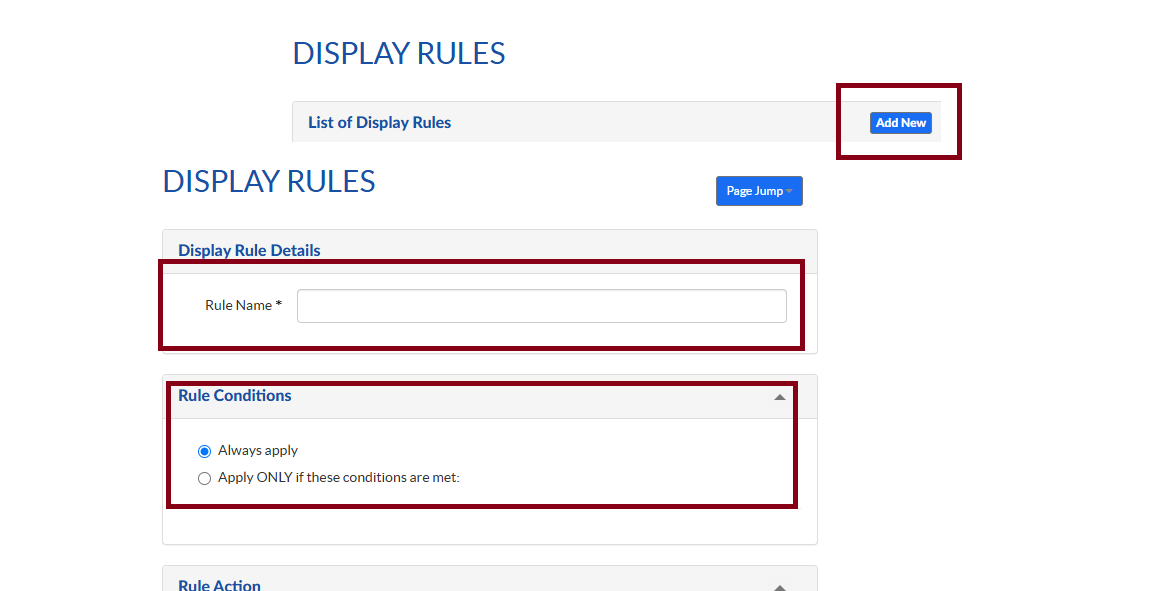
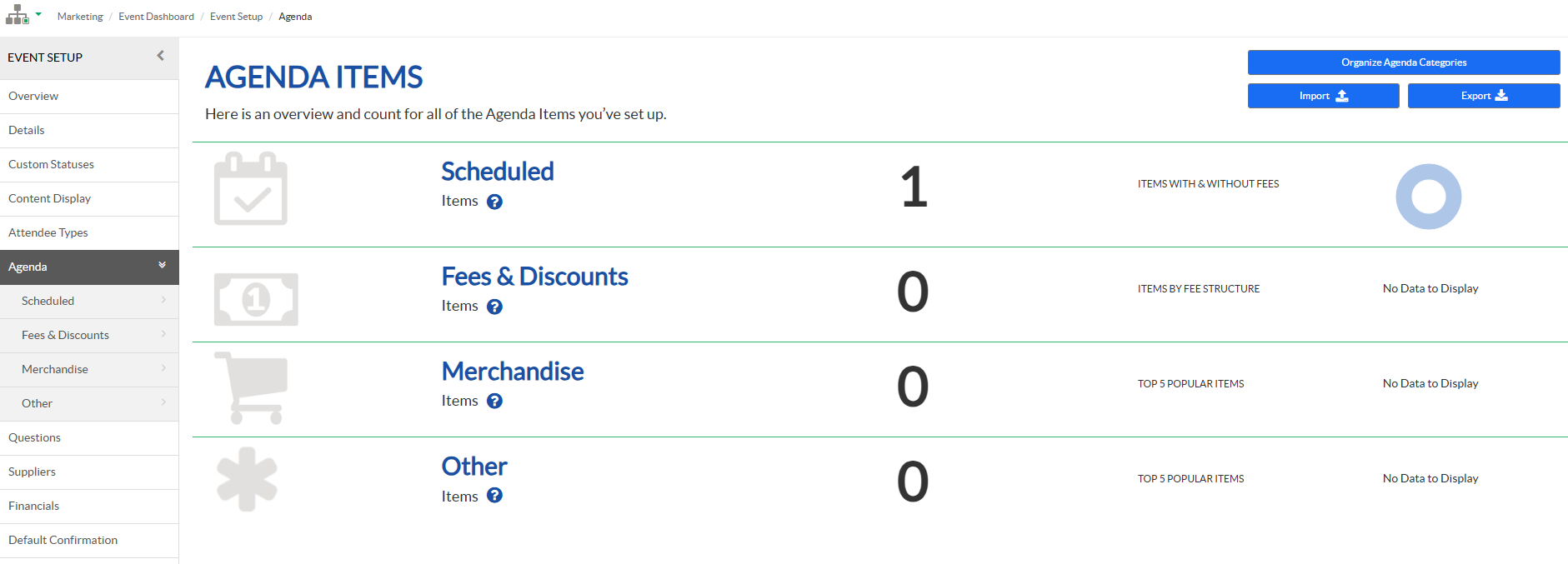
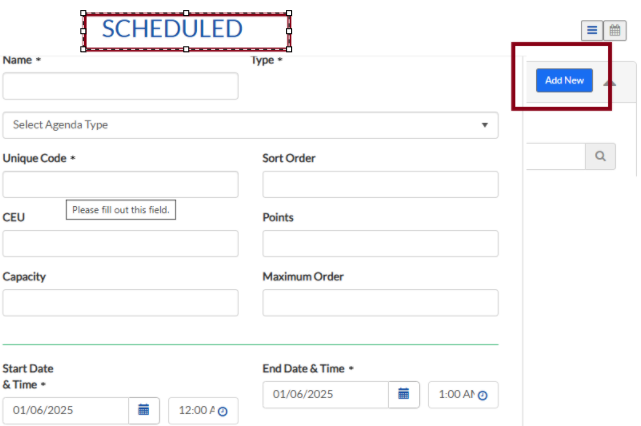
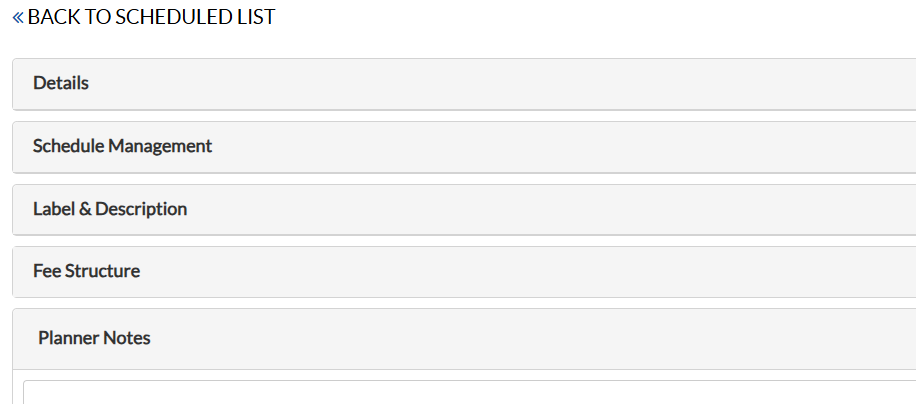
- On Left Navigation, choose Agenda and click on Add New to create the Agenda Section. To update the Agenda Section1 click on pencil icon and proceed.
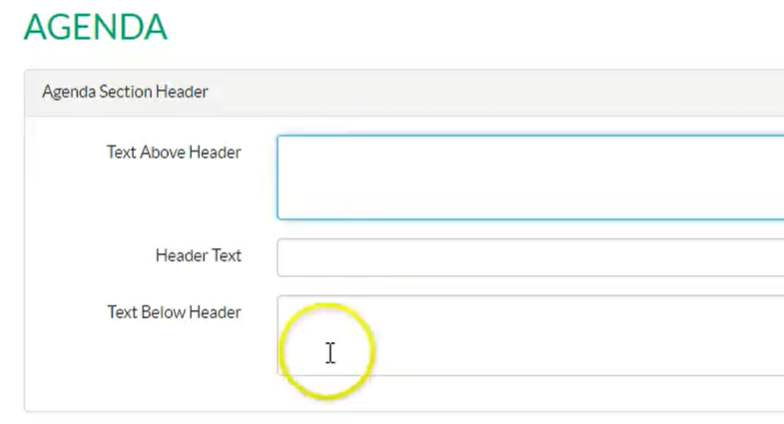
- Update the online form header in the Header section.
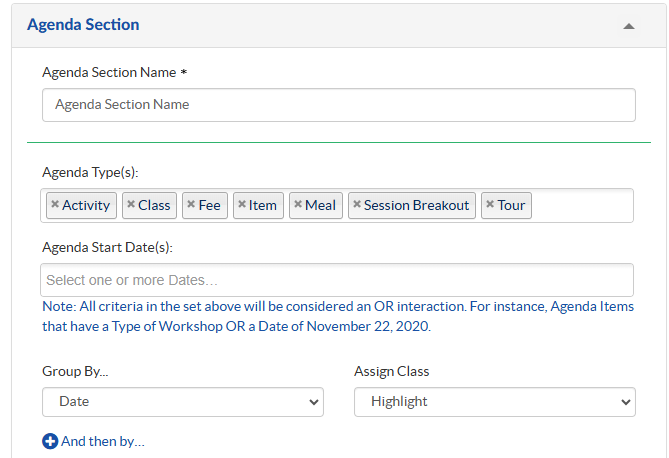
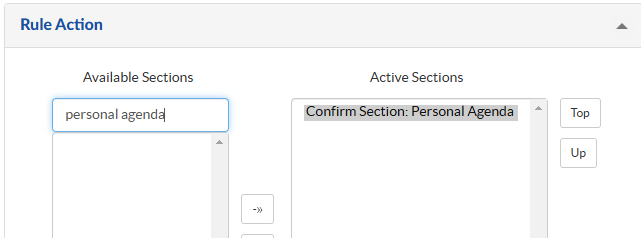
- Agenda Section is used to display Section Name, Type and to group Sessions/Tracks by Start Date, Track, Group and Location with grouping hierarchy in the web page. Retain only the Agenda type that you have created and rest can be removed. Label can be aligned Top/Left under Group Label Alignment and sessions can be formatted by changing Assign Class.
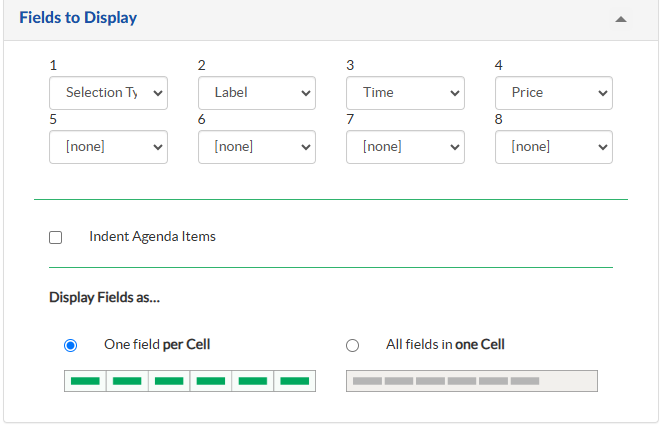
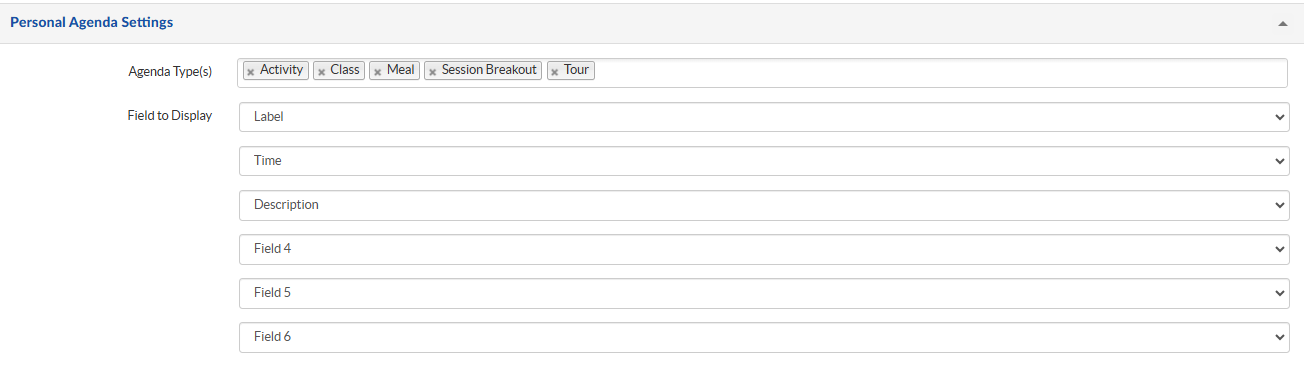
- The Fields To Display section is used to determine the optional fields to display in the online form about the session and track details and a option NONE can be selected if nothing has to be displayed.
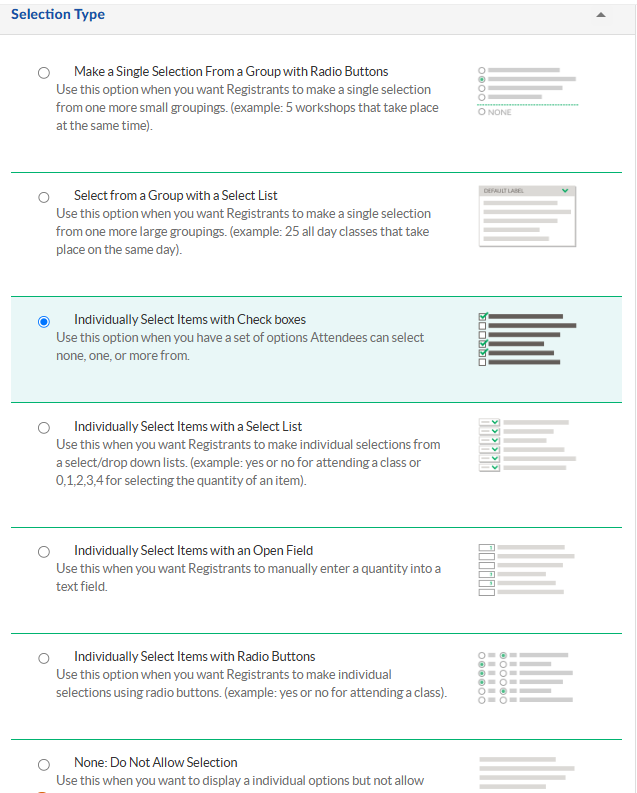
- Under Selection Type, there is an option to select the group based on Radio buttons, select list or Checkboxes as single-choice or multiple-choice selections.
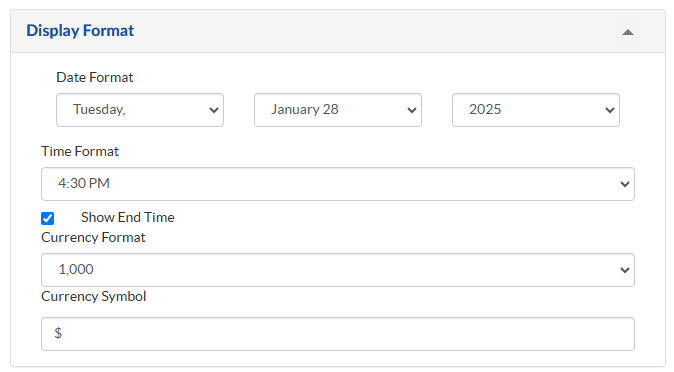
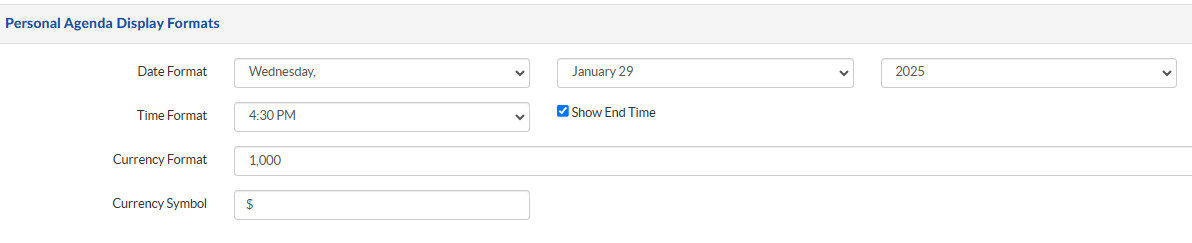
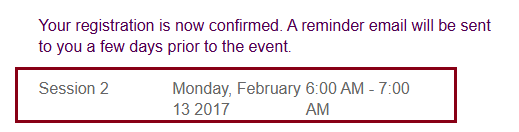
- Display Format Session can be used to set the date and time format
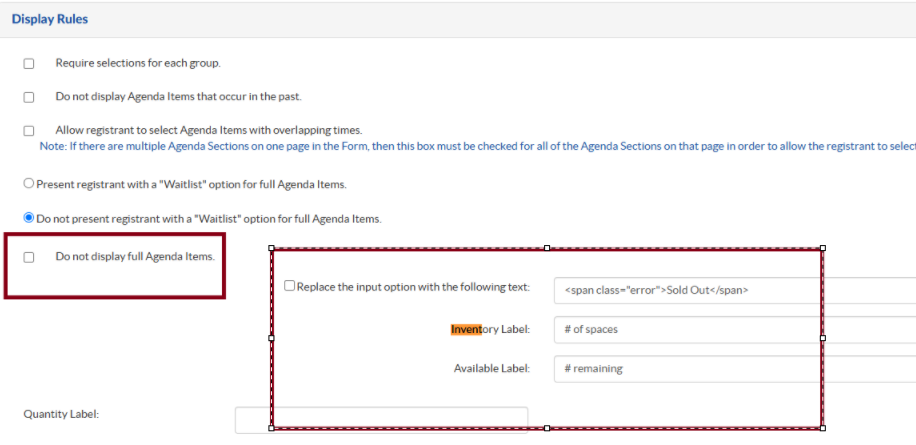
- The Waitlist/Inventory section is used to determine the functionality flow when we have to choose waitlist for agenda sessions.
- You can enable the waitlist option for all Agenda items by selecting 'Present registrant with a "Wailtist Option " for full Agenda Items.'
- 'Do not present registrant with a "Waitlist" option for full Agenda Items. ' - Disable the waitlist option
- 'Do not display full Agenda Items. ' - will be enabled based on the inventory
- Under Display Format, select the desired configuration options.
- Click Save.