Copying the Event
The marketers at times will be running the same event at multiple locations, or would like to create an event that is similar to an event that is already existing in the Certain system.
In such cases, one can locate an event that needs to be replicated and copy it to create a new event. The new event being created can further be customized with the relevant information such as the location, date and agenda, etc.
In this section, you will learn the how to create a new event using Copy Functionality through the following steps:
- Search an existing event using program code or event name>
- Copy an existing event
- Customize information by confirming or updating the relevant prepopulated fields
- Complete the event setup to create a new event

 People
3 - 6 |
 Prep time
5 min |
 Time
30 min |
 Difficulty
Easy |
Workflow
STEP 1 - Copy An Event (5 min)
Follow these steps to copy an existing event.
- Go to the event list.
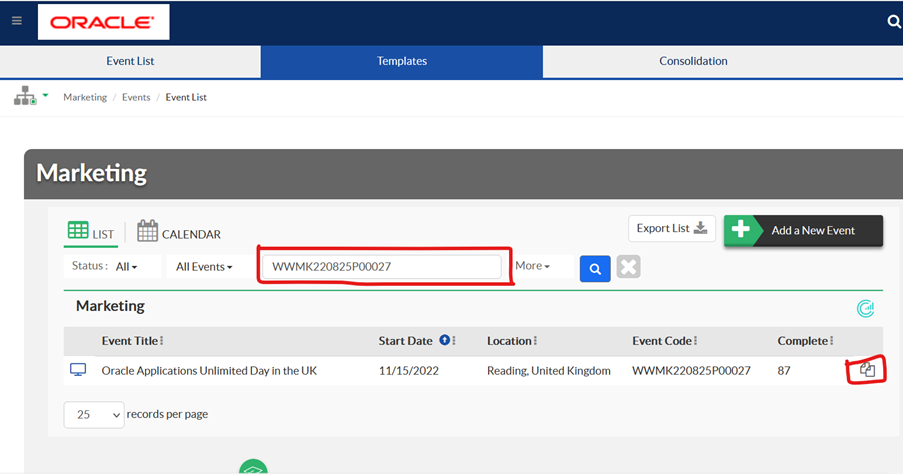
- Click the Copy Event button OR the Copy icon in the Actions column.
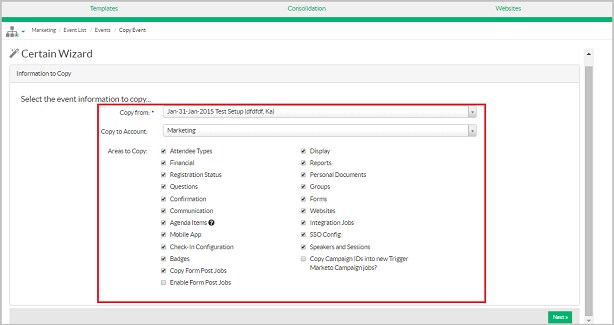
Option 1: Copy Event button – It takes you to the copy wizard, where you need to select the existing event name from the drop-down list and then update other required information.
Option 2: Copy icon in the Actions column – Click the copy icon link to duplicate the selected event and then update other required information.
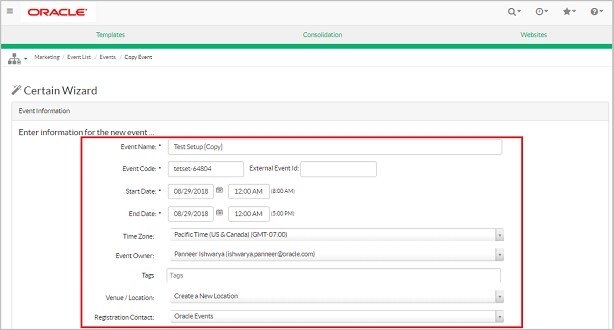
- Enter the new event name and other event details (event campaign code, event start and end date, venue/location, registration contact). Then click Next.
- Update all the relevant event details (refer to the details above – how to create the event from the available templates. Click Next to finish the copy functionality.
- Under the Plan module, click Event Setup. Find your newly created event.
Related Topics
Nailed it?
If yes, click below to confirm completion of this topic.
Yes, I have understood this topic well
