Monitored Registration


aa
People

3 - 6

Prep time

5 min

Time

30 min

Difficulty

Easy

Video Tutorial


STEP 1 - Setting Up an Event in Certain (5 min)

  • A. Identify Monitored Registration Type from the GMSS Request Portal

    Ensure, the registration method has been selected as “Monitored” in the event request before processing for the Monitored Registration setup.


  • B. Template Selection and Configuration

    This section describes how to select a template for the Monitored Registration.

    1. Login to Certain and navigate to Events section.
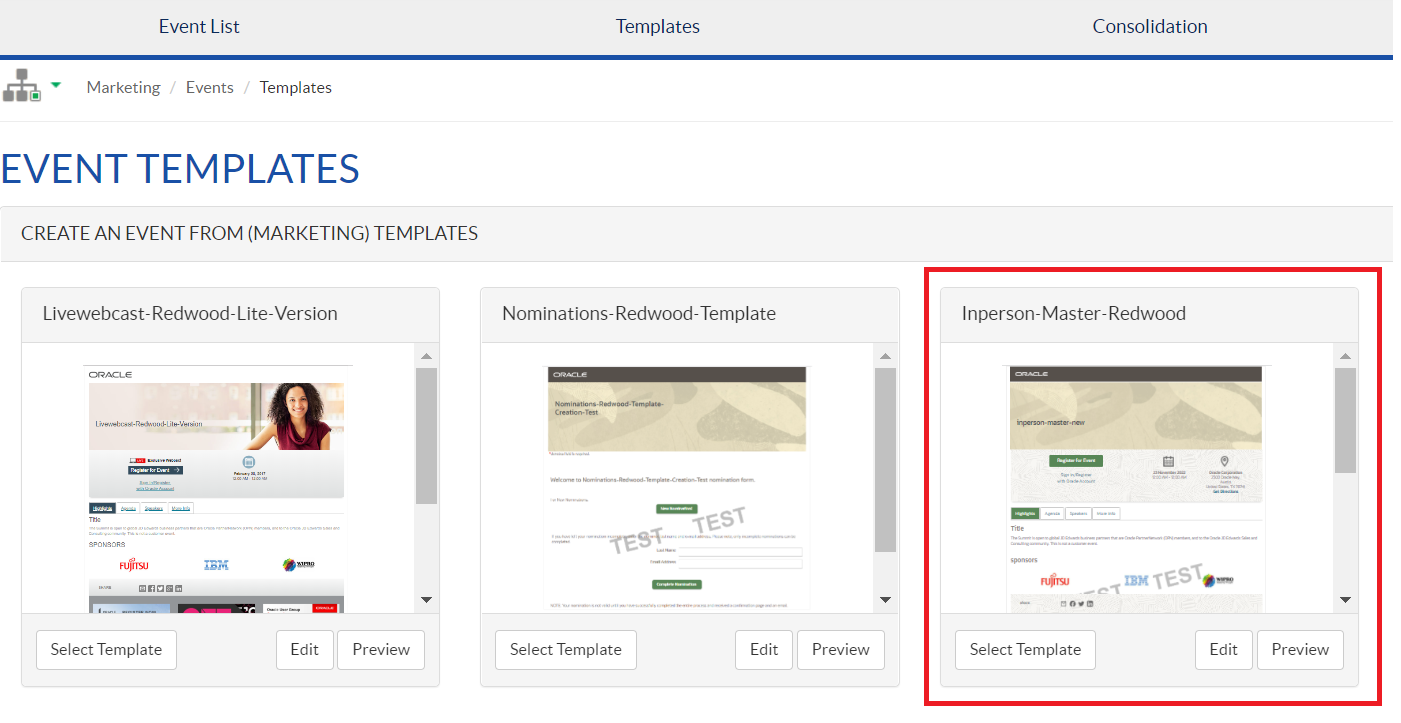
    2. Click Templates module to view the default available master template (based on event type), and select the template based on your requirement as shown in the below screenshot.


    3. master template


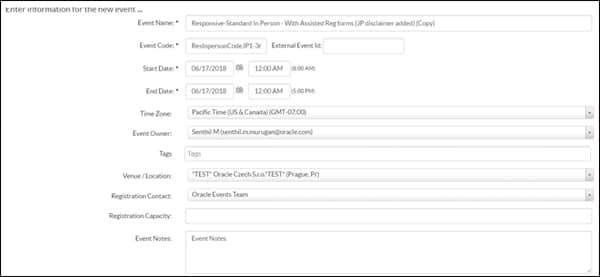
    4. Update the require fields as shown in the below screenshot which processing the template selection.

    • Event Name: Publishable event name
    • Event Code: Program code
    • Start Date: Actual event start date
    • End Date: Actual event end date
    • Event owner: The event owner column – Update it with the email id of the primary requestor from the drop down list. If the primary requestor is not present, check if the secondary requestor email is available and select.
      If neither of the email are available –Retain your name as the event owner and contact the helpdesk team to add the requestor id
    • Venue/Location: Select Create a New Location and then update the details
    • Registration Contact: Select Oracle Events Team as a default

    Note: Ensure the right program code is updated in order to flow the registrants to the Eloqua CXD for lead flow. If failed, then contact record gets stuck in the Eloqua.

    Update the fields of the above Screenshot from the content given in the request portal, if any of the fields are not given in the portal. Confirm the same with the requestor
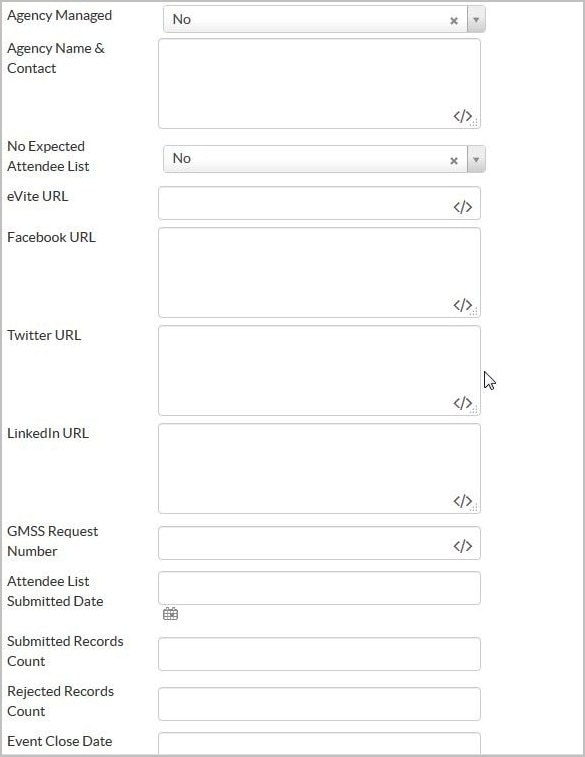
    • Event Language: As provided in the GMSS portal
    • Venue Type: If its any Oracle Office - Oracle Venue, else Non-oracle Venue
    • Primary Target Area: As provided in the GMSS portal
    • Event Registration Required: Default is yes
    • Event Monitored Registration: Set is as Yes
    • Copyright Year: Current year
    • Searchable: As provided in the GMSS portal - This is to be selected to yes only after the event is made live in certain
    • Oracle.com Keywords: As provided in the GMSS portal
    • Oracle.com Published: This is to be selected to yes only after the event is made live in certain
    • Oracle.com Published Date: Date at which the event is made live in certain

    For the above Screenshot - The GMSS Request Number field is mandatory and must be filled

    The remaining fields are filled if the details are given in the portal, else they are left blank
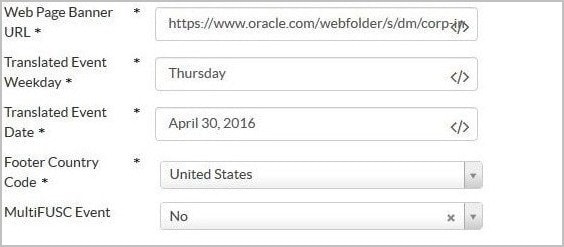
    Update the fields of the above Screenshot from the content given in the request portal, if any of the fields are not given in the portal. Confirm the same with the requestor
    • Web Page Banner URL: As provided in the content document. If no image is provided use the default banner and comfirm with the requestor
    • Translated Event Weekday: If not english language- As per standard translation sheet provided
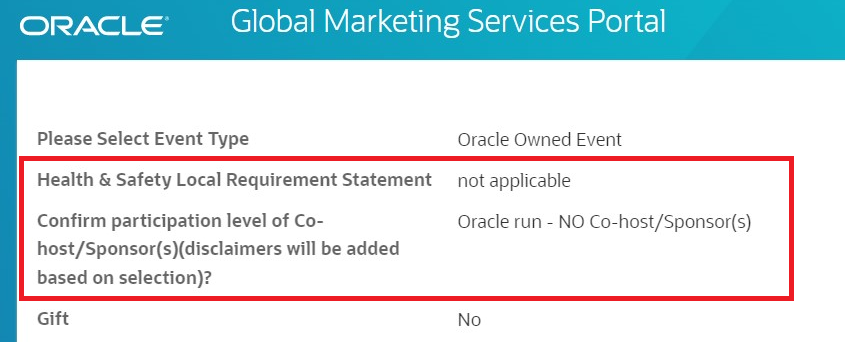
    • Data Sharing Disclosures ((Confirm participation level of Co-host/Sponsor(s)(disclaimers will be added based on selection)?): As provided in the GMSS portal
    • COVID 19 known requirement: (Health & Safety Local Requirement Statement) As provided in the GMSS portal
      (Note: COVID 19 known requirement section should only have the text format. If there is a scenario where the link has been provided, it should be manually added to the emails and the respective places as the merge field does not take any links.)
    • gmssportal

    • Footer Country Code: As provided in the GMSS portal
    • MultiFUSC Event: Retain as No
    • Primary Location: Edit as provided in the GMSS portal

    Note: Ensure the right program code has been updated in order to flow the right contact to the EloquaCXD for Lead flow, if failed, then contact records got stuck in the Eloqua.
    1. Click Next to continue the event creation
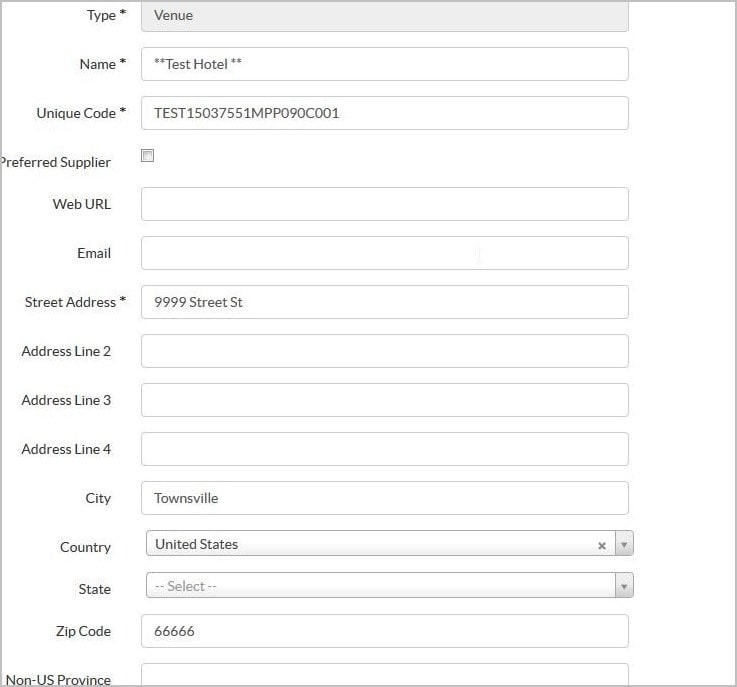
    2. Update the Event Venue information (find the details in the portal) and rest of the information by click on the Next button.

    • Unique code - Program code
    • Name: Venue name
    • Street Address and Address Line 2
    • City
    • State/Province and Zip Code OR non-US Province
    • Country
    • Check the box if the venue is a hotel, Click next.
  • C. Verify the Event Setup

    • Once you finish the initial setup, it automatically takes you to your created event section. Verify the values updated by you while copying the event from the master template.
    • Click Event Setup to verify your updated event information or click the pencil icon to modify or update your information.
    • The Standard Event Template shall be copied from and utilized for the standard, monitored and waitlisted registration scenarios. Default forms will be created for each of those scenarios, and supporting forms for assisted registration, tele registration, cancellation and survey will also be configured and in place. The following sections will detail all configuration aspects of the standard event template.
    • The Event Setup Page is where all information relative to the event is maintained, including event details, event contact, attendee types, agenda, questions and payments. Only the pages utilized in the standard event template will be outlined below. This page is accessed at the event level via Event Setup.
    • The following sections are used to define the event setup functionality.
    • Details - This section contains the details about the event (system fields and dyanamic data fields). These data in this section will flow to MRM and the Event Search page.
    • Contact - This section is used to define the event contact, who will be used to send out the notification.
    • Suppliers - This section is used to associate the respective supplier location and update the location.
    • Attendee Types - This section is used to create the different attendee types and group the responses using logic.
    • Agenda - This section is used to create the session tracks and manage them.
    • Questions - This section is used to capture additional survey questions.
    • Payments - This section is used to enable payment.
    • Default Confirmation - Not applicable.
    • Speakers - Not applicable.
  • D. Header and Footer Update

    This section describes the steps for updating the following pages automatically.

    • Welcome Page
    • Thank-you pages in all the forms (under the Confirm Section)

    To Update the Disclaimer Script


    Follow these steps to update the disclaimer that appears in the footer, as highlighted in the following screen shot.
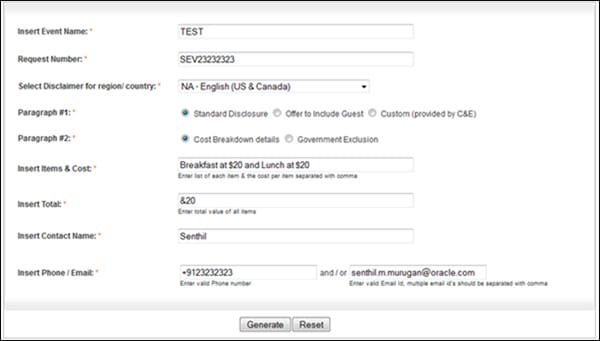
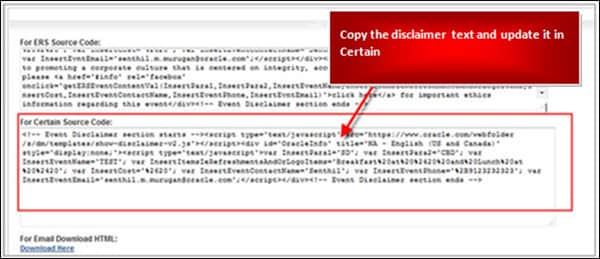
    1. Click Disclaimer Generator in the left nav of the DMS Catalog.
    2. Generate the disclaimer.


    3. Copy the disclaimer text.


    4. In Certain, under the Plan module, click Configure.
    5. In the left nav, click Display->Primary Display, and update the disclaimer script code in the Footer - Custom HTML or Text section.


    6. Click Save.


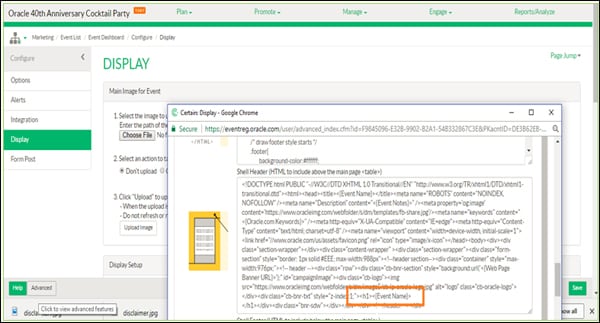
    To Update the Customized Event Name


    1. In Certain, under the Plan module, click Configure.
    2. In the left nav, click Display.
    3. Click Advanced, click Shell Header, remove the Event Name merge field and update the customized event name.

    All the fields under the Advanced shell header and footer have been updated with the custom dynamic data field. There is no action required from your end unless you would like to update a custom event name. You can change the event name under Event Setup. Alternatively, you can use the Event Name merge field, which automatically displays the header images. If the requester wants to modify the event name that is displayed in the header image, then you can update the customized event name text instead of using the merge field as shown below.
STEP 2 - Set-up Event Website (10 min)

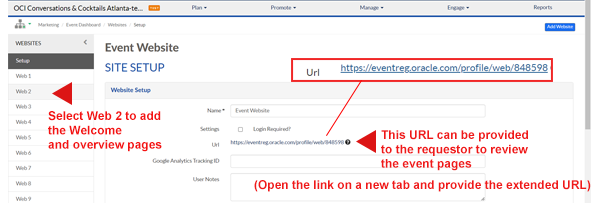
In this section, we will learn how to set up an event website, which will perform as a welcome page when the event is promoted through channels like emails or advertisement.
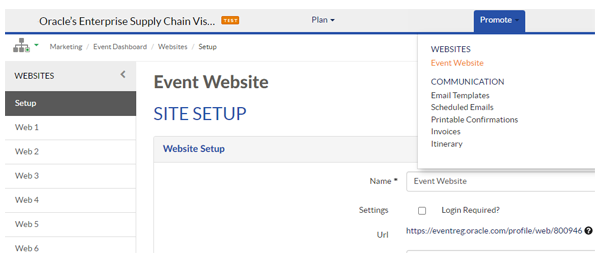
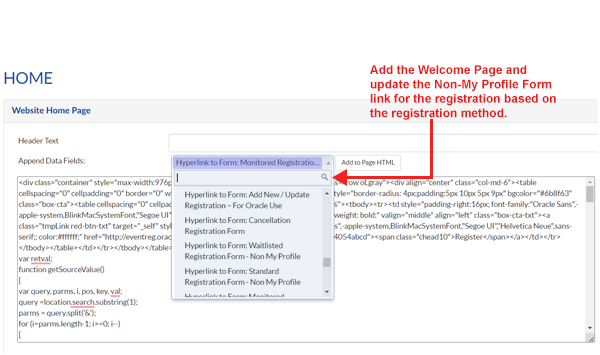
  1. Under the Promote module, click Event Websites.


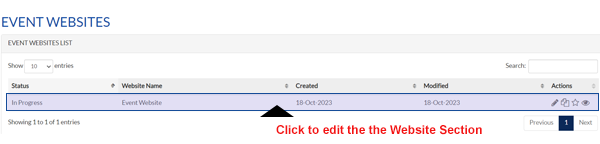
  2. Click the website name to edit the website section.


  3. In the website section, you can edit the Web 2 section and add the welcome page of the event. The website URL is the welcome page URL, which will be provided to requester.

  4. Associate the Non My Profile form link for the respective registration type to the Register for the Event button.


PRE-REQUSITE

STEP 3 - Enable registration through forms (15 mins)

In this section, we will learn how to navigate plan and set up different forms, to capture registrations.

  • A. Monitored Registration Form (My Profile)

    Follow these steps to associate the My Profile Monitored registration form.

    1. Select the Monitored Registration - My Profile Form
    2. Activate the Monitored Registration - My Profile form as primary and save.
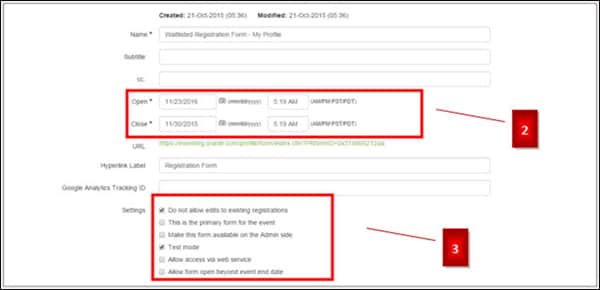
    3. Check the form open and close dates. (The start date should be the requesting creation date, and the end date should be after the event date.)
    4. The following settings are used to enable to form:
    • Do not allow edits to existing registrations – This option is used to restrict duplicate registrants.
    • This is the primary form for the event – This option is used to enable the primary form with SSO.
    • Make this form available on the Admin side – This option is used to enable the form under the registration section for admin usage.
    • Test mode – Initial setup will be in test mode. Uncheck the box once the event has been approved by the requester.
    • Allow access via web service – Not applicable, but this option is used to access in the web.
    • Allow form open beyond event end date – The default is unchecked; this option can be enabled based on demand.

    5. Accept the default registration status as O_Registration Pending.

    6. Check the My Profile form registration status and Logic Flow.


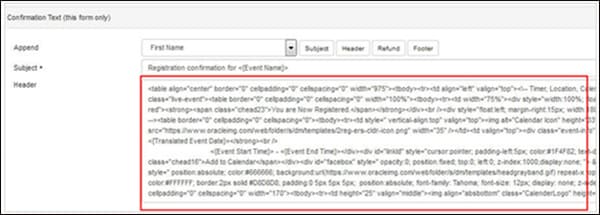
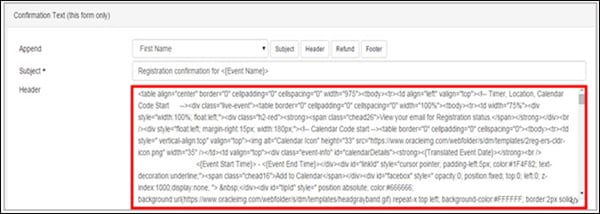
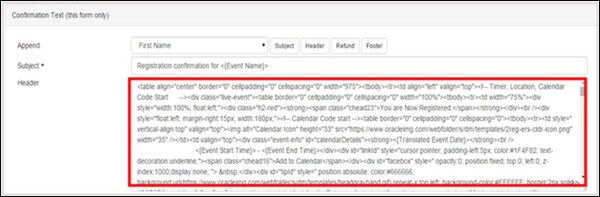
    7. On L.H.S, click the 'Confirm' tab, update the thank you page content under the 'Confirmation text' section and save.

  • B. Monitored Registration Form (Non My Profile

    Follow these steps to associate the 'Non My Profile' monitored registration form.

    1. Check the form open and close dates. (The start date should be the requesting creation date, and the end date should be after the event date.)
    2. The following options are used to enable the form:

      1. Check 'Do not allow edits to the existing registrations' – This option is used to restrict duplicate registrants from registering for this event. (Its a default setting)
      2. This is the primary form for the event – This option is used to enable the primary form with SSO.
      3. Make this form available on the Admin side – This option is used to enable the form under the registration section for admin usage.
      4. Test mode – Initial setup will be in test mode; uncheck the box once the event has been approved by the requester.
      5. Allow access via web service – Not applicable, but this option is used to access in the web.
      6. Allow form open beyond event end date – Default is unchecked; this option can be enabled based on demand.
    3. Accept the default Registration status of O_Registration Pending.
    4. Check the Non My Profile form registration status and logic flow.
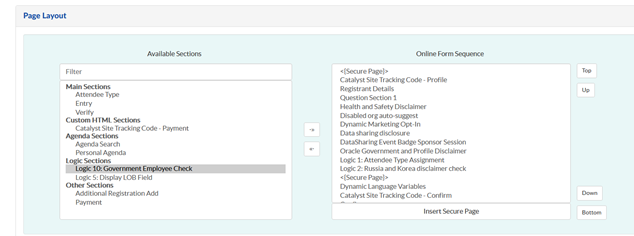
    5. Government Employee Validation Check:

      1. If Government Exclusion?="No" selected in the portal, Kindly remove the logic since no validation is required.
      2. If Government Exclusion?="Yes" selected in the portal, No Action is required, since already added logic to validate the government Employee.

      In Certain tool, please make this update: If Government exclusion: "No", Move Logic10 to from right panel to left panel. certainlogic
    6. On L.H.S, click the 'Confirm' tab, update the thank you page content under the 'Confirmation text' section and save.


  • C. Cancellation Registration Form

    Follow these steps to set up the cancellation form.
    1. Navigate to the 'Plan' module, click Forms.
    2. In the forms list, click the pencil icon to the right of the cancellation registration form to edit it.
    3. Check the form open and close dates. (The start date should be the requesting creation date, and the end date should be after the event date.)

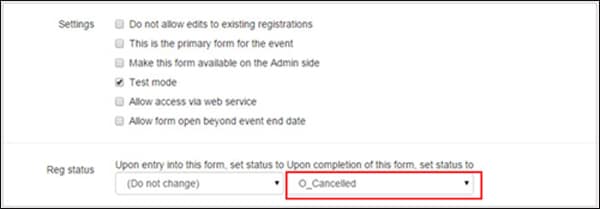
    4. By default Reg status will be chosen as O_Cancelled.

    5. By default cancellation form content will be there. If the requester has provided a different content then change it accordingly.

    Cancellation Form – Registrant Details Section

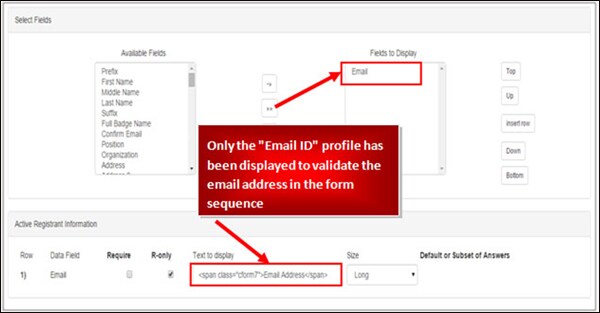
    This cancellation form link has been enabled or updated in the confirmation email. The logic has been set as default, and we don’t recommend adding or removing any logic or profile fields under this section.

    1. Review the following details.

    Header Text

    <div class="h4">Please validate your Email Address below and select the Continue button to confirm your cancellation. </div><br>


  • D. Add New / Update Registration Form

    This section is added to the In-Person Event Master template and is used by registration support users within Certain to add their registrants at event time.

    • Web form link is not to be shared with the marketers.
    • This form has to be set up for all the events until notified.

    When the event request is approved, the analyst does the following:

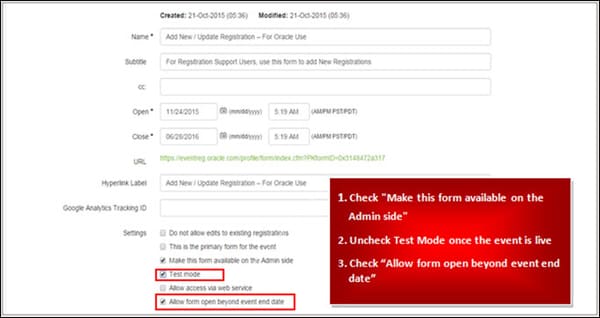
    1. From the 'Plan' module, click Forms.
    2. Edit 'Add New / Update Registration – For Oracle Use'.
    3. Check “Make this form available on the Admin side.”
    4. Uncheck test mode once the event is live.
    5. Check “Allow form open beyond event end date.”
    6. If the event has survey questions, add them under the Questions tab (use the same steps for other forms).

    Note: No changes to be made on the confirmation page or to the form processing steps.

  • E. Meal or Dietary Preference - Requirements

    Asking Dietary Restrictions is not a default standard for in person events and event managers should avoid setting expectation if you and your caterer are not going to make arrangements for specific meal preferences. Most events do not have the need to collect meal selection, some larger events require insight for catering order.

    If you need to get a sense of which meals and how many to order, set proper expectation of availability and understanding that selections are not for the individual but on a first come first serve basis. See disclosure below.
    • Proactively review what options your caterer can accommodate and only provide list of those that you will be able to fulfill.
    • Add the question to the form as follows:
    • Question title: Dietary or Meal Preference (not restrictions)
    • Question Type: List of Value (drop down or selector) only - open/free text fields are not allowed
    • List of values: Set default to None or Not Applicable, do not include "Other" as an option. Include only the values that the event manager has confirmed the caterer will be able to provide and is covered by the event budget (not all caterers can accommodate all the varied meals or allergies).
      Examples: vegetarian, vegan, Halal, Kosher, lacto-vegetarian, Ovo-vegetarian, ovo-lacto vegetarian
    • Add Disclosure: Manage the customer expectation and experience by adding this disclosure. This statement may also be used standalone to address inquiries and you can provide examples of what will be available on a first come first served basis.
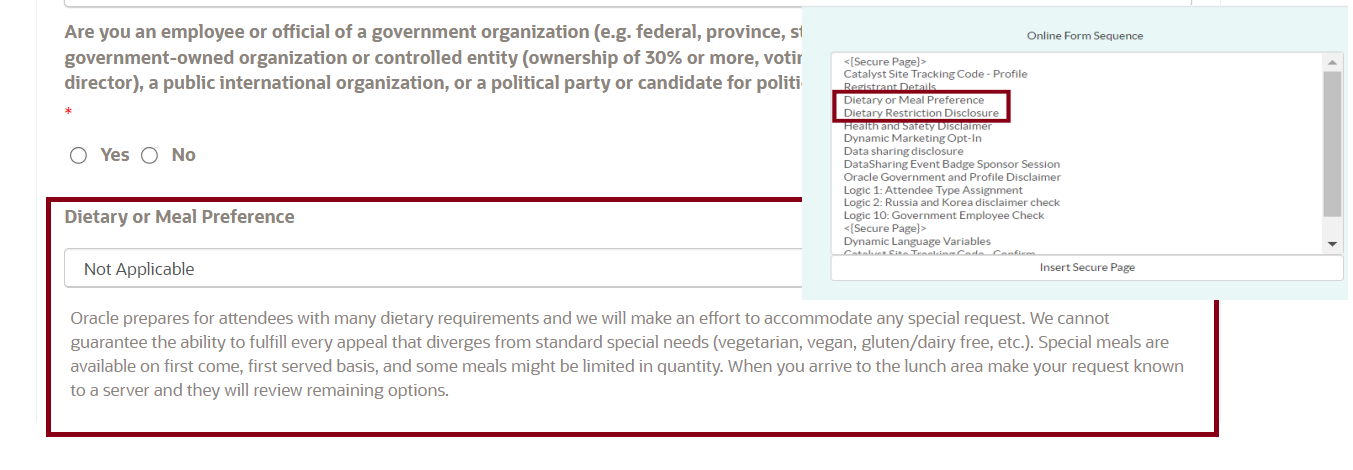
      Oracle prepares for attendees with many dietary requirements and we will make an effort to accommodate any special request. We cannot guarantee the ability to fulfill every appeal that diverges from standard special needs (vegetarian, vegan, gluten/dairy free, etc.). Special meals are available on first come, first served basis, and some meals might be limited in quantity.
    • You may provide a POC for an additional inquiries or questions but please be cautious in all communications not to commit or guarantee especially related to allergies or health requirements as you cannot control the environment, other attendees, or the actions of caterers and food preparation.

    • Example:

      STEPS YOU WILL NEED TO FOLLOW TO ENABLE THE DIETRY PREFERENCES IN YOUR EVENT:

      • Click on Plan -> Event Setup -> Content Block and ensure that the Dietary or Meal Preference disclosure is present.
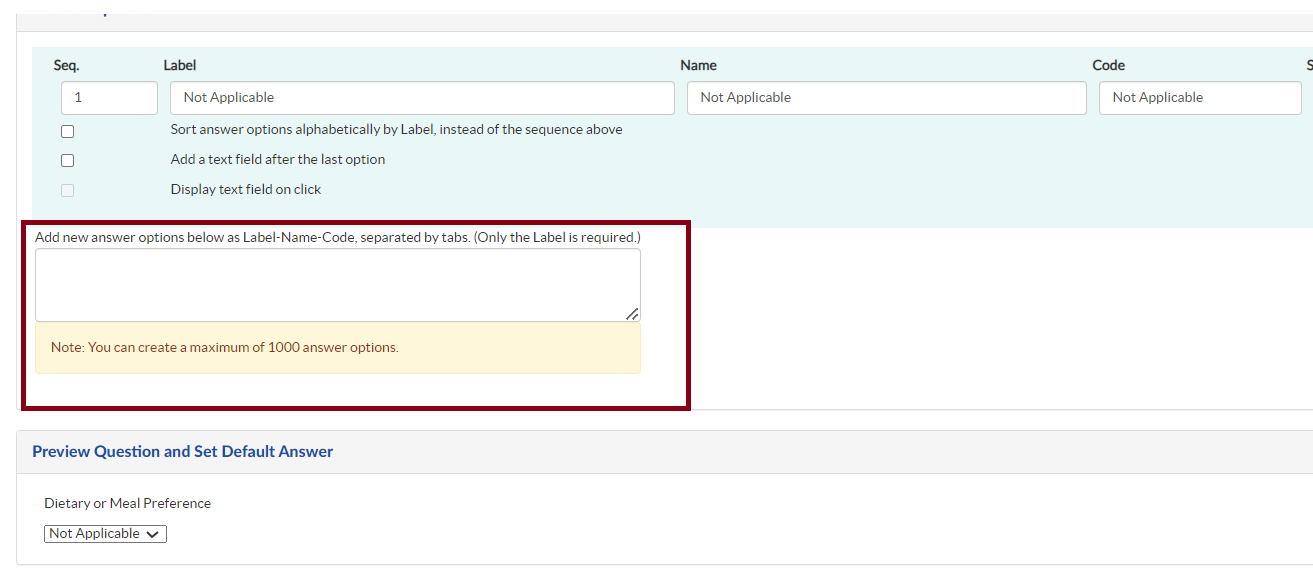
      • Next, Click on Question from Event setup and ensure Dietary or Meal Preference question is added. Click on edit and customise the answers based on your requirement as per below screenshot

      • Go to your form level, under questions section and ensure the Dietary or Meal Preference question is added.

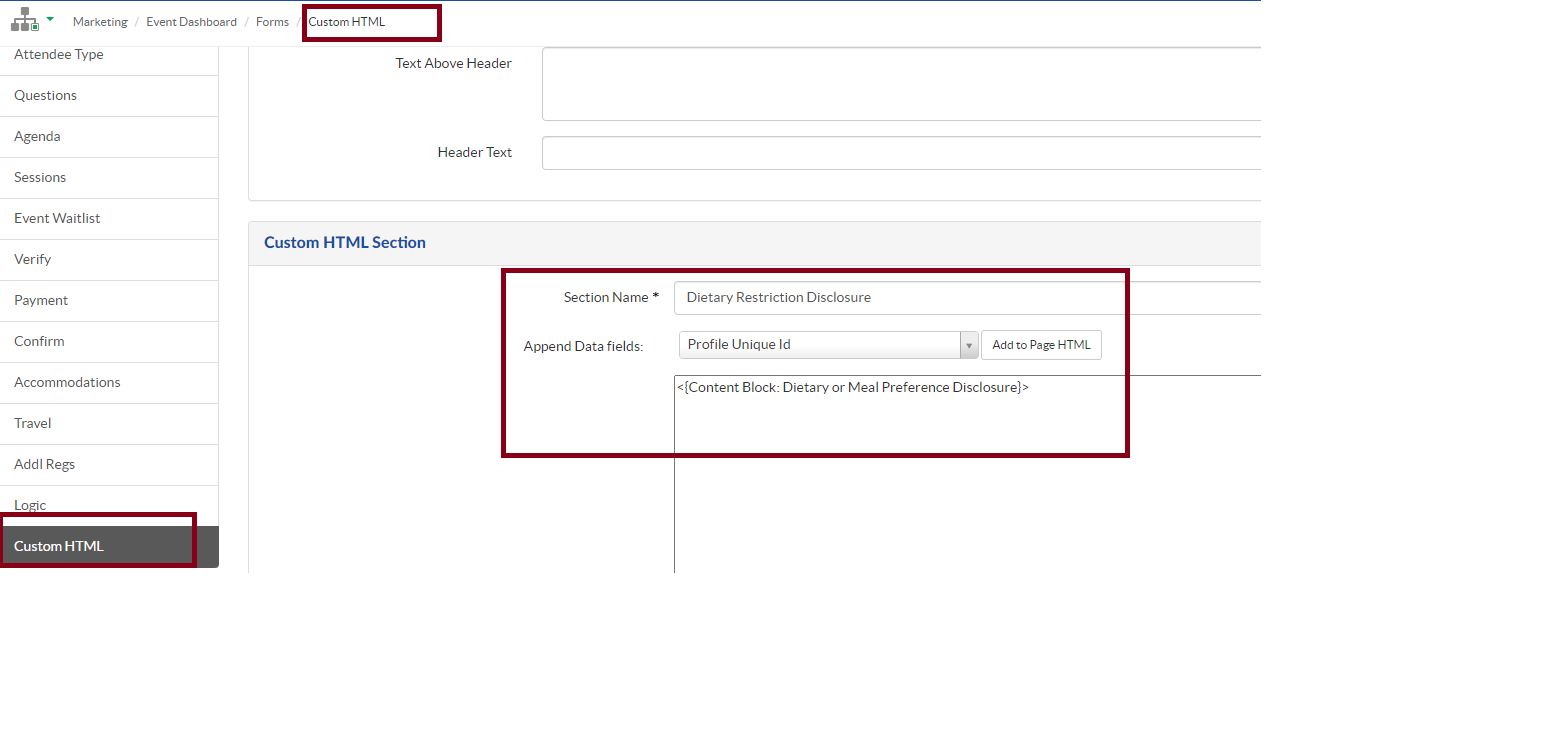
      • Go to your Custom HTML section,and ensure the Dietary Restriction Disclosure content block is added. Please note: Translations are on the way...

      • Now go to the setup section in the form and in the online form sequence level add the question and disclosure just after the Gov employee question.

STEP 4 - Create Notifications for Communicating with Event Registrants (10 min)

There are different types of notifications and this can vary based on the event and registration type.

Certain master templates have the following notifications added as default to support the Monitored registration type.

Navigate to the 'Promote' tab ➔ Communication ➔ Email Templates.

You can get the HTML code of the notifications directly on the Certain Email Notification Generator where you can select the Language and the Color Scheme so you can update on each one of the email templates (notifications) you need, you can go to the generator Here
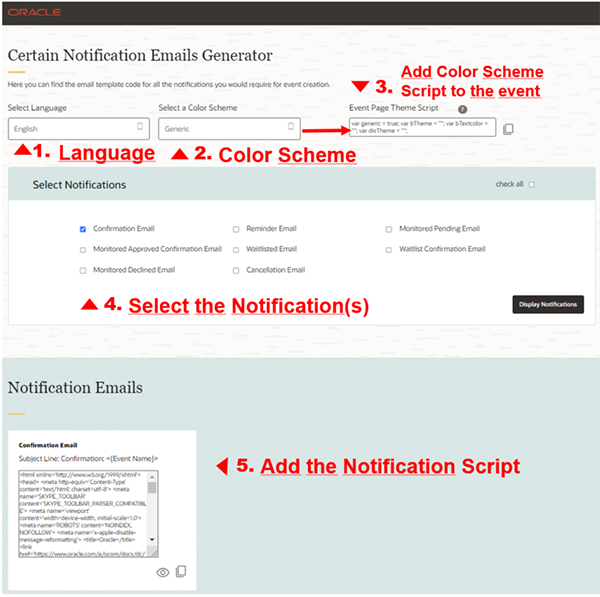

Certain Email Notification Generator
  • A. Monitored Registration Notifications

    Below are the notifications which are to be used for monitored registration

    • Cancellation Confrimation Email
    • Event Reminder Email
    • Monitored Approved Confirmation
    • Monitored Declined Email
    • Monitored Pending Email


  • B. Associating the Notification Pages

    The following custom statuses have to be created for monitored registrations.

    1. Navigate to 'Plan' module -> 'Custom Statuses'
    2. For each of the below mentioned custom statuses,
      click 'Advanced' button(a new window will appear named as 'Custom Status Logic Rules'),
      then click on the status and associate to the respective notification emails.
    • O_Registration Pending to be associated with the Monitored Pending Email.
    • O_Registrtaion Approved to be associated with the Monitored Approved Confirmation.
    • O_Registration Denied to be associated with the Monitored Declined Email.
    • O_Cancelled be associated with the Cancellation Confirmation Email.


  • C. Test Notifications Pages

    This section covers how to send the test notification to the requester for review.

    1. Log in to Certain.
    2. Select your event from the event list.
    3. Under the Manage module, click Registrations
    4. Click the registrant counts (the hyperlinked numbers within the chart) to find out the registrant details.

    5. Select the registrants to whom you want to send the test.
    6. Note: If you select all, then the test notification will be triggered to all.
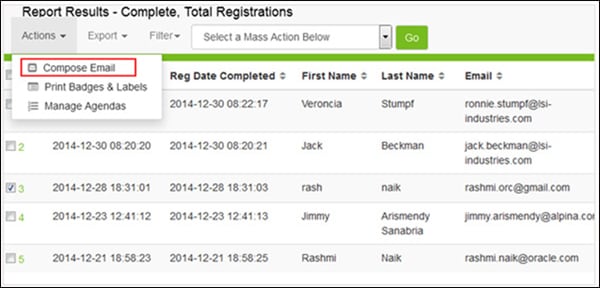
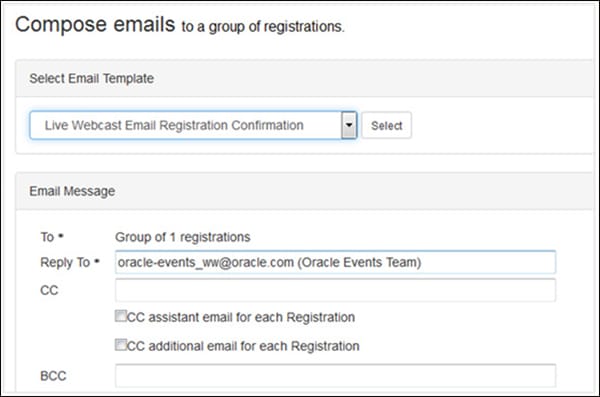
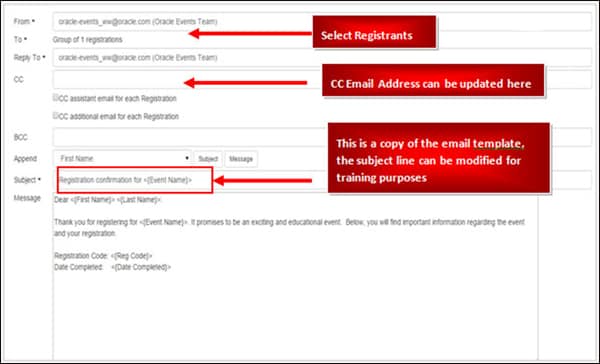
    7. Under the Actions menu, click Compose Email.

    8. Select the relevant 'Email Template' from the drop-down for test review. This will take the exact copy of the template from the Communication tab.

    9. The selected registrants’ email addresses will be added in the 'To' field. Add the email addresses of the requester and stakeholders in the CC field.

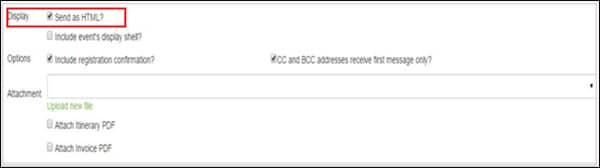
    10. Select 'Send as HTML' and click the Send Email NOW button to trigger the notification to the requester and stakeholders for review.

  • D. Reminder Notification

    The reminder notification has to be enabled and scheduled once the event is created in Certain.

    1. Navigate to 'Promote' tab - > Email Templates -> Edit the Event Reminder Email
    2. Scroll down to find 'Schedule Settings', check 'Schedule this Email?' checkbox
    3. In the Schedule fields, select the date and time that the reminder has to be scheduled.
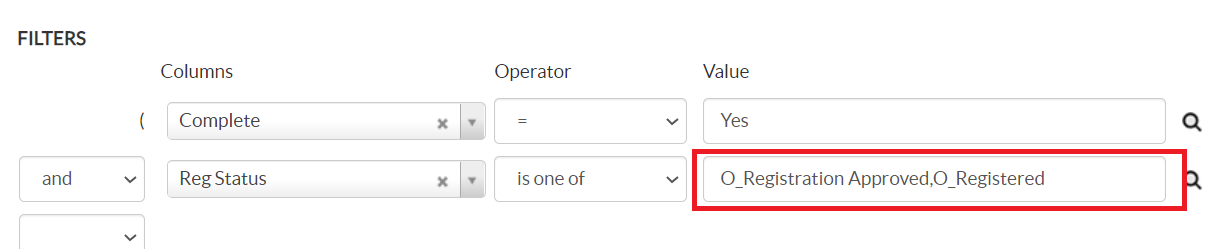
    4. Set the Filter logic with the values from the Filter Values table (below).
    5. Save the reminder email.

    Filter Values

    certainremindersetup

STEP 5 - Publishing the Event (10 min)

In this section, you will find steps for publishing events on events.oracle.com, also known as the events search page.

In Certain Application,

Under the Plan module, click Event Setup and update the following fields.
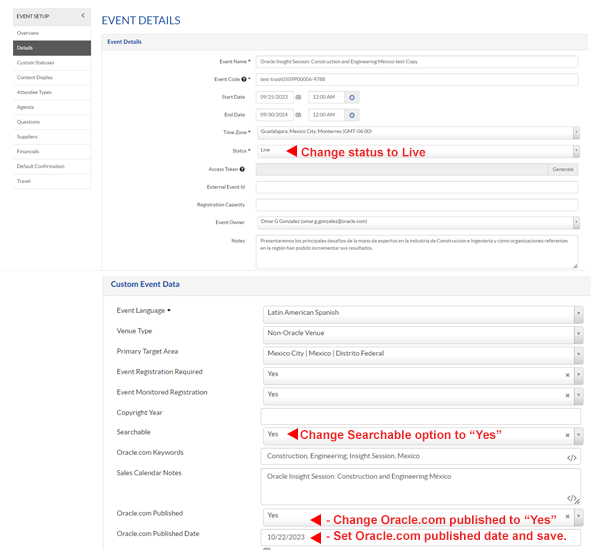
  • Change the event status to Live.
  • Change the Searchable option to Yes.
  • Change the Oracle.com Published option to Yes.
  • Set the Oracle.com published date and save.


  • Once the event status is changed to live, a pop of the list of forms would appear and you will need to select only the forms that you will use in your Event and Click on 'Save' so those forms will be active. Note: Additionally please select 'Add New / Update Registration – For Oracle Use Form.

In GMSS Portal,

  1. Check the Program Status and Event Status as it should be Active
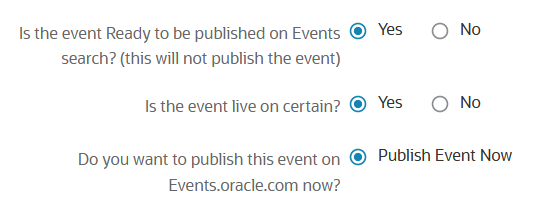
  2. Click on GMSS Edit Section, and choose Yes for:
    1. Is the event ready to be published on Events Search page
    2. Is the Event live on Certain.
  3. Choose Publish Event now option for the field “Do you want to publish this event on Events.oracle.com”

  4. Allow a few hours for it to display on the Event Search Page.

You can view this Guidelines for Events Publishing to know important steps to follow and things to consider when publishing events on the Oracle Events Search.

Nailed it?

If yes, click below to confirm completion of this topic.

Yes, I have understood this topic well


Integrated Cloud Applications & Platform Services

We're here to help

Discussion Forum

  • To participate in our discussion forum join the slack channel #mktg-demandcenter or click here