Nomination-Based Events


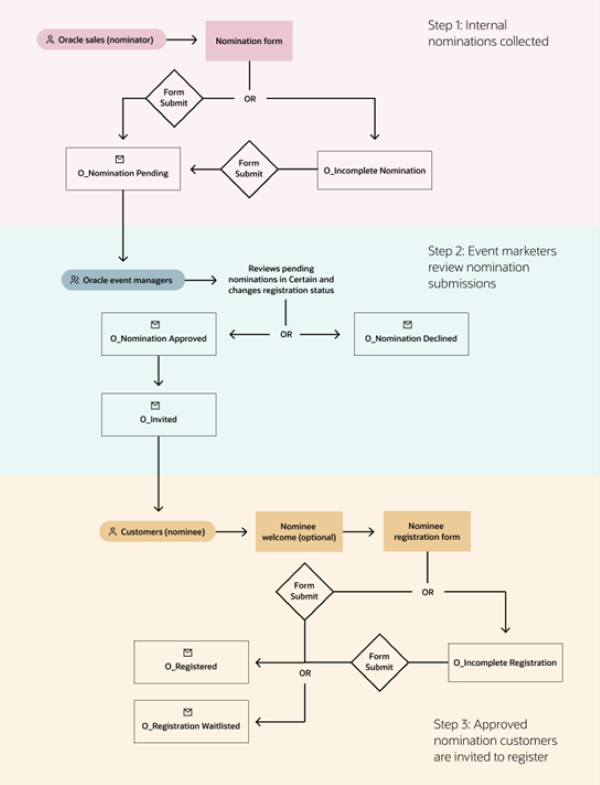
Process flow

STEP 1 - Nomination-Based Events

  • A. Nomination Portal Request Guide

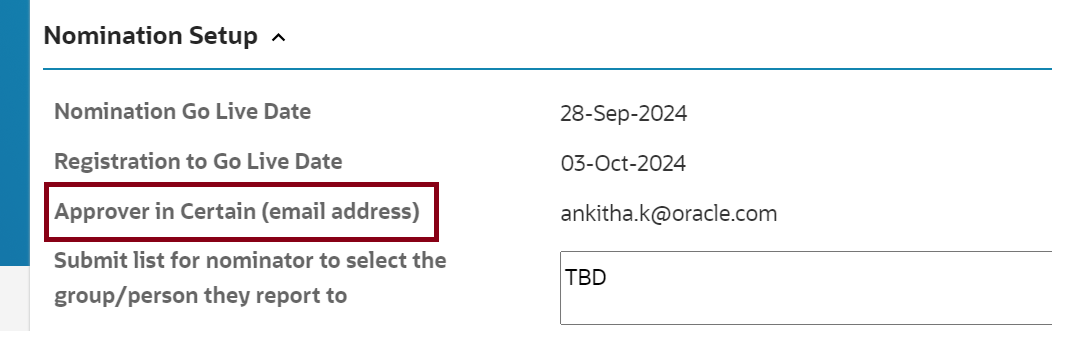
    The marketer completes the following Nomination Set Up fields, illustrated below:

    • Nomination Go Live Date: This is the date the marketer wants the Nomination form to go live. Please note, the nomination form can be submitted to QA and go live before the nominee & special invitee registration pathway is ready.
        i. This consists of the Nomination form, nomination pending email, nomination declined email and nomination approved email.
    • Registration to Go Live Date: This is the date the marketer wants the nominee & special invitee registration pathways live.
        i. This consists of the Certain invitation email (optional), welcome page for nominees & special invitees (both are optional), nominee registration form, special invitee registration form (optional), and all related email notifications to both registration pathways.
    • Approver in Certain (email address): The approvers will be updated in the event system and manage the registrants.
      Note that the mandatory fields are marked with an asterisk.
    GMSS Portal
    Nomination Info

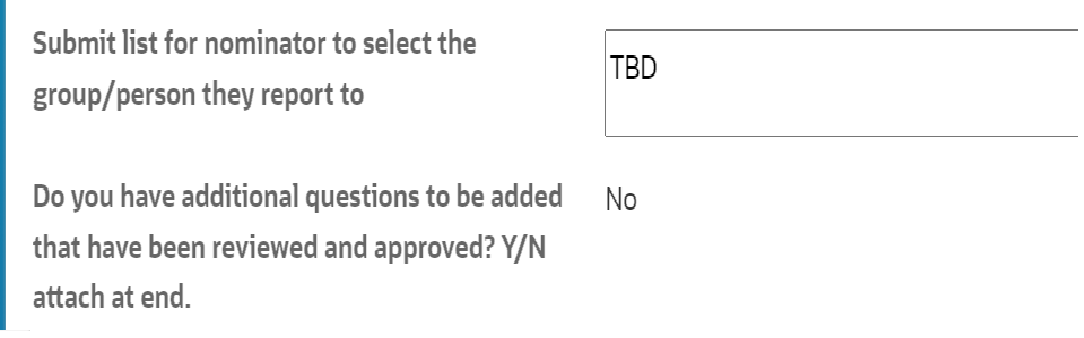
    • Submit list for nominator to select the group/person they report to: This field is used to identify the list of values (LOV) that has to be updated for the "Who do you report to" form field in the notification.
    • Do you have additional questions to be added that have been reviewed and approved? Y/N attach at end: If the requester would like to add or modify the nomination form questions, they should contact Christine Hross or Marketing Compliance for approval.
      Note: The nomination form cannot be edited in any way without approval.

    GMSS Portal
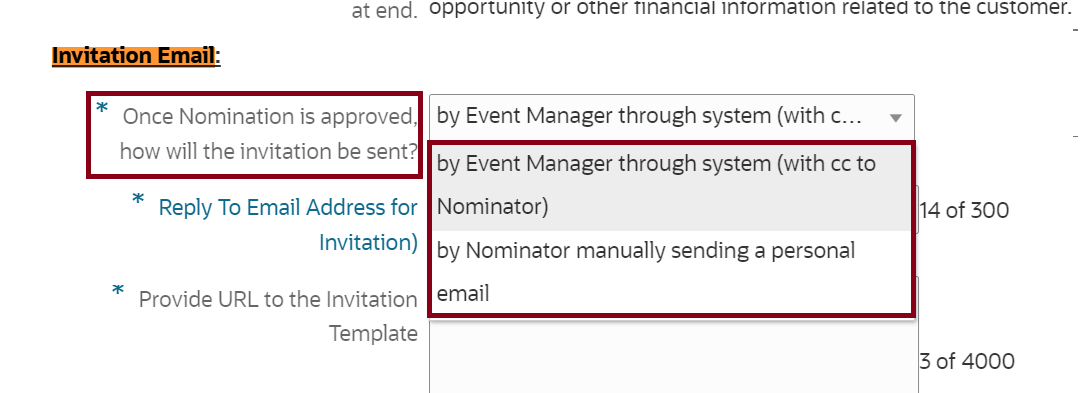
    Invitation Email: The marketer completes the Invitation Email question, shown below:
    • Once Nomination is approved, how will the invitation be sent?: This section identifies what type of email to send to the nominator after the nominee has been approved by the event manager or approver. The options are:
      • By Event Manager Through System (with cc to Nominator): The event manager submits the invitation copy, and the analyst creates the same in the system. The event manager uses the invitation email and sends it to the approved nominee list.
      • By Nominator manually sending a personal email: The event manager approves the nominee from the system, and the system automatically sends the notification to the nominator. Then the nominator can follow up with the customer using the provided instruction in the notification to register for the event.
    GMSS Portal

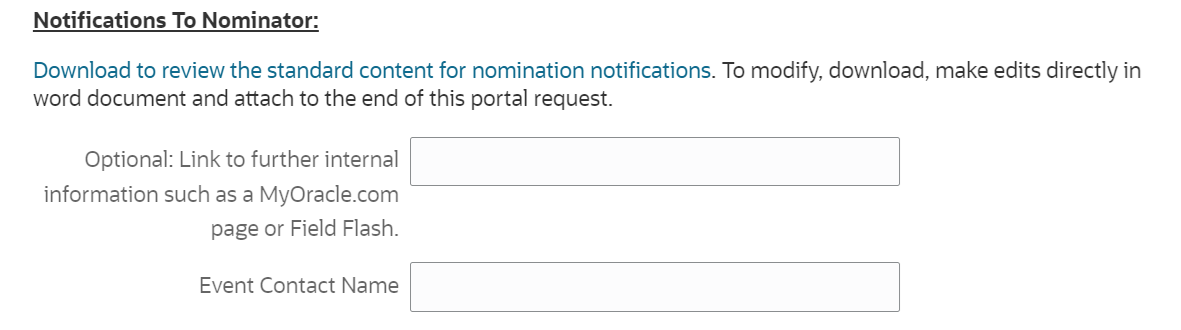
    Nominator Email Notifications:

    • Optional: Link to further internal information such as MyOracle.com page or Field Flash: If a marketer provides a URL, this should be included in the nomination pending, nomination declined and nomination approved emails as well as on the nomination form’s confirmation page. If it is blank, the further information link in the above emails and pages can be deleted.
    • Event Contact Name: If a marketer provides a name/email ID, this contact may be included in the nomination pending, nomination declined and nomination approved emails as well as on the nomination form’s confirmation page as someone to reach out to if there are any questions regarding a nomination. If it is blank, no action is required.
    GMSS Portal
  • B. Nomination Overview

    Overview of Forms, Notifications, Statuses and Attendee Types
    Nomination events have forms, notifications, custom statuses and attendee types, just like standard, monitored and waitlisted events. This section describes them and explains how to set them up.

    Forms
    To execute nomination event requests, the Demand Center team uses a combination of forms including the Nomination Form, Standard or Waitlisted Nominee Non My Profile form and Monitored Special Invitee Non-MyProfile and MyProfile forms. See the form list below for specific information and guidance on each form and when to use them.

    Nomination Related Forms
    There are 3 nomination related forms to setup depending on the event use case. You will pick either the Nomination Form OR High Event Value Org Approval Form(Business Courtesy). In some cases, you may also need to setup the Nomination Approval Form.

    • Nomination Form: Use this form for an event that will not involve a business courtesy requirement (the cost per person for the event must be under $1,000 US).
    • High Event Value Org Approval Form(Business Courtesy): Use this form for an event that will include a business courtesy requirement (the cost per person for the event is over $1,000 US).
    • Nomination Approval Form (Optional): Use this form in conjunction with 1 of the above nomination forms only if the nomination submissions need to be reviewed and approved/declined by Oracle employees that will not have access to the Certain event instance.

    Nominee Registration Related Forms
    Approved nominees will register on a non-myprofile form that is either standard or waitlisted. The nominee forms include an entry page that validate the registrant using this form has gone through the nomination process and was approved to attend. You will pick one of the below forms depending on what is listed in your portal request details. Both of this forms can optionaly be linked to in a Welcome page or the direct form links can be provided to the marketer instead.
    1. Standard Nominee Reg Form – Non My Profile
    2. Waitlisted Nominee Reg Form – Non My Profile
    3. Monitored Special Invitee Reg Form – My Profile/Non My Profile

    Other Registration Forms

    • Cancellation registration form: Used for registrants who would like to cancel their registration.
    • Special Invitee Re-Registration Form: Used for registrants who would like to change their agenda sessions.
    • Tele-Registration Form: Used to register users via inbound or outbound telephone calls.
    • Add New/Update Registration – For Oracle Use: Used by registration support users within Certain to add their registrants at event time.
    • Walk-in Form: Set this form up for special invitees who need to register onsite.
    • High Event Value Org Approval Form (Business Courtesy) Form: Set this form up if your event is over $1,000 USD per person. This form is used by a registrant’s ethic/legal officer to approve his/her attendance of the event. The only exclusion from this process are Oracle employees attending the event. All other attendees must comply with this process.

    Note: An internal courtesy form does not exist in a nomination event. Oracle employees should be using the nomination form to submit customers for reg instead.

    Notifications/Communication Related Emails
    Use the following notifications for nomination-based events.

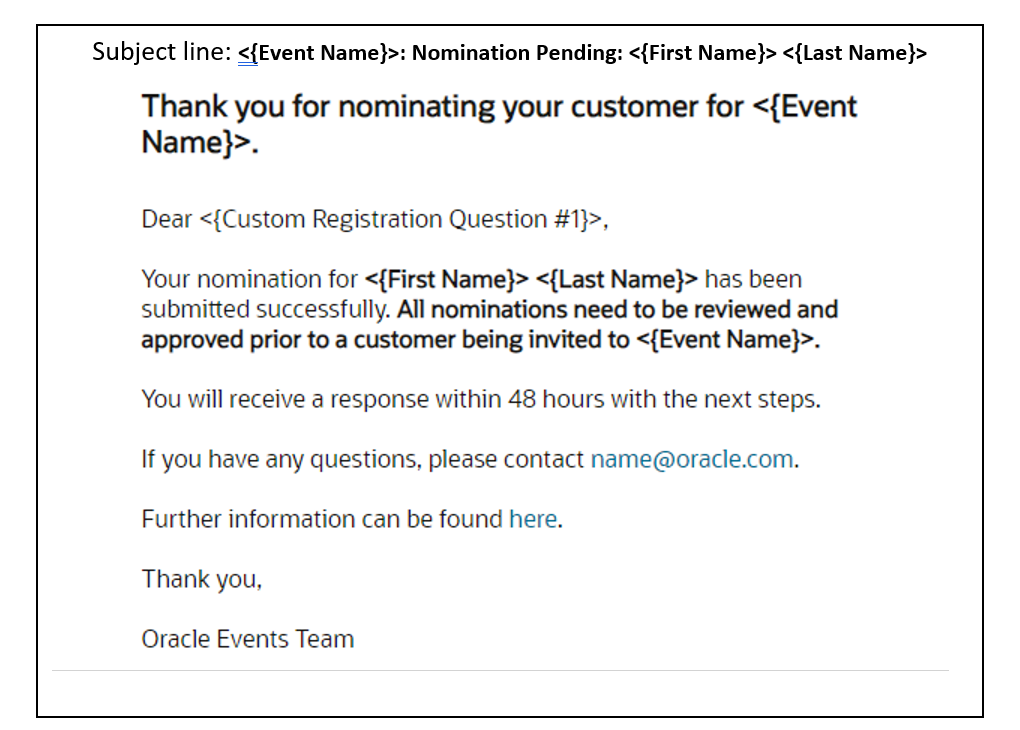
    • Nomination Pending Email to Nominator: Email notification auto triggered by the reg status “O_Nomination Pending” to the nominating Oracle Sales Rep upon successful completion of a nomination form. This email must have an Oracle internal footer.
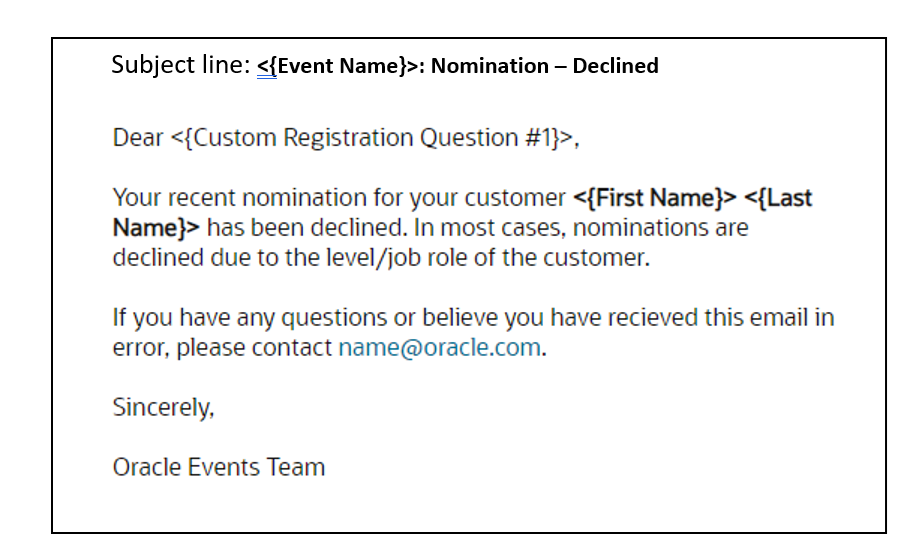
    • Nomination Declined Email to Nominator: Email notification auto triggered by the reg status “O_Nomination Declined” to the nominating Oracle Sales Rep when an event manager has declined the customer to receive an invite to the event. This email must have an Oracle internal footer.
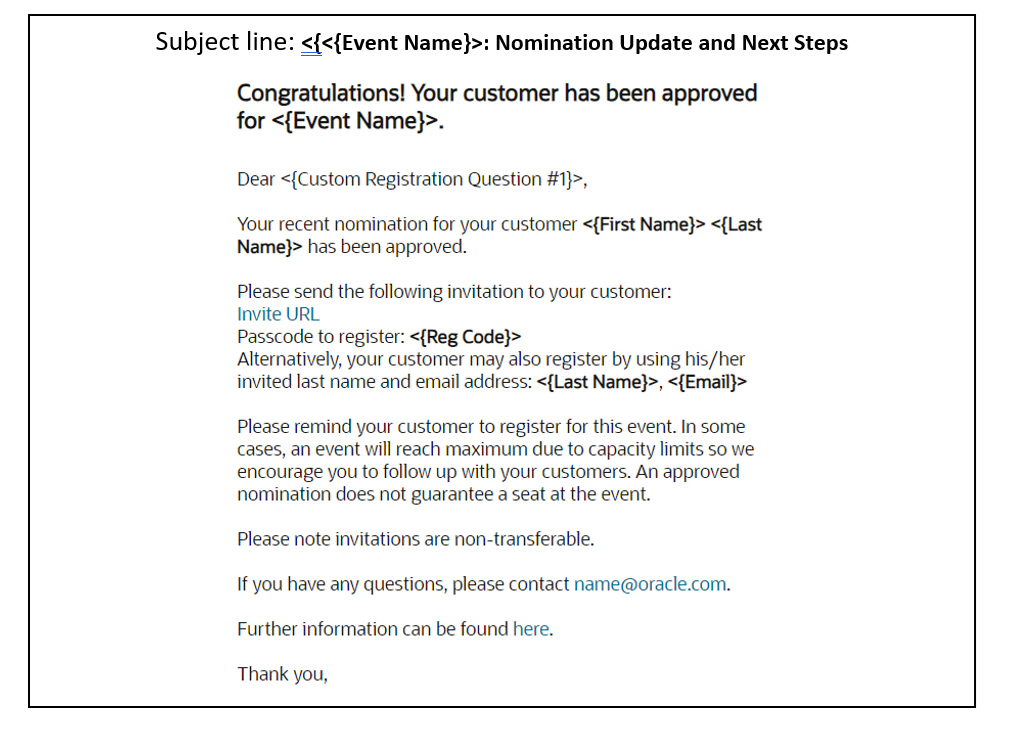
    • Nomination Approved 2 Nominator – Nominator Invites: Use this email notification to be auto triggered by the reg status “O_Nomination Approved” to the nominating Oracle Sales Rep when the invitation email should be sent by the nominator. This email will generally contain further instructions or a link to a sales evite for the sales rep to proceed inviting the approved customer to the event. This email may also be used if the invitation is going to be sent by another manner outside of Certain, such as physical mailers or a personal email from an Oracle VP, ect. This email must have an Oracle internal footer.
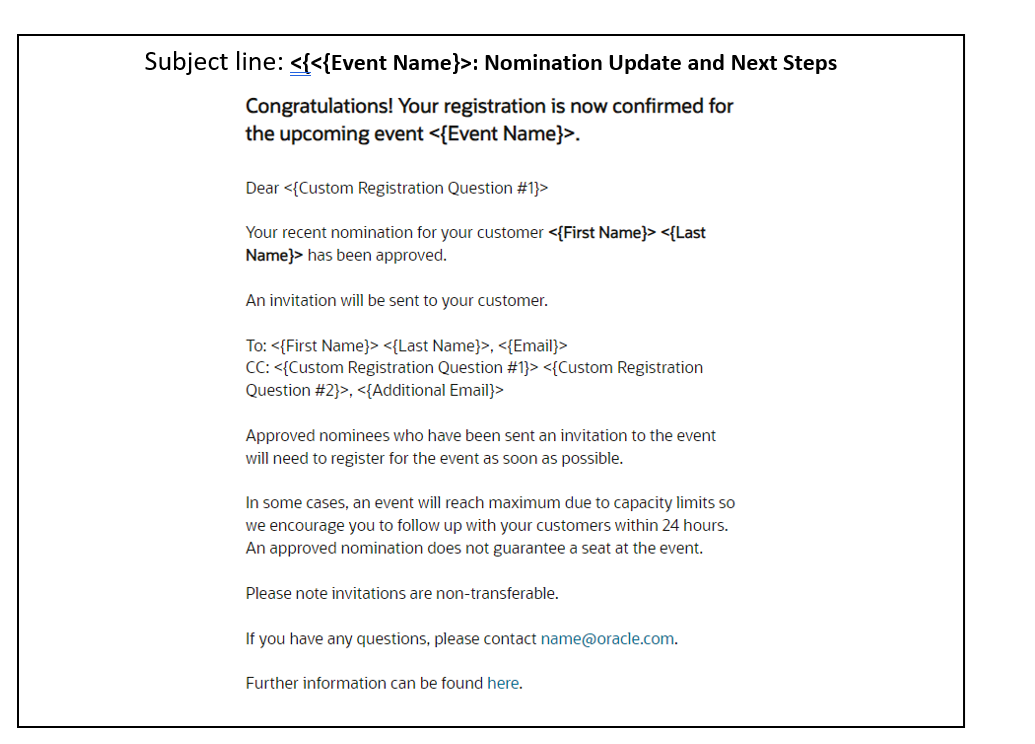
    • Nomination Approved 2 Nominator – Event Manager Invites: Use this email notification to be auto triggered by the reg status “O_Nomination Approved” to the nominating Oracle Sales Rep when the invitation email will be sent by Certain. This email must have an Oracle internal footer.
    • Incomplete Nomination Email (triggered to Sales Rep to inform about incomplete registrants to ask them to complete their nominations).
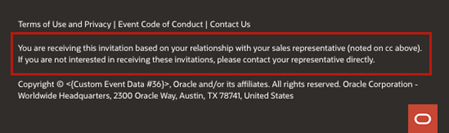
    • Customer Invitation: Use this email when the invite should be sent out of Certain when the reg status is changed to “O_Invited”. This email must have the nomination invitation email footer and must include the nominating Oracle Sales Rep in CC for opt-out purposes.
    • Nomination Approver Email: Set up a nomination approver email with instructions and link to the “Nomination Approval Form” if your event requires nomination submissions to be reviewed and approved/declined by Oracle employees that will not have access to the Certain event instance. This email should go to the Oracle employee(s) reviewing the nomination submissions and must have an Oracle internal footer.


    Nominee Registration-Associated Emails

    The following notifications are triggered to the customer.
    Standard Nominee Emails:

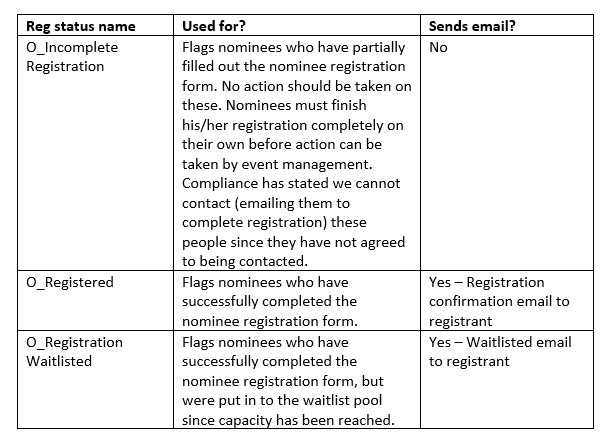
    • Email Registration Confirmation: Setup like you would for a standard event as confirmation of successful registration. This email should go to the registered nominee and may CC the nominating Oracle Sales Rep if required by the event marketer. This email should be auto triggered by the reg status “O_Registered”.

    Waitlisted Nominee Emails

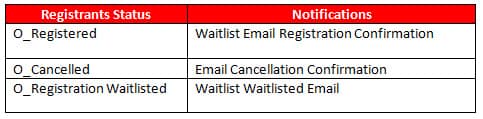
    • Waitlist Email Registration Confirmation: Setup like you would for a standard event as confirmation of successful registration. This email should go to the registered nominee and may CC the nominating Oracle Sales Rep if required by the event marketer. This email should be auto triggered by the reg status “O_Registered”.
    • Waitlist Waitlisted Email: Setup for waitlisted nominee registration pathway only as done for a waitlisted event. This email should go to the registered nominee and may CC the nominating Oracle Sales Rep if required by the event marketer. This email should be auto triggered by the reg status “O_Registration Waitlisted”

    Monitored Special Invitee Emails

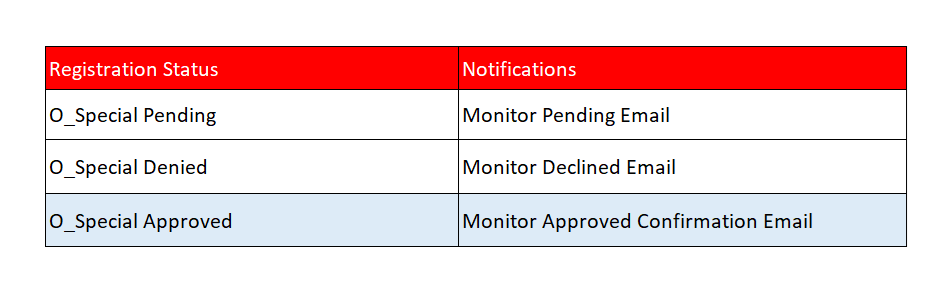
    • Monitored Pending Email: Setup like you would for a monitored. This email should go to the registered special and should be auto triggered by the reg status “O_Special Pending”.
    • Monitored Declined Email: Setup like you would for a monitored. This email should go to the registered special and should be auto triggered by the reg status “O_Special Declined”.
    • Monitored Approved Email Setup like you would for a monitored. This email should go to the registered special and should be auto triggered by the reg status “O_Special Approved”.

    Org Approval (Business Courtesy) Emails (Only required if the event is over $1,000 USD per person)

    • Org (Business Courtesy) Approved Email: Email is auto sent upon successful completion of the “Business Courtesy Form” and the ethics/legal officer elected to approve the registrant to attend. This email must go to both the business courtesy approver’s email (Assistant email) and the registrant’s email.
    • Org (Business Courtesy) Declined Email: Email is auto sent by the reg status “O_Registration Declined” upon successful completion of the “Business Courtesy Form” and the ethics/legal officer elected to decline the registrant to attend. This email must go to both the business courtesy approver’s email (Assistant email) and the registrant’s email.

    Other Emails

    • Event Reminder Email: Setup as normal. Schedule to launch to Reg statuses are one of “O_Registered”, “O_Special Approved” AND Complete = Yes.
    • Cancellation Confirmation Email: Setup as normal. This email auto triggers to special invitees and/or nominees by the reg status “O_Cancelled”.
    • Venue Change Email
    • Speaker Change Email
    • Schedule Change Email
    • Post Event Thank You Email: Setup as normal. Schedule to launch to Reg statuses are one of “O_Attended”, “O_Walk In” AND Complete = Yes.
    • Post Event Sorry Email: Setup as normal. Schedule to launch to Reg statuse = “O_NoShow” AND Complete = Yes.

    Registration Statuses

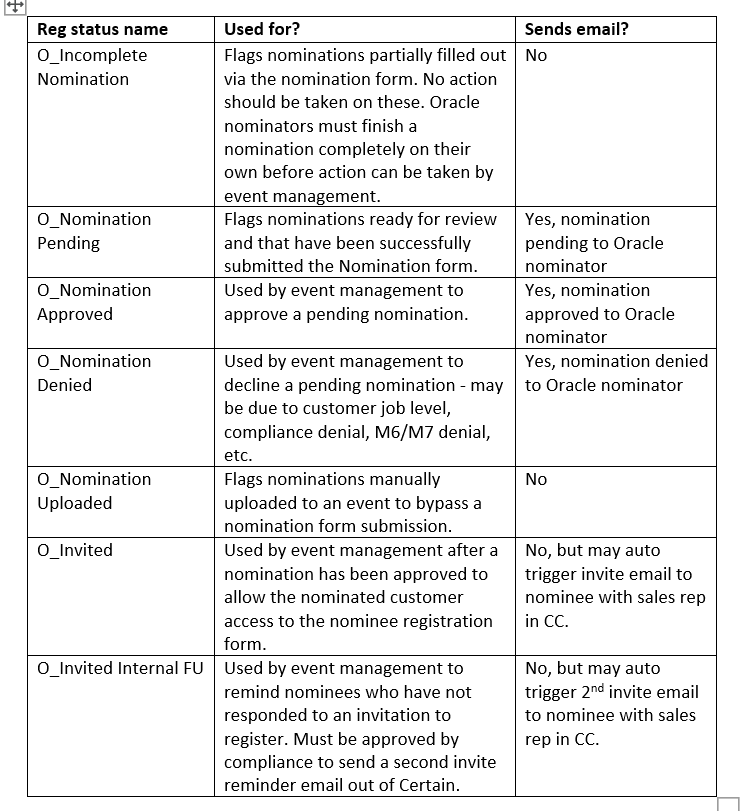
    The following table provides a description of each nomination-based event registration status and the type associated with the status.

    Attendee Types

    You can assign the following attendee types, which are available in Certain.

    • Nominations: This attendee type is assigned by the nomination form when an Oracle sales rep nominates a customer. This attendee type is a flag to say that a nominee has not made it out of nomination review or has not taken action to register.
    • Pre-approved Nominations: This attendee type is used only when compliance has approved a list of vetted nominees to be collected externally and uploaded into Certain, bypassing the nomination form.
    • Registered Nominations: This attendee type is assigned by the nominee registration form (either standard or waitlisted flow) when a customer enters the form. This attendee type is a flag to say an approved nominee customer is attempting to or has completed registration.
    • Special Invites: This attendee type is assigned by the special invitee registration form, tele registration form and/or walk in form. This attendee type flags special guests outside of the nomination process such as speakers, vendors, partners, ect who are not Oracle employees.
    • Oracle Staff: This attendee type is assigned by the special invitee registration form or the walk in form. This attendee type flags Oracle employees who are attending the event.
    • Test: This attendee type is used to manually mark registrations created for testing purposes.
STEP 2 - Copying the Template

Now that you understand nomination-based event flows, forms and statuses, you can start to set up the event. First, you will begin with the templates. Follow the steps outlined below.

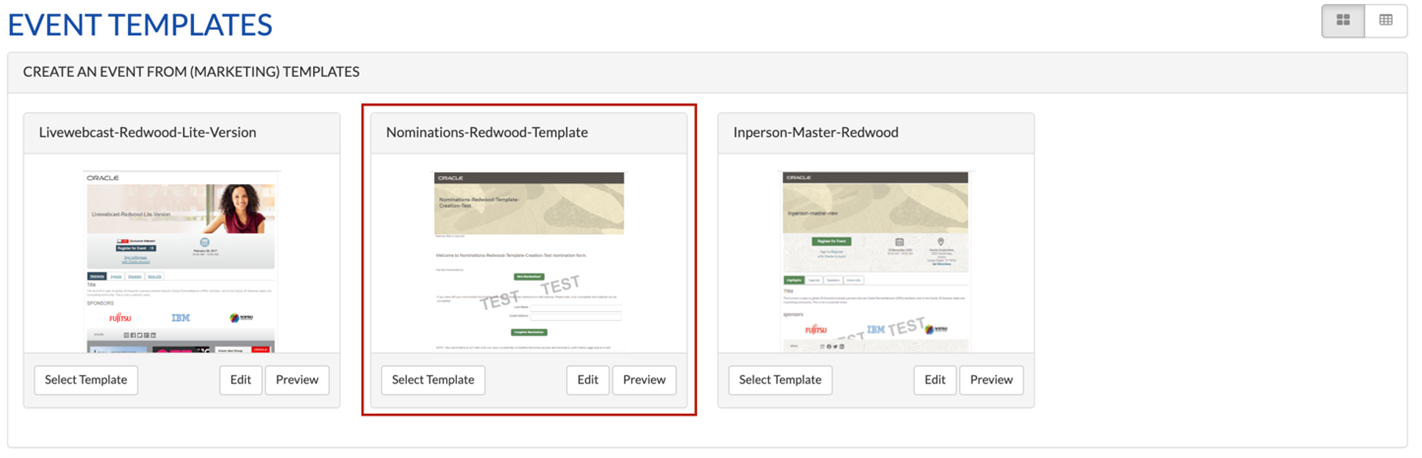
  1. Log in to Certain, set the subaccount and then click on “Templates” in the top menu.
  2. Click the “Select Template” button for “Nominations-Redwood-Template”

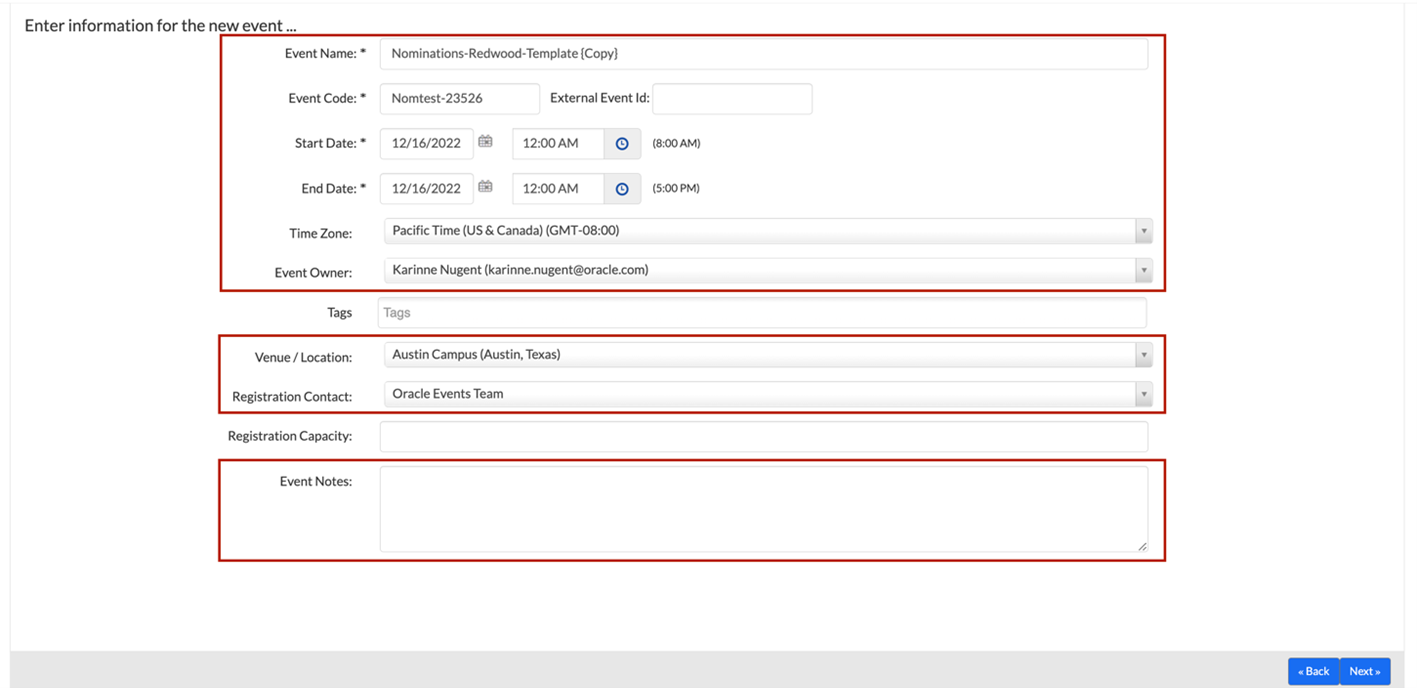
  3. Follow the Event Setup pages to create the event using the details from your portal request as you normally would for any other Certain event.

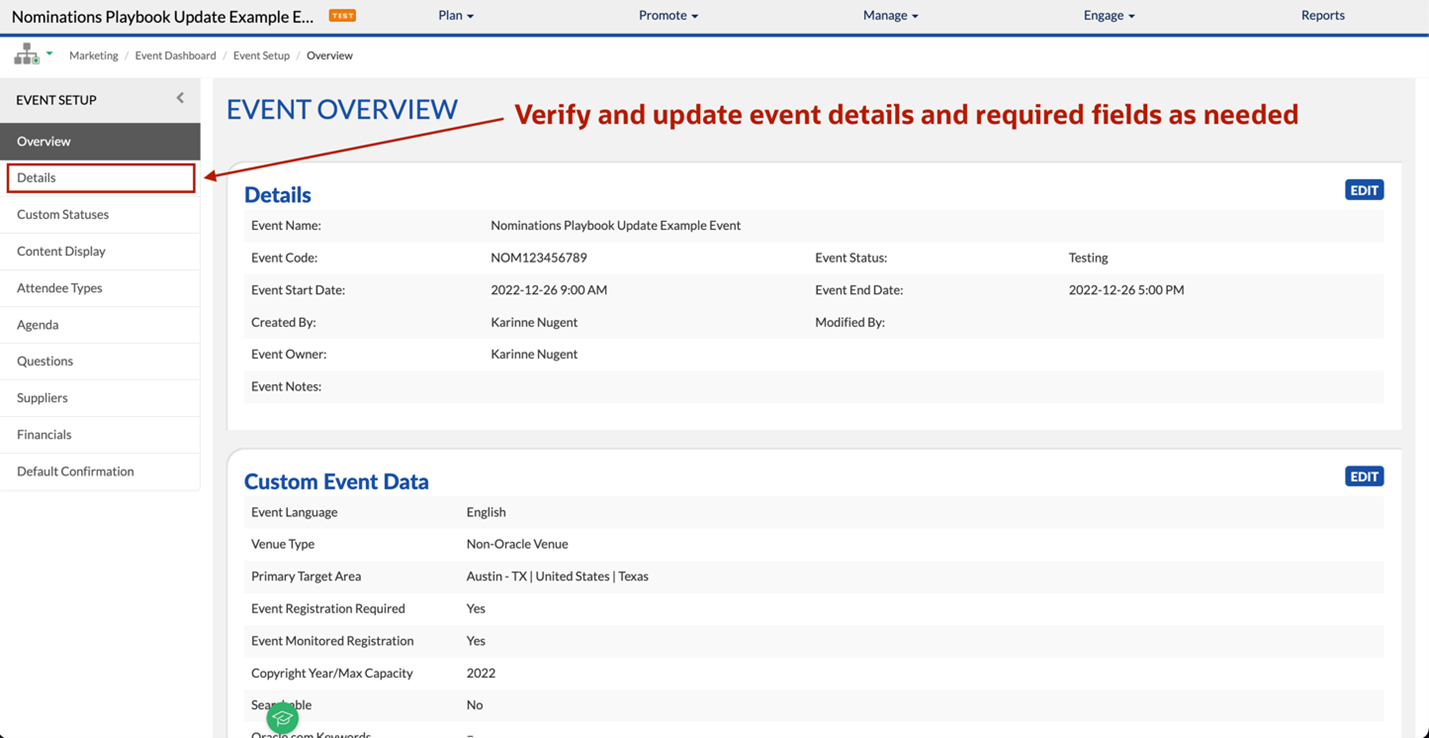
  4. Once you have successfully copied the nomination template, you can verify and modify the details entered from the Event Setup process using “Event Setup” > “Details tab”.


PRE-REQUSITE

STEP 3 - Creating a Nomination Based Event Form

Once you have completed the steps outlined above for the template, you can start to create the nomination-based event. You will begin by processing the request as you process any standard or waitlisted event by doing the following:

To start, you must first pick which nomination form(s) is appropriate for your event.

  1. Nomination Form: Use this form for an event that will not involve a business courtesy requirement (the cost per person for the event must be under $1,000 US).
  2. High Event Value Org Approval Form(Business Courtesy) Use this form for an event that will include a business courtesy requirement (the cost per person for the event is over $1,000 US).
  3. Nomination Approval Form (Optional): Use this form in conjunction with 1 of the above nomination forms only if the nomination submissions need to be reviewed and approved/declined by Oracle employees that will not have access to the Certain event instance.


All the fields in the Nomination Form with or without business courtesy are predefined by Oracle compliance and legal. These fields are displayed in the online form using registration fields, custom question sections, logics and custom HTML sections. Make the necessary changes based on the requester demand within compliance regulations.

The predefined form, with the exception of “Who do you report up to”, cannot be modified or added to without compliance approval. The only other exception is adding a question that allows sales to nominate a customer for a specific date or event if multiple options exist in a single event build.

Note: The nomination forms use an entry page enabling the nominator to nominate a new customer or edit an incomplete nomination. The nomination approver form also uses an entry page to allow edits to a specific nomination submission.

  • A. Setting up the Nomination Form

    1. Within your event, under the Plan module, click Forms. Click the pencil icon to edit the Nomination Form.

    2. Check the form open and close dates. (The start date should be the requesting creation date, and the end date should be after the event date.)

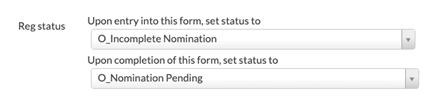
    3. Verify Reg status:
        a. Upon entry into this form = O_Incomplete Nomination
        b. Upon completion of this form = O_Nomination Pending

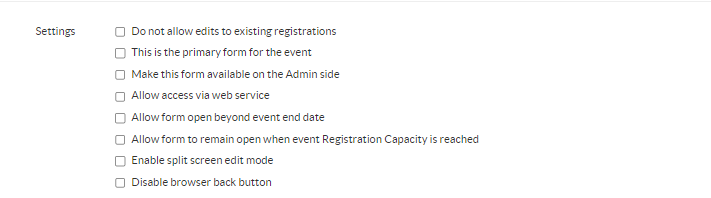
    4. Verify no boxes are checked in the Settings options
       a. If request requires it you may check:
          i. Allow form open beyond event end date (keeps the form open when the event ends.)
          ii. Allow form to remain open when event Registration Capacity is reached (keeps the form open if the total capacity of the event is reached)

    5. Do not modify the online form sequence since it has been tested and approved.

    6. Click Save.

  • B. Creating an Nomination Page 1 – Entry

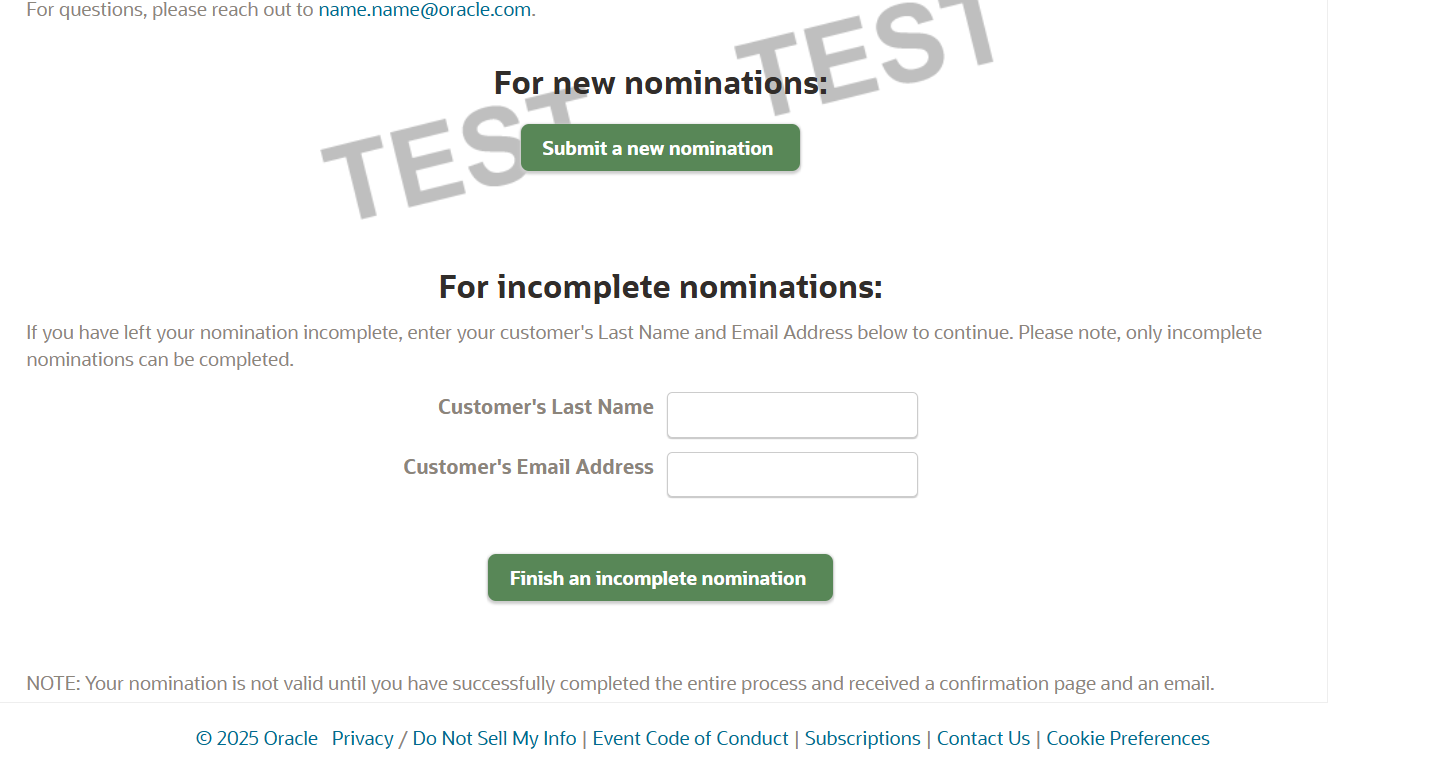
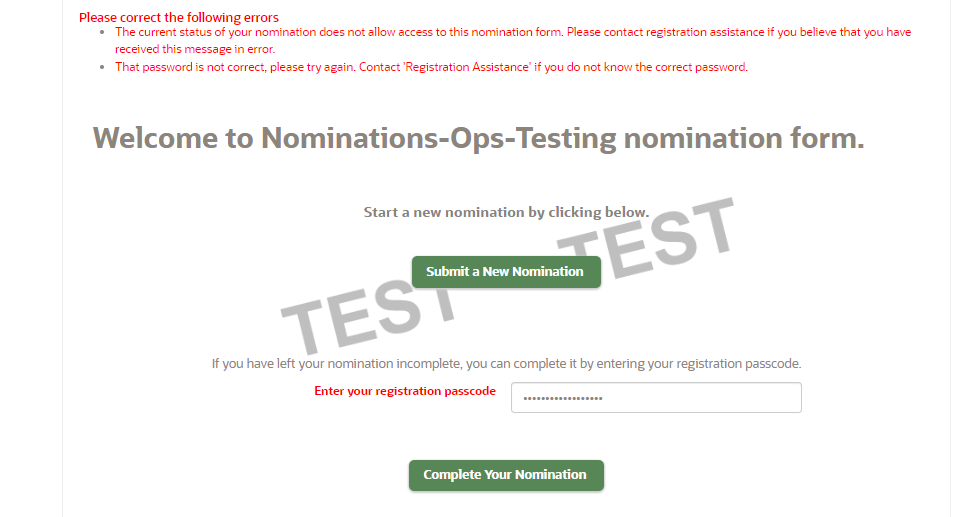
    The nominator can use the nomination form entry page (shown below) to:

    • Nominate a new nominee by clicking New Nomination
    • OR edit an existing nomination if it’s in the “O_Incomplete nomination” reg status by entering the registration details like last name and email address of the nominee and then clicking the “Finish an incomplete nomination” button

    Note:1. The marketer may supply custom content for this page to provide additional instructions or helpful links related to Oracle sales reps.
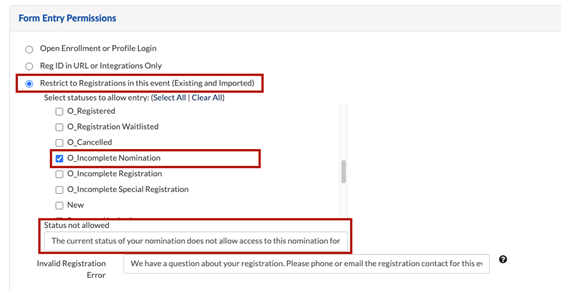
    2. Make sure to select "O_Incomplete nomination" under the Form Entry Permissions so that when an Oracle Sales Rep tries to edit an existing profile that is not in the reg status “O_Incomplete Nomination” would throw error.
  • C. Nomination Page 2 – Basic Nom Questions

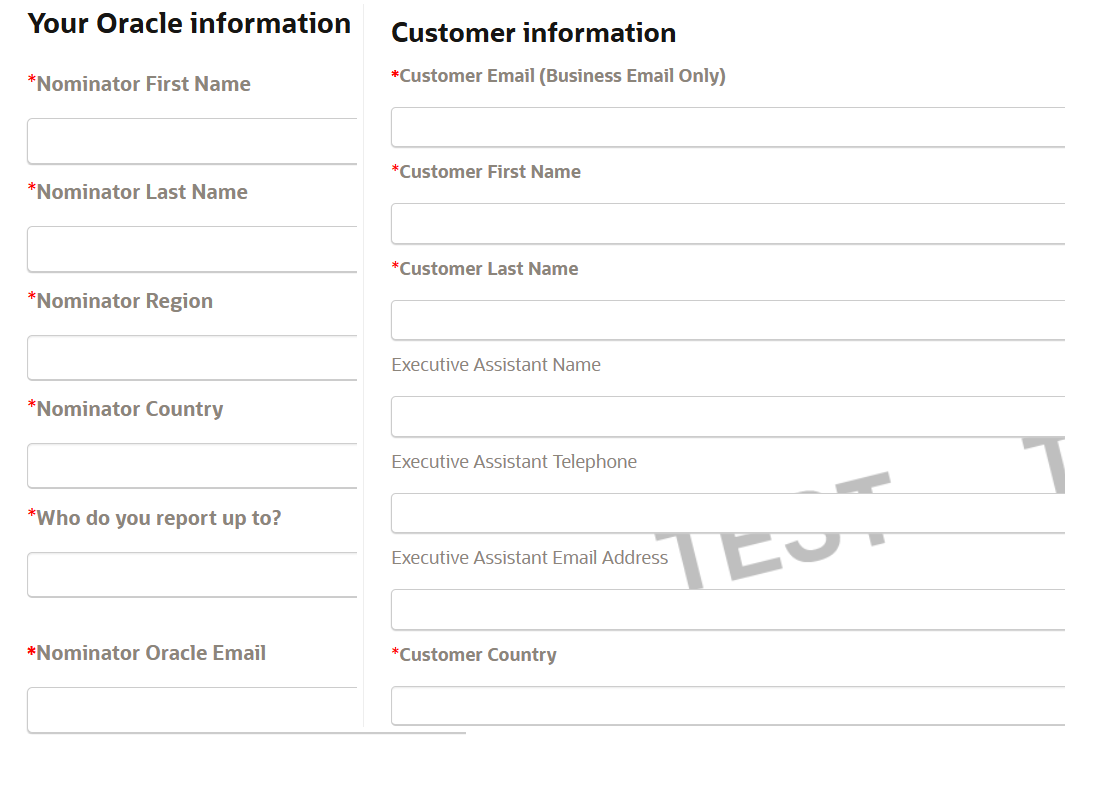
    The screenshot below provides a preview of the beginning of the nomination form fields. The welcome message and assistant fields may be modified, but all other form fields must remain as is.
    Note: There are limitations to what may be modified on this page without additional approvals as the form has been specifically predefined and approved by Corporate Events, Marketing Compliance and Legal teams. They should not be changed in any way. Alert the Demand Center Ops team if a requester insists on adding any new fields or modifying the existing ones.


    2. The purpose of this page is to run validation checks prior to collecting/editing additional nomination information. ie; validating the customer email address is not already in the system, validating the customer email address is not an Oracle ID, validating the customer is not government employed, etc.

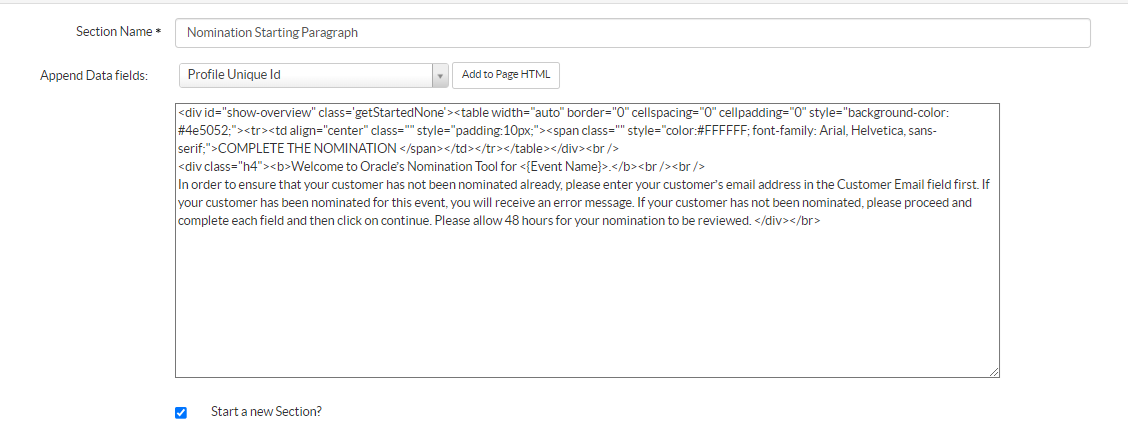
    You can edit the sentences at the top of page 1 by:

    In the Custom HTML tab > Nomination Starting Paragraph section you may modify the introductory sentences based on the marketer’s requirements or leave as default if no specifics have been provided.


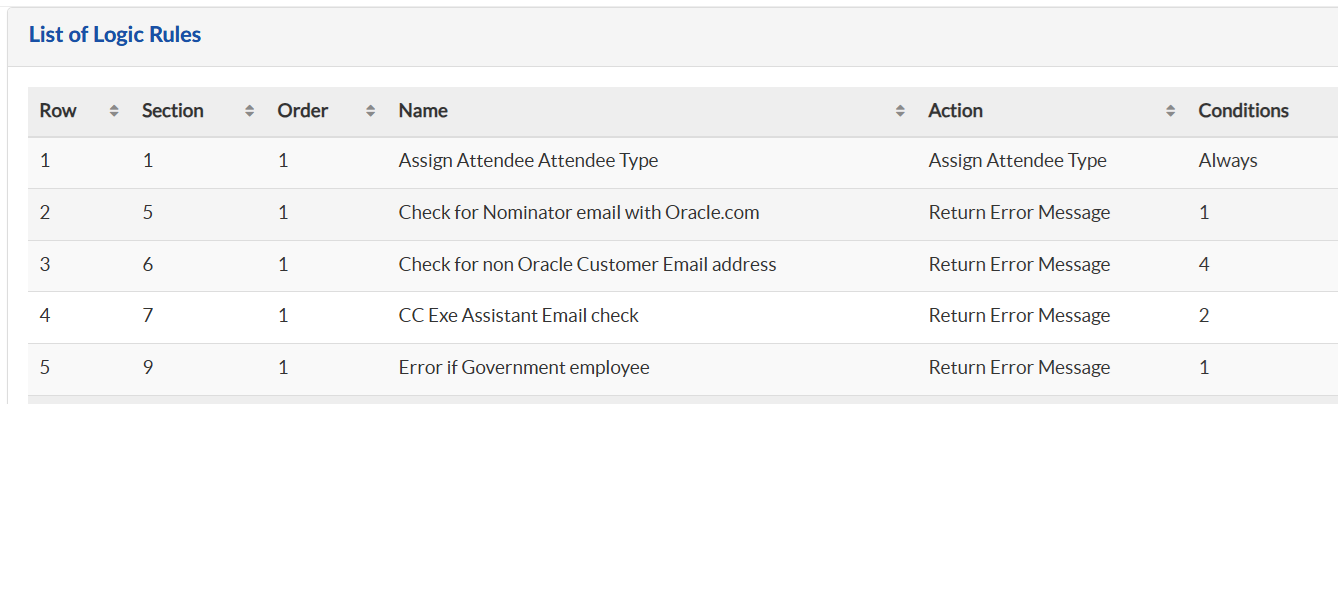
    If you click Logic in the left nav, you can review the logic rules for page 1 of the Nomination Form, illustrated below.

    • Check for Nominator email with Oracle.com: Check that the nominator email ends in Oracle.com This rule is used to validate whether the nominator email address ends in Oracle.com. If not, it throws an error message when the nominator clicks the Continue button.
    • Check for non Oracle Customer Email address: Check for non-Oracle customer email address This rule is used to validate that the customer email address is not an oracle.com email address. If it is, it will throw an error message when the nominator clicks the Continuebutton. They may request to have the non-business ID restrictions removed or add new domain restrictions. The Oracle email ID restriction must be kept at all times.
    • CC Exe Assistant Email check: This rule is used to validate that we have selected this option, which is mandatory.
    • Show Government Employee Question This rule is used to display the government employee question field in the form, since this additional field has been created using the question section.
    • Error if Government employee: By default, public sector employees are only nominated if management has approved them with a different functionality flow. In this case, if the nominator selects Yes to the government employee option, an error message will the displayed.

    Note: Page 1 of the Nomination Form also validates if there are any nominations with duplicate email addresses.

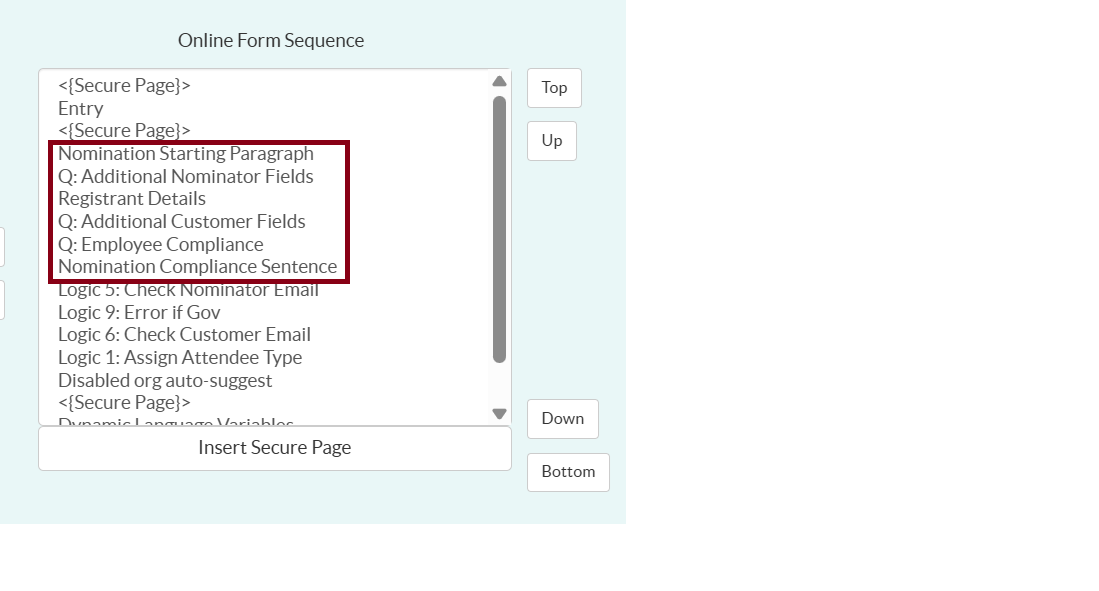
    If you view the Online Form Sequence, you can review the elements for page 2 of the Nomination Form, illustrated below.


    • Registrant Details: This section is used to display the registration fields about the nominees after the nominator questions.
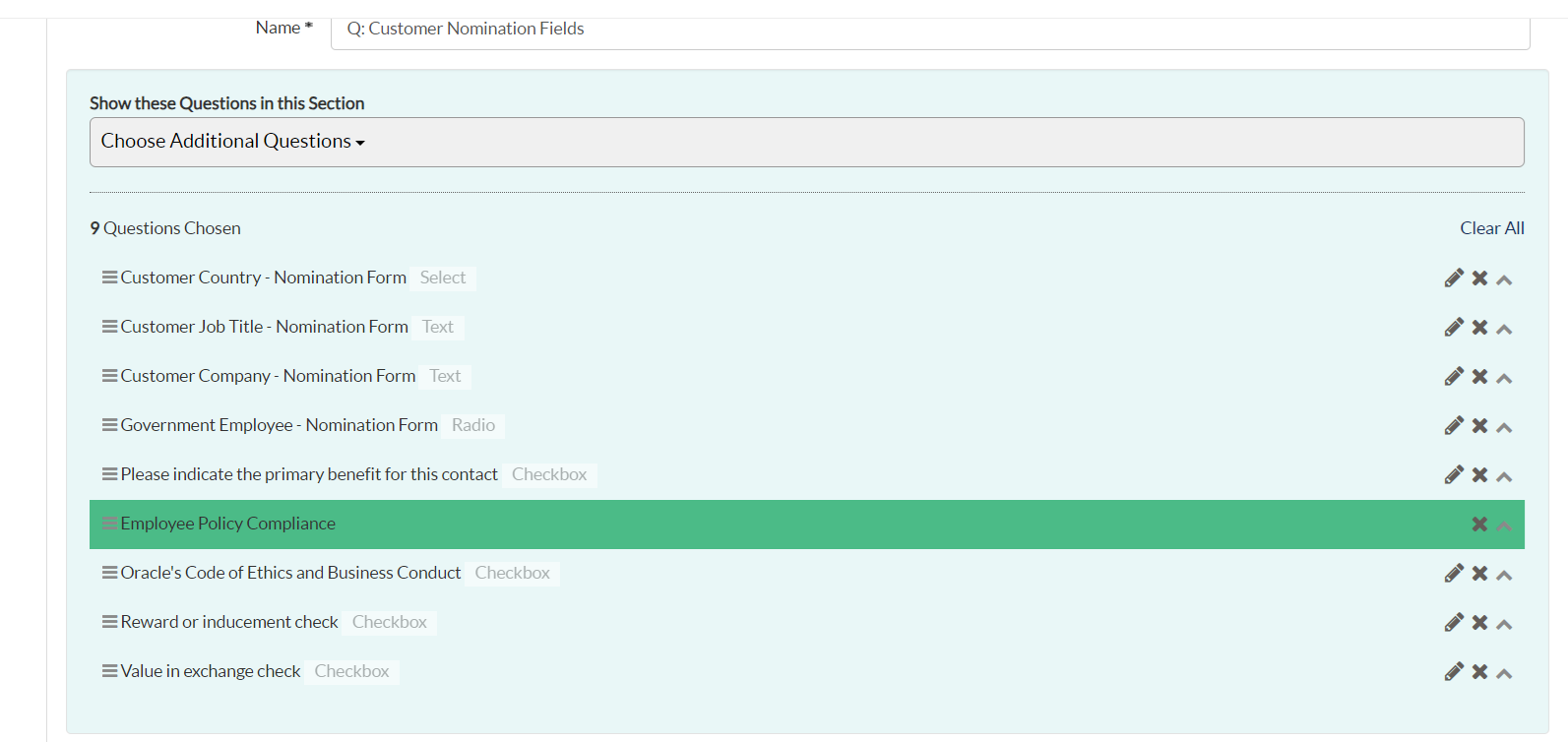
    • Questions tab > Q: Customer Nomination Fields verify the questions and headers are available from the screenshot.
      This is the section you would also add additional questions if approved. Ideally add additional questions just above the “Employee Policy Compliance” header.

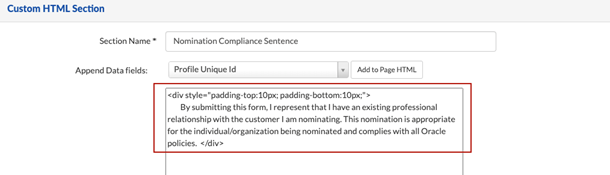
    In Custom HTML tab > Nomination Compliance Sentence section verify the form disclaimer text. This cannot be edited and must appear just above the “Continue” button of the form.

  • D. Nomination Page 3 – Confirmation

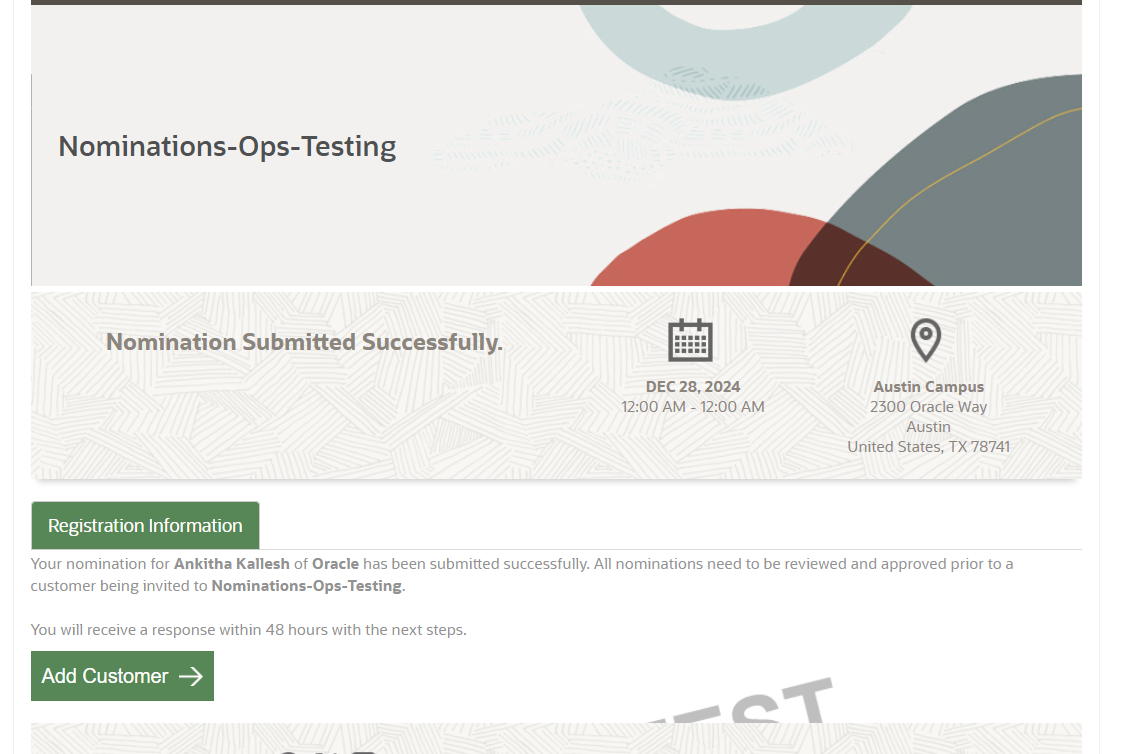
    After the nominator submits the Nomination Form, he or she sees a thank-you page, as illustrated below. The O_Nomination Pending status triggers the email.
    (Standard Nomination Form -> confirm section)


  • F. Associating Custom Nomination Statuses

    Configuring Registration Statuses:

    1. Go to Plan > Custom Statuses to configure the below registrations statuses to email notifications:
      1. O_Nomination Pending > Advanced: Send Email to Registrant > Send Email to Additional Email > Nomination Pending Email to Nominator
      2. O_Nomination Denied > Advanced: Send Email to Registrant > Send Email to Additional Email > Nomination Declined Email to Nominator
      3. O_Nomination Approved > Advanced: Send Email to Registrant > Send Email to Additional Email > For the email template select either:
        1. Nomination Approved – Certain Invites to Nominator: Select this template if the invitation email will be sent out of Certain.
        2. Nomination Approved – Sales Invites to Nominator: Select this template if the invitation email will be sent outside of Certain: ie sales evite, physical mailers, personalized emails from VP, ect.

STEP 4 - Setting Up Standard Nominee Registration

  • A. Setting up the Standard Nominee Registration - Non My Profile Form

    Next is setting up the standard nominee registration flow. The link to the Standard Registration Nomination Non My Profile form will be included in the customer invitation and is sent to the customer by the event manager or sales person to register for the event. This form allows only those registrants with a nomination status of approved, invited or incomplete registration to register. Upon successful validation of the customer's registration passcode, it takes them to the registration page with all pre-populated values. The customer enters the missing information and proceeds with the registration. The registrant status is set to registered, and the attendee type is set to registered nomination. Incomplete registrants are set to incomplete registration.

  • B. Creating and Editing Entry Page

    In the “Form Entry Permissions” section:

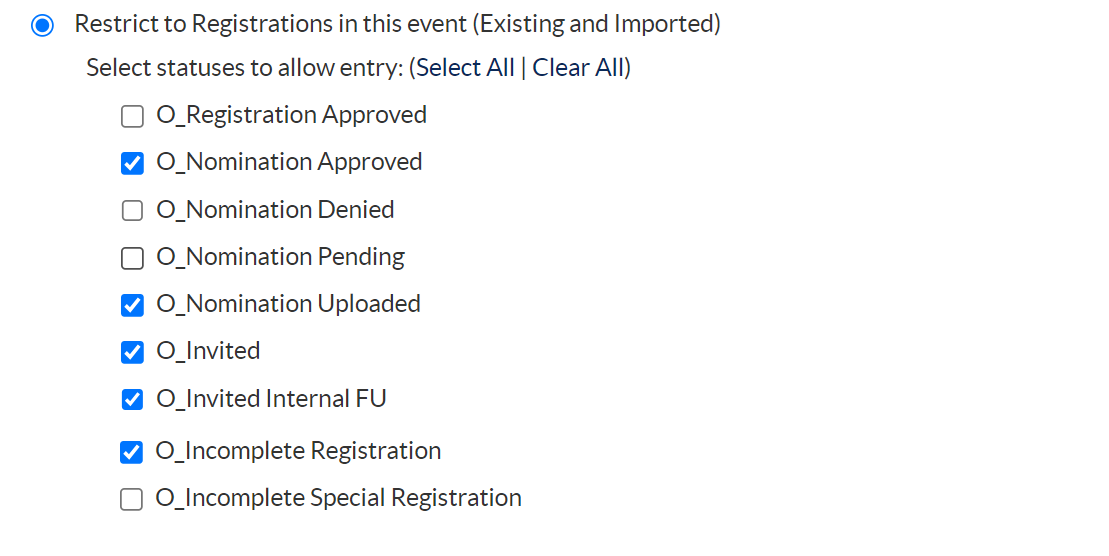
    1. Verify “Restrict to Registrations in this event (Existing and Imported)” is selected and check the registration statuses:
    2. O_Nomination Approved
    3. O_Nomination Uploaded (only required if nominations will be uploaded)
    4. O_Invited
    5. O_Invited Internal FU (only required if nominations will be uploaded)
    6. O_Incomplete Registration
    7. All other statuses should not be selected.

    Optional, the marketer may ask you to update the error message for: “Status not allowed”. NOTE: This is the error that appears when a user tries to enter the page and does not meet the criteria set in the Form Entry Permissions.

    Custom Status Association


    Associate the respective registration notification with option selected Send Email to Registrant Email, since this notification should be triggered to customer.

STEP 5 - Setting Up Waitlisted Nominee Registration

  • A. Setting up the Waitlisted Nominee Registration - Non My Profile Form

    Marketers may choose to use a waitlisted nominee flow, instead of the standard nominee registration. The link to the Waitlisted Nominee Reg Form - Non My Profile form will be included in the customer invitation and is sent to the customer by the event manager or sales person to register for the event. This form allows only those registrants with a nomination status of approved, invited or incomplete. Upon successful validation of the customer's registration passcode, it takes the customer to the registration page with all the pre-populated values. The customer enters the missing information and proceeds with the registration. The registrant status will be set to registered until capacity is reached. After that point, any new registrants will be set to a status of O_Registration Waitlisted. Attendee types will be set to Registered Nominations, and incomplete registrants will be set to Incomplete Registrations.

  • B. Updating the Event Capacity

    To set the maximum capacity for an event, follow the steps mentioned below.

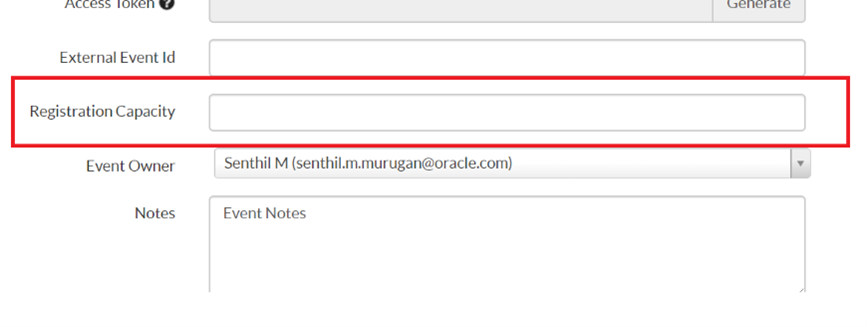
    • Go to plan -> Event Details -> Update the Registration Capacity


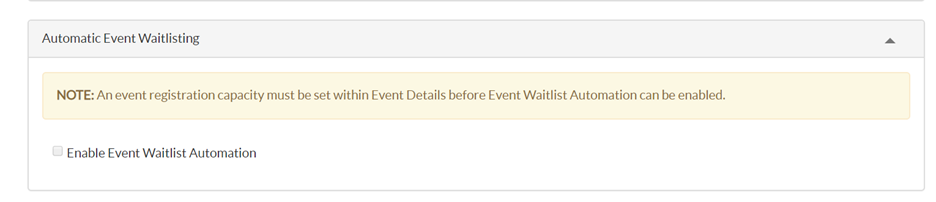
    • ENABLE WAITLIST AUTOMATION

    • Plan -> Options -> check “Enable Event Waitlist Automation”

    • After enabled, you will get the following options, kindly select the values as per mentioned in the below screenshot
      • Waitlist status = O_Registration Waitlisted (this helps to assign registrants status once it reached the maximum capacity
      • Update Reg Status = “O_Registered” (this helps to update the status once the space is available).
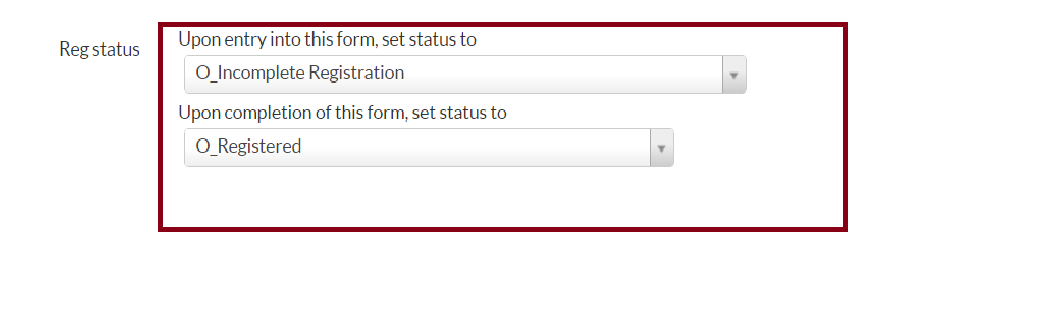
    • Upon entry of the form the status would be "O_Incomplete Registration" and on completion of the form the status should be (O_Registered / O_Registered Approved). This will change updated based on the capacity.
    • playbookwaitlist-status

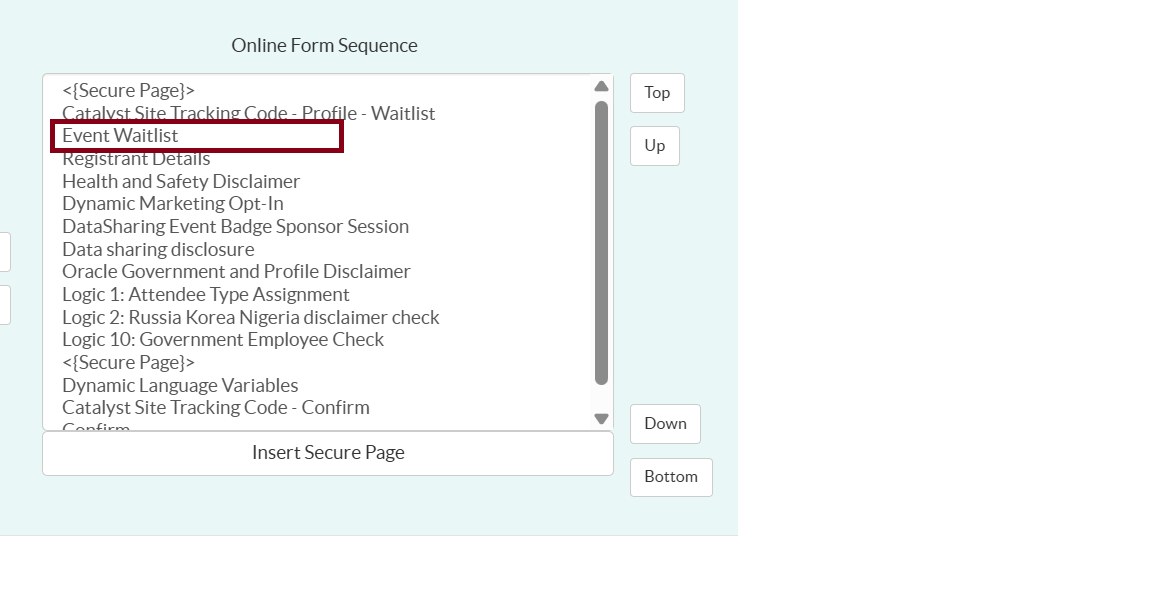
    • Check the My Profile form registration status and logic flow and make sure to add the Event Waitlist option to the form sequence as shown in the below image.
    • playbookwaitlist-sequence

    • Navigate to the Event Waitlist option section on the left navigation and do the following update to Header Text and Error message
    • Add “label” text with the following span tag to the above-highlighted section code to get the respective translations

      <span class="cform28"> Add to Waitlist? </span>

    • certainlogic

    • Click on Confirm Tab to update the thank-you-page content and save.

    • Note: 1. The capapcity count is validated based on the O_registered status.
      2.Associate the respective registration notification with the Send Email to Registrant Email selected, since this notification should be triggered to customer.


STEP 6 - Setting up Additional Registration Forms & Cancellation Form

  • Additional Registration Forms & Cancellation Form

    For all nominations, setup the cancellation form as normal. This form will be used by both nominees and special invitees to cancel registration. NOTE: In most cases the Share section should be removed from the confirmation page since nomination events are highly exclusive.

    Check the portal request for any additional forms that need to be setup:

    • High Event Value Org Approval Form (Business Courtesy) – Must be setup for any event over $1,000 USD.
    • Tele Registration form – Follow instructions here for the Monitored process; this form should only be used for special invitee registration.
    • Walk in form – Follow instructions here

    Note: There is no Internal Courtesy registration form available in a nomination event. If Oracle employees want to register a customer, they should be going through the nomination form process instead.

STEP 7 - Setting Up an Invitation

  • Customer Invitation

    Once the proper registration form is set up, the Demand Center analyst will then create the customer invitation notification using the invite provided by the requester and link the Register Now button to either Standard Nominee Reg Form - Non My Profile form/ Waitlisted Nominee Reg Form - Non My Profile form .

    Edit the content of the invitation email to the marketer’s requirements.

    • The registration buttons/text links should go to either a nominee welcome page or directly to the nominee registration form.
      • If directing to a welcome page, here is an example of the URL using a merge field: https://eventreg.oracle.com/profile/web/index.cfm?PKwebID=<{Event Web Id For Url: Event Website}> (Ensure the Event Web Id for Url merge field aligns with the website name being used for nominees to register. You may also choose to include " &PKregID=<{Reg ID For Url}>" at the end of this URL if you need to include information specific to the registrant accessing the page, such as the Reg Code merge field.)
      • If directing to a registration form’s entry page, here is an example of the URL using a merge field: https://eventreg.oracle.com/profile/form/index.cfm?PKformID=<{Form Id For Url: Standard Nominee Reg Form - Non MyProfile}> (Ensure the Form ID for Url merge field aligns with the form name being used for nominees to register.)
    • Registration passcode must be included in this email for a customer to securely access the registration form. The passcode should always be set to Certain’s merge field: <{Reg Code}> .
    • Health and Safety disclaimer and Ethics disclaimer must be included unless different instructions are provided from Marketing Compliance.
    • The footer must use the “Certain invitation footer” stating to contact the Oracle sales rep on CC for opt-out.

STEP 8 - Setting Up Special Invitee Registration

Check the portal request field “Special Invitee Registration required” is set to “Yes” and then follow the steps. The Monitored Special Invitee form(s) is used only to capture registrations outside of the nomination process: Oracle employees, speakers, sponsors, etc. The special invitee form(s) can be available from either a welcome page or a direct form link. The setup is similar to a Monitored event.

Confirm with your marketer how the monitored special registration flow should work if details are not already available in the portal.

  1. Do they want a welcome page or just a direct form link?
  2. Do they want an SSO registration form for special invitees (myprofile form)?
    1. It is optional if the marketer wants you to setup both the MyProfile and NonMyProfile versions of the Monitored Special Invitee forms; most marketers only ask for the NonMyProfile version.
  3. Do special invitees have the same additional questions as nominees or do they require different form questions?
    Create a Welcome Page and associate Monitored Special Invitee Reg Form - Non My Profile

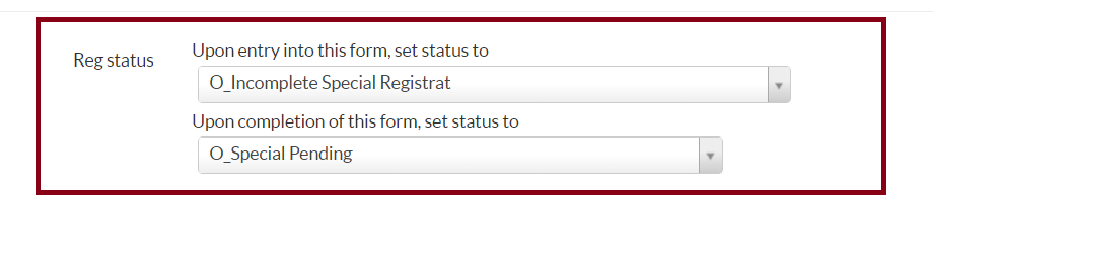
Note: If the registrants complete their profile and register, their registration status will be set to O_Special Pending. If they fail to complete their profile, it will be set to Incomplete Special Registrant (as shown below).


Custom Status Association

Refer to the following table to associate the custom statuses to the notifications.

Creating Special Invitee Re-Registration Form

  • On the entry tab ensure Restrict to Registrations in this event is set to the reg statuses “O_Incomplete Special Registration” and “New” only and also set passcode validation.
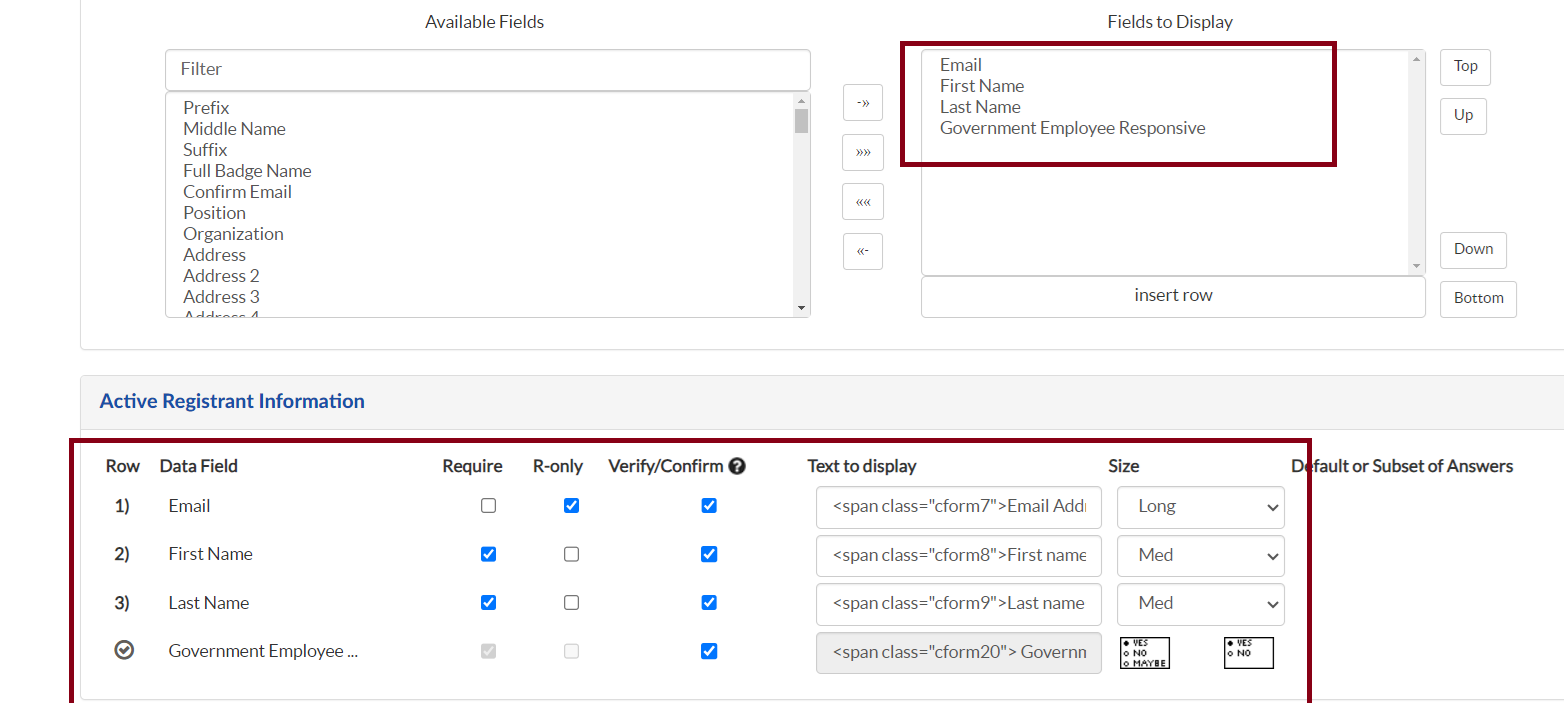
  • Go to Registrant Details and ensure all profile field except Email address, first name, last name and if required Government Employee Responsive are available. The email address field must be set to R-only (read only). Do not add any other profile fields unless compliance has provided approval as Oracle is not allowed to display pre-filled personal info on re-registration forms.

Configuring Notification emails for Special Invitee Registration

  • Monitored Pending Email
  • Monitored Declined Email
  • Monitored Approved Email
  • Event Reminder Email (Optional, based on marketer requirements)
    • Note: this reminder email may be used to send to Special Invitees as well. Ensure the scheduling logic is setup to send to the appropriate registration statuses / attendee types per the event setup instructions.
    • Scheduling logic to both nominees and Special invitees:
      • Complete = Yes
      • AND Reg status is one of O_Registered, O_Special Approved
    • Scheduling logic to special invitees only (note with this process you should have 2 separate event reminder email templates, 1 template for each attendee type):
      • Complete = Yes
      • AND Reg status = O_Special Approved
  • Cancellation Confirmation Email

STEP 8 - Creating Notifications

Nomination-based events also include associated email notifications throughout the event process to advise attendees where they are in the process. This section covers those email notification types.

1. Email Registration Confirmation (for standard or waitlisted flows)

2. Waitlist Email Registration Confirmation (for waitlisted only, if not using Email Registration Confirmation template)

3. Waitlist Waitlisted Email (for waitlisted only)

4. Reminder Email (Optional, based on marketer requirements)

  • This reminder email may be used to send to Special Invitees as well. Ensure the scheduling logic is setup to send to the appropriate registration statuses / attendee types per the event setup instructions.
  • Scheduling logic to both nominees and Special invitees:
    • Complete = Yes
    • AND Reg status is one of O_Registered, O_Special Approved
  • Scheduling logic to nominees only (note with this process you should have 2 separate event reminder email templates, 1 template for each attendee type):
    • Complete = Yes
    • AND Reg status = O_Registered

5. Cancellation Confirmation Email

6. Nomination Pending Email
This notification email will be sent to the sales person (nominator) after he or she nominates a customer for the event manager's review and approval.


7. Nomination Approved 2 Nominator-Event Manager Invites
This notification email will be sent to the sales person (nominator) upon event manager's approval of the sales nomination. This notification requests that the nominator sends the evite to the approved nominee.


8. Nomination Approved 2 Nominator-Nominator Invites: (to be used when system sends invitation)
This notification email will be sent to the sales person (nominator) upon event manager's approval of the Sales nomination. This notification indicates that the evite will be sent automatically to the approved nominee.


9. Nomination Declined Communication
This notification email will be sent to the sales person (nominator) when the event manager declines the sales nomination.


Important Notes
Keep the following steps in mind as you prepare and send your nominations.

Review Stage
Send the following links to event manager or requester for review.

  • Nomination link (Nomination Form direct link).
  • Special Invitee Registration link (Welcome page link).

Approval Stage

  • Don't make the event searchable.
  • Uncheck the Test mode option in all related forms.
  • Schedule the reminder based on the requester's demand.

Nailed it?

If yes, click below to confirm completion of this topic.

Yes, I have understood this topic well

Integrated Cloud Applications & Platform Services

We're here to help

Discussion Forum

  • To participate in our discussion forum join the slack channel #mktg-demandcenter or click here