Certain Post Event Email
Post event email is a communication sent to a list of customers who have attended, walked-in or not attended (but registered) following an event. Post-event activity is enabled only if the registrations are captured through the Oracle Event Management System like Certain.
In this section you will learn:
- Identifying post-event email
- Creating Post-Event Email
- Scheduling Post-Event Email
- Post-Event Email – Business Process

 People
1 |
 Prep time
10 min |
 Time
30 min |
 Difficulty
Easy |
STEP 1 - Identifying Post-Event Email (5 min)
Identifying post-event email requirements in the Portal request:
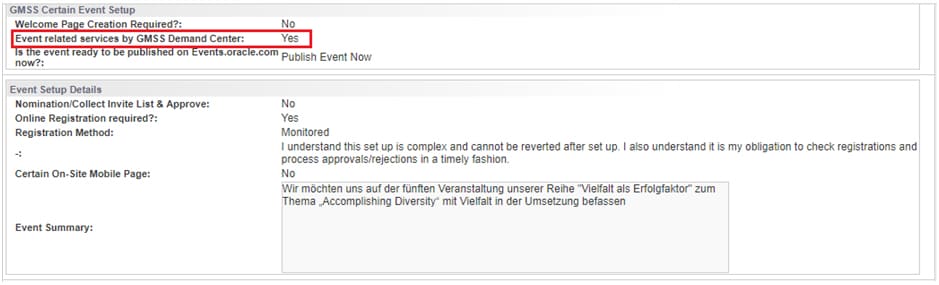
1. The Portal must be updated with below status:
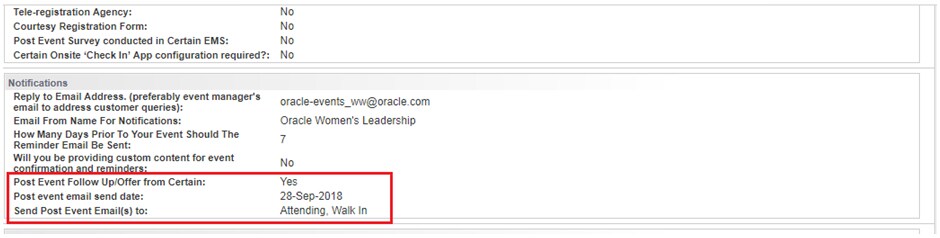
- Portal Question: Post Event Follow Up/Offer from Certain: Yes
Find the post-event activity details under the Notification section. - Portal Question: Online Registration required?:Yes
- Portal Question: Event related services by GMSS Demand Center: Yes
- Note: The following questions will be displayed for the requester only if they select yes.
- Post event email send date: 30-Sep-2018
- Who would you like to send post event email?: Attending, Walk In, No Show (Note: options provided to requester)
STEP 2 - Creating Post-Event Email (10 min)
2. Find the Post Event Thank you Email Template under the Communication section.
- Prerequisite: The master template will contain post-event emails, and these will get copied to your event automatically.
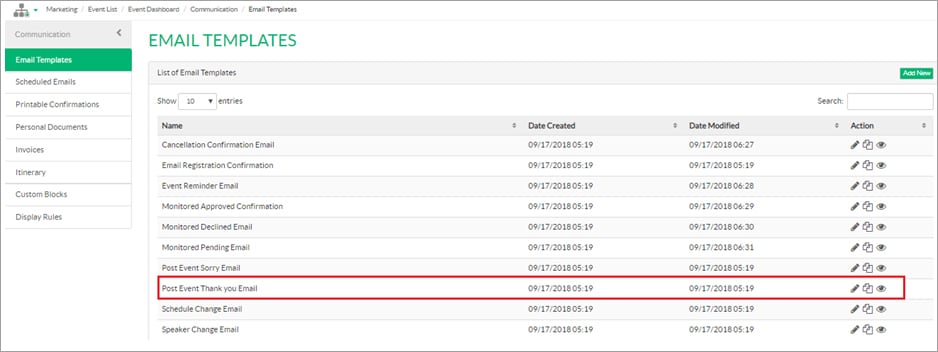
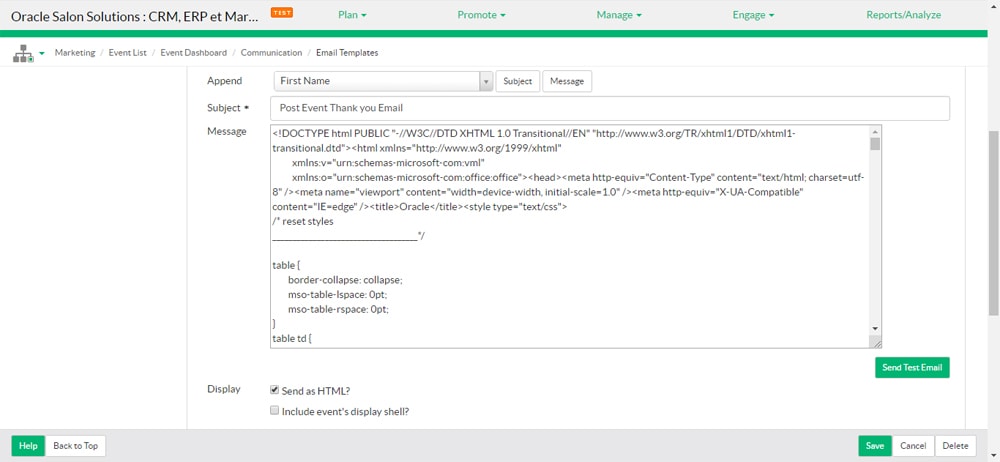
- Click the pencil icon to edit these templates.
- Update the email copy as demanded by the requester in portal
STEP 3 - Scheduling Post-Event Email (15 mins)
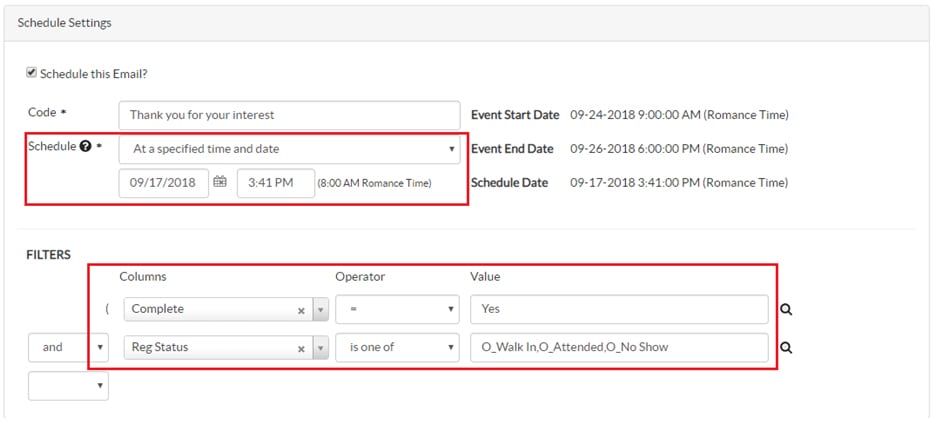
3. To schedule a post event thank you email, please follow the process mentioned as below:
- Update the email triggering date as requested in the request portal. Select:
- Schedule: At a specified time and date
- Days: Depends on the request date, calculate accordingly and set the local time
- Filters: Select filters based on the email type
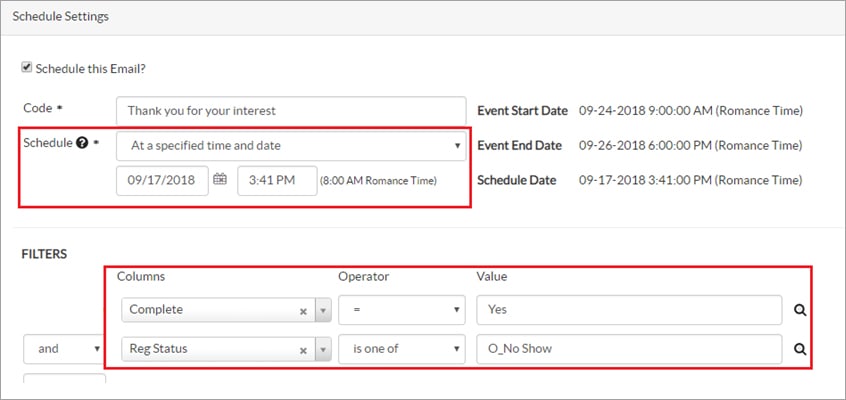
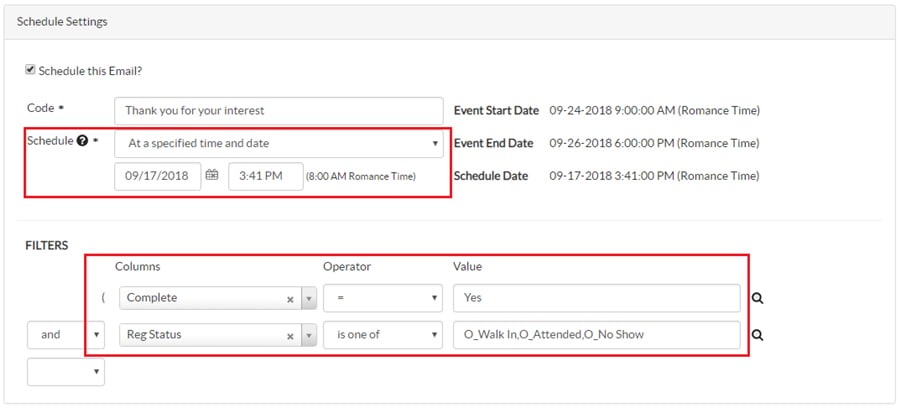
- If the requester would like to send two emails (one to say “thank you for attending” and another to say “sorry we missed you”), then create the following two notifications:
- Post-event email for attendees (Thank you attending the event)
Columns = Complete; Operator = “=”; Value = “Yes”
Columns = Reg Status; Operator = “is one of”; Value = “Walk In” or “Attending” (as mentioned by requestor) - Post-event emails for no shows (Sorry we missed you at the event)
- To set up post event no show email, please follow the process mentioned as below:
Columns = Complete; Operator = “=”; Value = “Yes”
Columns = Reg Status; Operator = “=”; Value = “No Show” - If the requester would like to send a common email to all registrants after the event for both attendees and no shows:
- To set up post event generic email, please follow the process mentioned as below:
- Columns = Complete; Operator = “=”; Value = “Yes”
- Columns = Reg Status; Operator = “is one of”; Value = “Walk In” or “Attending” or “No Show”
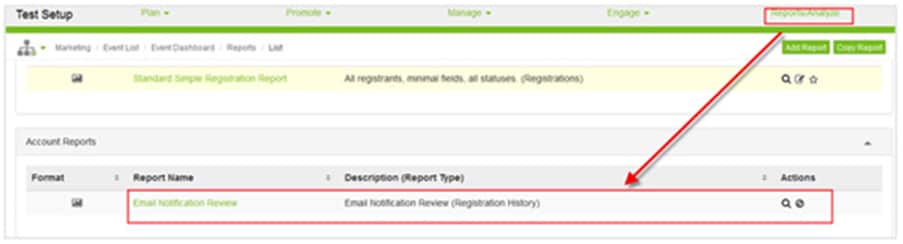
Report Details
Click Report/Analyze module. See Email Notification Review.
STEP 4 - Post-Event Email – Business Process (10 min)
This section provides you with the details around the post-event email business process.
Portal Status Update
When the production team is notified of the post-event email Online Event Registrations (OER) request, they will check if the requester has submitted the content. If not, they will change the status to Pending after externalizing the event.
Once the event registration page is approved by the requester for externalization, here are the steps to change the portal status:
- Externalize the event.
- Update the comments to the requester about externalization and indicate that you are waiting for the post-event content. Change the status to pending.
- After externalization, change the status to pending until you get approval for the post-event thank-you email content. (To identify the post-event thank-you email, filter by status in the portal.)
- Only after the post-event email is sent out, change the status to closed.
Portal Notification Trigger Criteria
- When the status changes to pending, the requester will receive a pending notification that the request is waiting for the post-event thank-you email activity.
- If there is no comment provided by requester three days before the post-event date, then the system will trigger the reminder notification again to the requester.
- Still, if there is no response from the requester, you can close the request after the post-event email send date.
Scheduling in Certain EMS
- DO NOT schedule the post-event email in Certain EMS while working on the template edits.
- Send the post-event thank-you email notification to the requester for review.
- Confirm with the marketer if he/she has updated the status of the following registrants: attending, no show and walk in.
- Only after the requester approves the post-event email test notification, update the schedule date.
Related Topics
Nailed it?
If yes, click below to confirm completion of this topic.
Yes, I have understood this topic well
