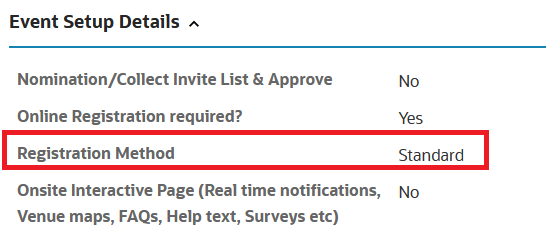
Ensure, the registration method has been selected as "Standard" in the event request before processing for the Standard Registration setup.
Having your event online allows promoting it easily across emails, social channels, encourages your attendees to share with their friends, and makes it really easy for people to sign up and pay to attend your event.
A Standard Registration is a regular registration process, without options to edit or modify. Anyone could register for the event.
You will learn:

 People
3 - 6 |
 Prep time
5 min |
 Time
30 min |
 Difficulty
Easy |
Ensure, the registration method has been selected as "Standard" in the event request before processing for the Standard Registration setup.
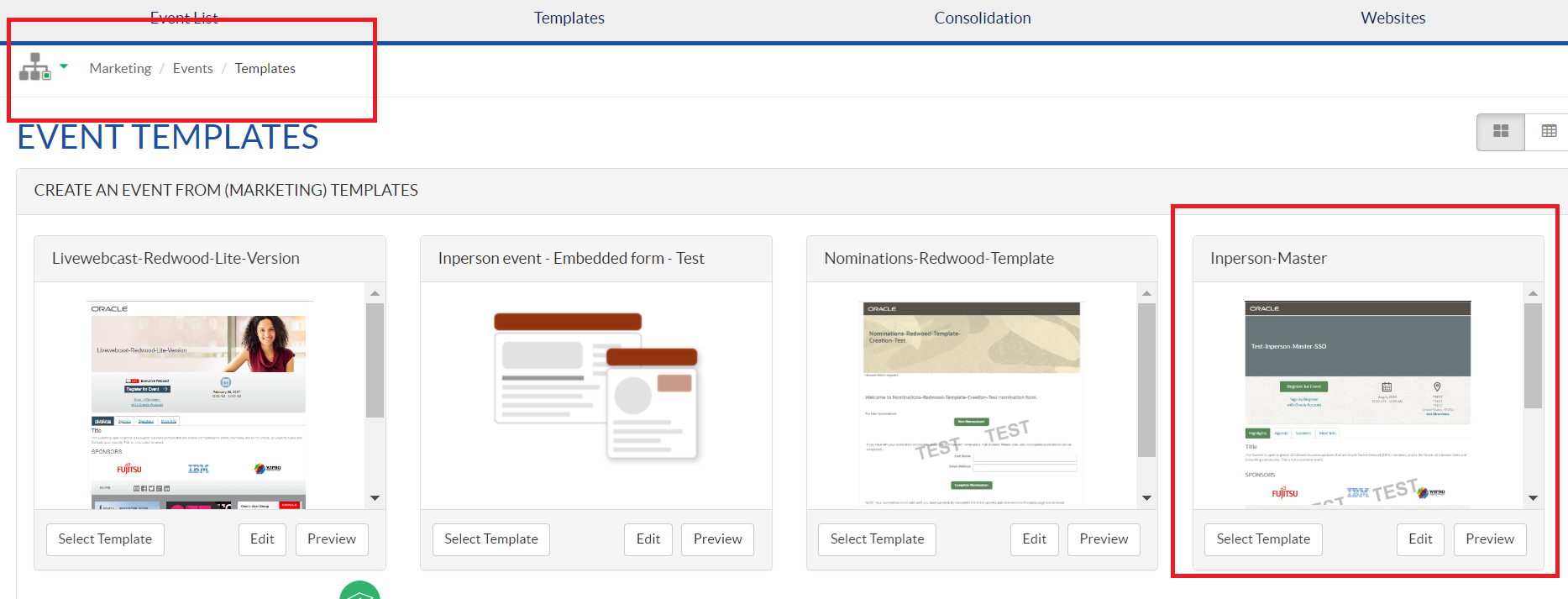
This section describes how to select a template for the Standard Registration.
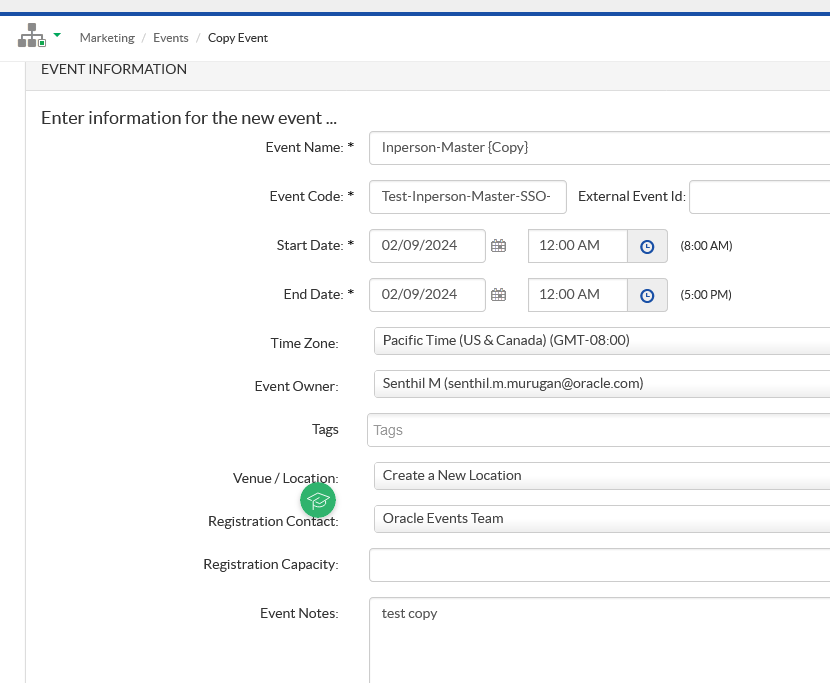
Note: Ensure the right program code is updated in order to flow the registrants to the Eloqua CXD for lead flow. If failed, then contact record gets stuck in the Eloqua.
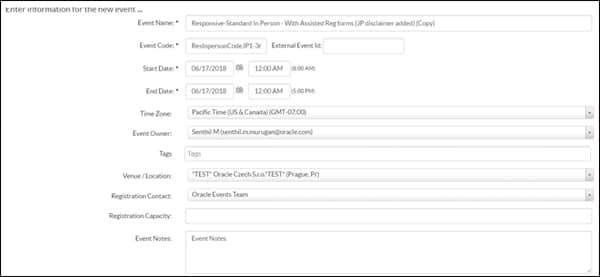
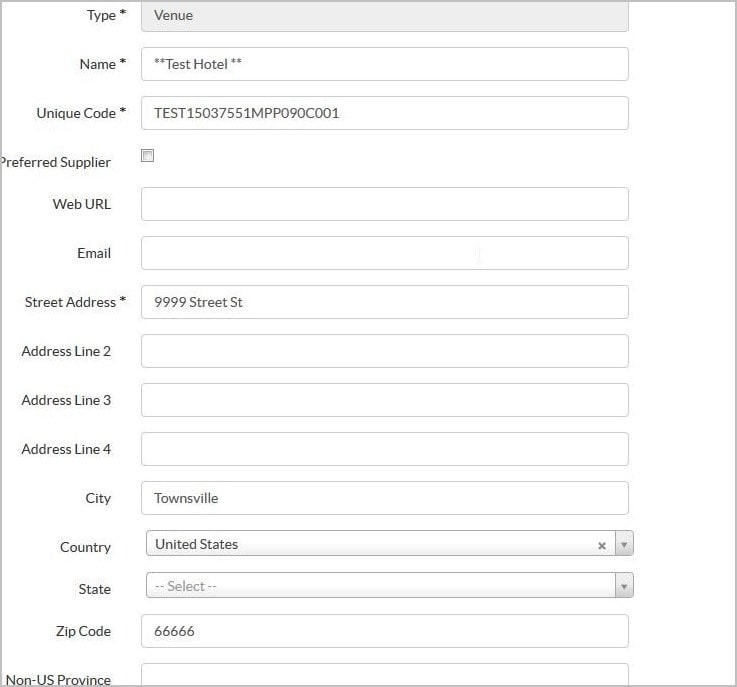
Event Attributes and Goals :
You can update or retain the values as per event
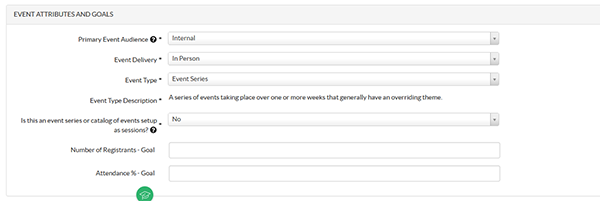

Update the fields of the above Screenshot from the content given in the request portal, if any of the fields are not given in the portal. Confirm the same with the requestor
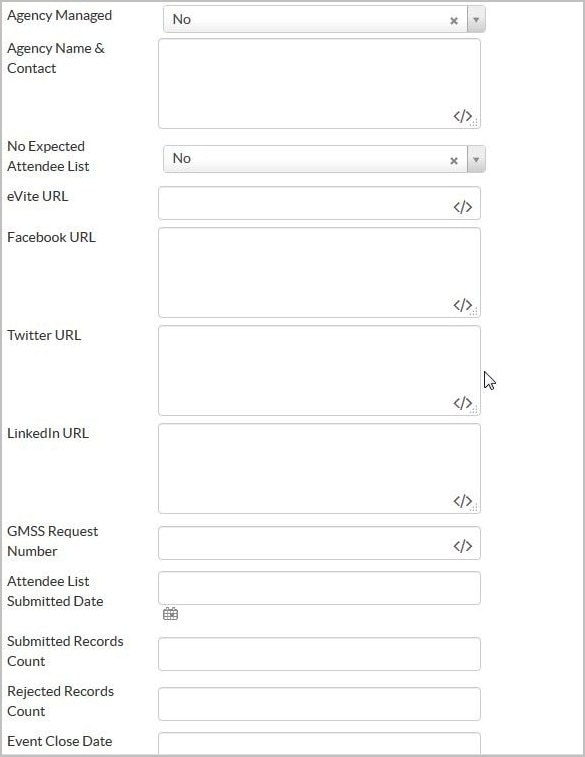
For the above Screenshot - The GMSS Request Number field is mandatory and must be filled
The remaining fields are filled if the details are given in the portal, else they are left blank
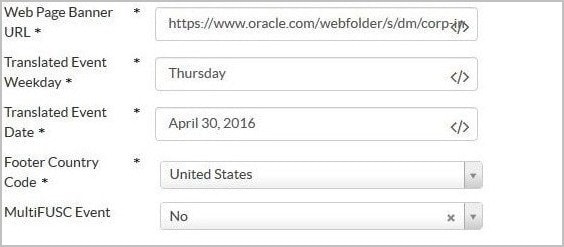
Update the fields of the above Screenshot from the content given in the request portal, if any of the fields are not given in the portal. Confirm the same with the requestor
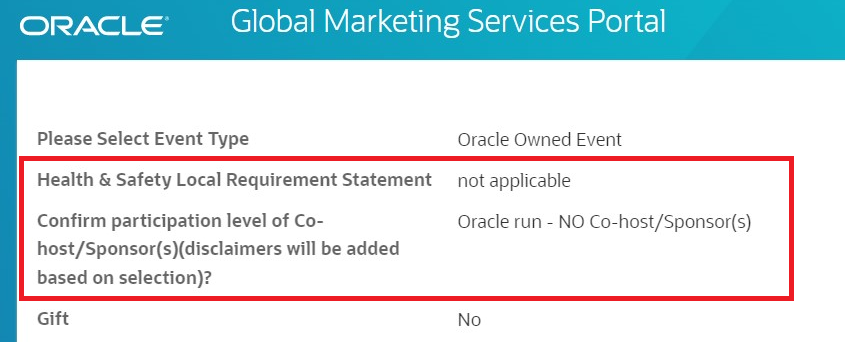
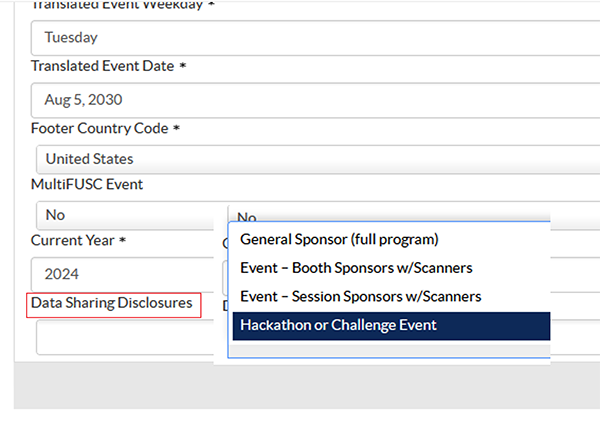
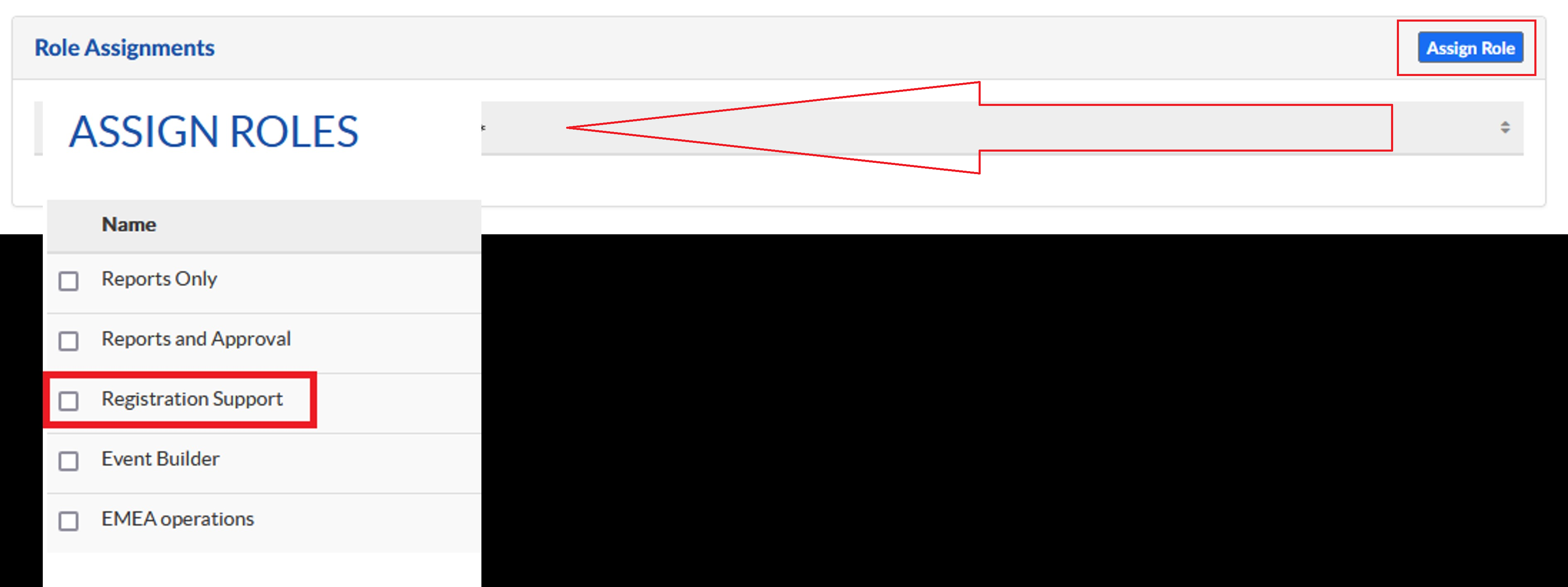
Role assignment : Registraion Support
Registration Support provides Event access to the Marketer in the Certain tool. You can choose the email id from the dropdown list. If Marketer's email id not found, please contact GMSS helpdesk team.
This section describes the steps for updating the following pages automatically.
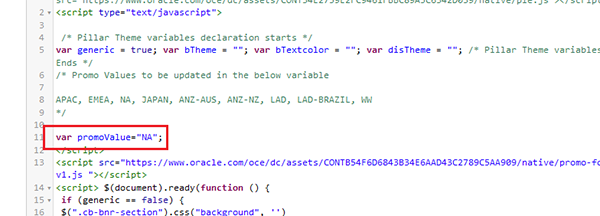
Follow these steps to update the Promo Banner value that appears in the footer, as highlighted in the following screen shot.
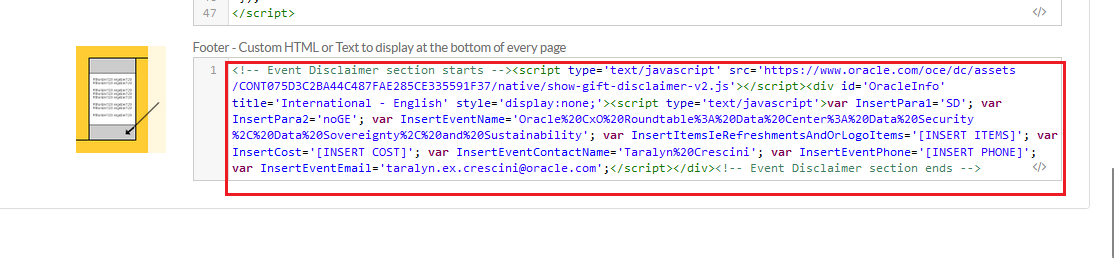
Follow these steps to update the disclaimer that appears in the footer, as highlighted in the following screen shot.
All the fields under the Advanced shell header and footer have been updated with the custom dynamic data field. There is no action required from your end unless you would like to update a custom event name. You can change the event name under Event Setup. Alternatively, you can use the Event Name merge field, which automatically displays the header images. If the requester wants to modify the event name that is displayed in the header image, then you can update the customized event name text instead of using the merge field.

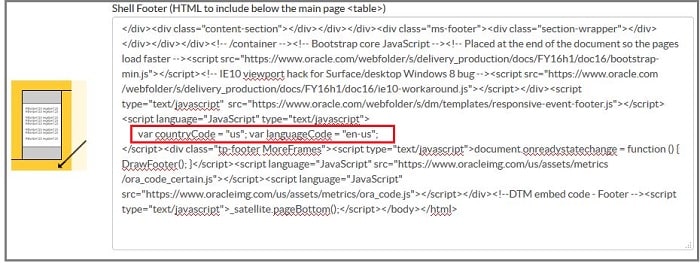
Follow these steps to update The language code and country code update that appears in the footer, as highlighted in the following screen shot.
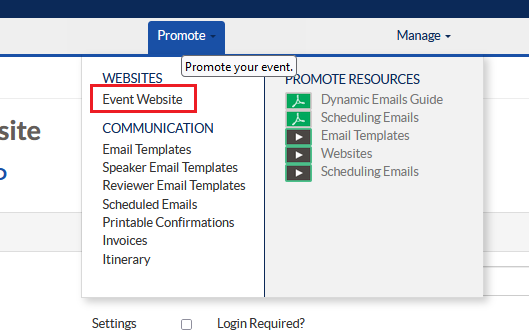
In this section, we will learn how to set up an event website, which will perform as a welcome page when the event is promoted through channels like emails or advertisement.
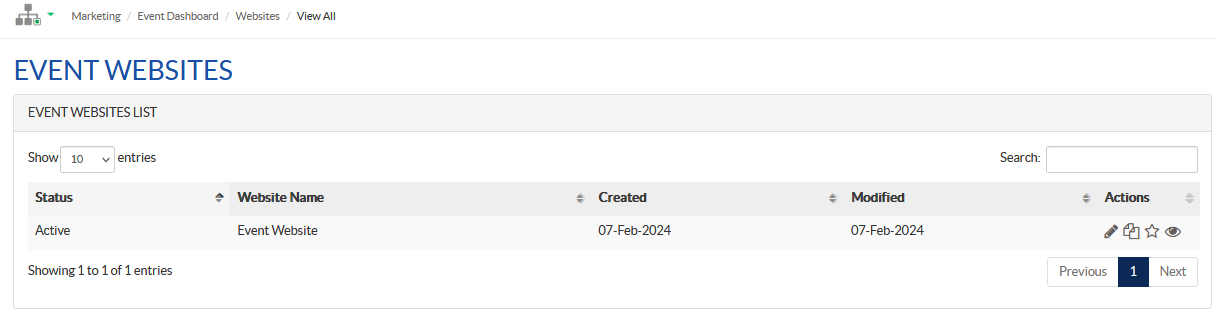
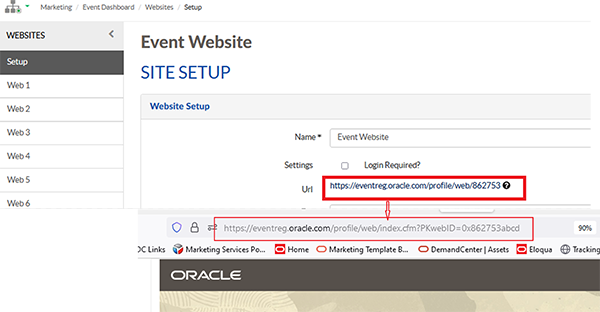
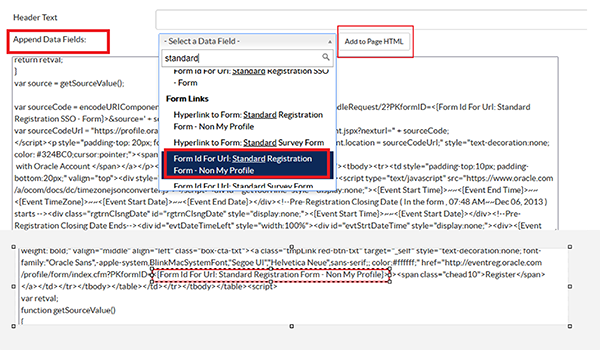
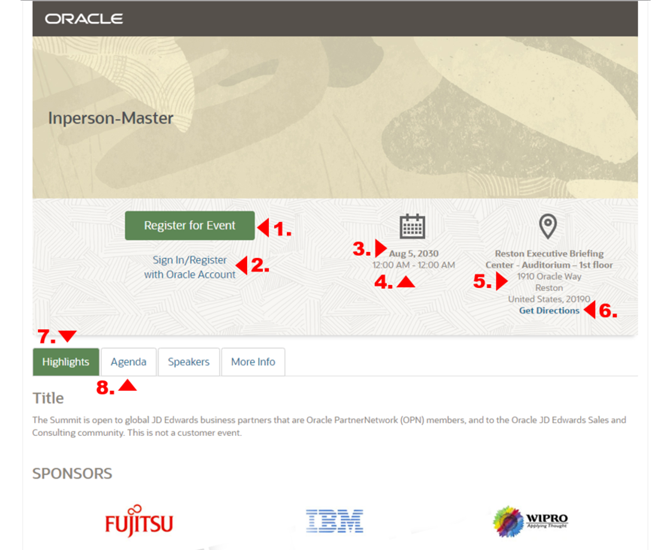
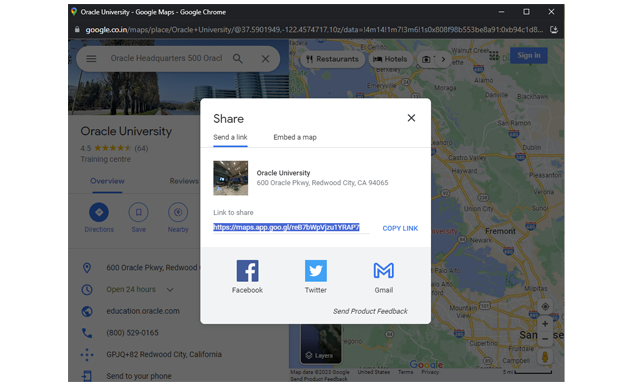
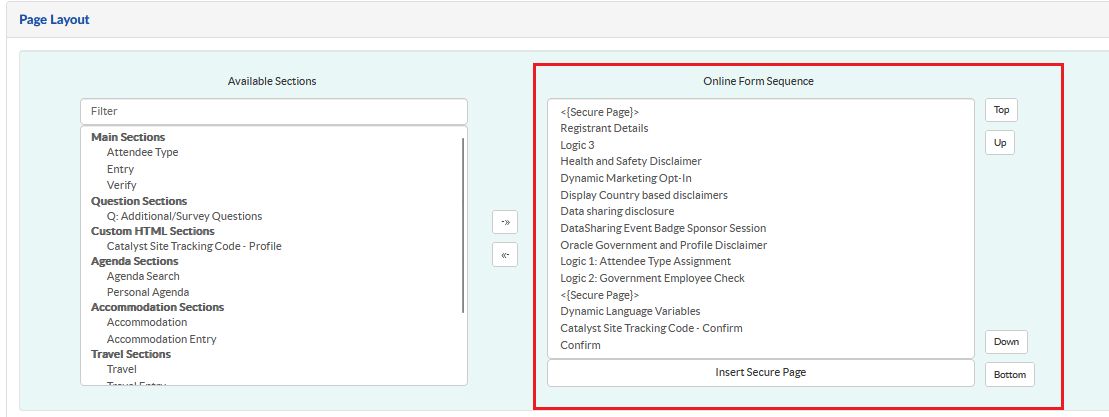
In this section, we will learn how to navigate plan and set up different forms, to capture registrations.
Follow the below steps to enable Standard Registration My Profile Form.
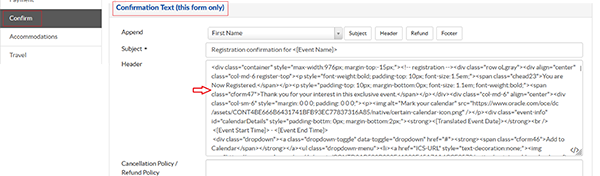
Take the code to Dreamweaver tool and update the content as per content document given in the portal.
Thank you page top message will be display based automatically based on registration type and language setup
Verify the Add to Calendar links and Get Direction link
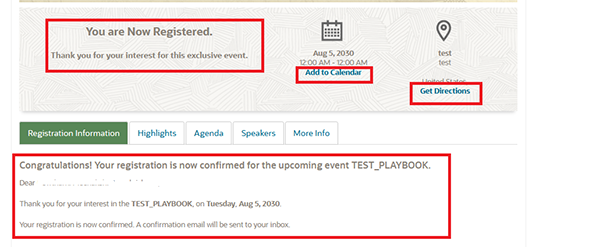
In the Registration Information tab, message will display dynamically based on the language setup. If you want to modify the confirmation message, please remove class 'cinpthank1' from the code.
-Update 'SocialShareUrl' in the Thank you page script using Tracking URL Generator.
Tracking parameter - ow:evp:sh:em::::RequestNumber
Follow these steps to associate the Non My Profile standard registration form.
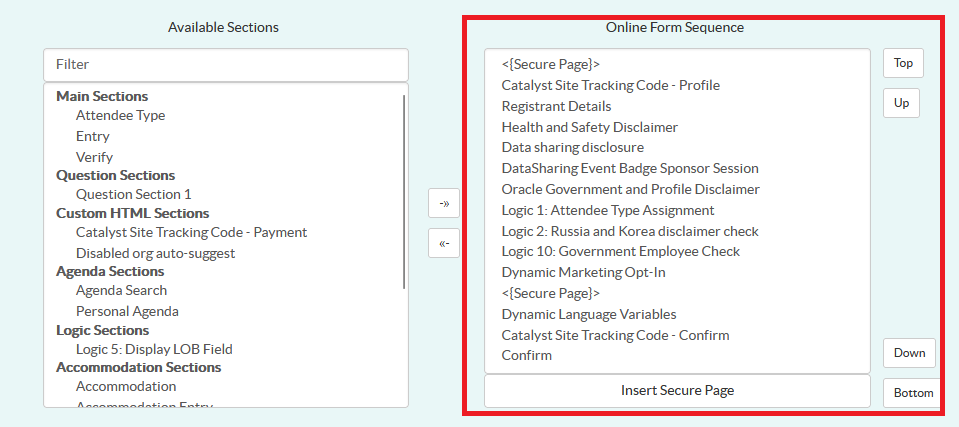
Follow these steps to set up the cancellation form.
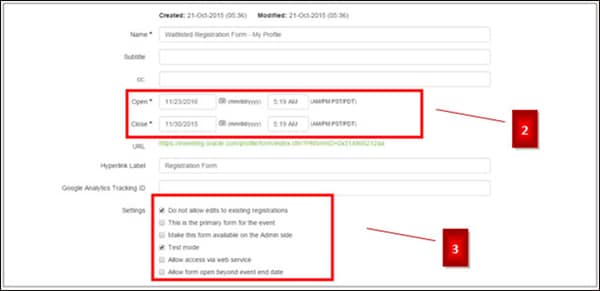

Take the code to Dreamweaver tool and update the content as per content document given in the portal.
Cancellation page top message will be display based automatically based on registration type and language setup
In the Registration Information tab, message will display dynamically based on the language setup. If you want to modify the confirmation message, please remove class 'cinpthank8' from the code.
-Update 'SocialShareUrl' in the script using Tracking URL Generator.
Tracking parameter - ow:evp:sh:em::::RequestNumber

This cancellation form link has been enabled or updated in the confirmation email. The logic has been set as default, and we don't recommend adding or removing any logic or profile fields under this section.
Header Text

Add New Registrations - For Oracle Use is added to the In-Person Event Master template and is used by registration support users within Certain to add their registrants at event time.
When the event request is approved, the analyst does the following:
Note: No changes to be made on the confirmation page or to the form processing steps.

Example:

STEPS YOU WILL NEED TO FOLLOW TO ENABLE THE DIETRY PREFERENCES IN YOUR EVENT:

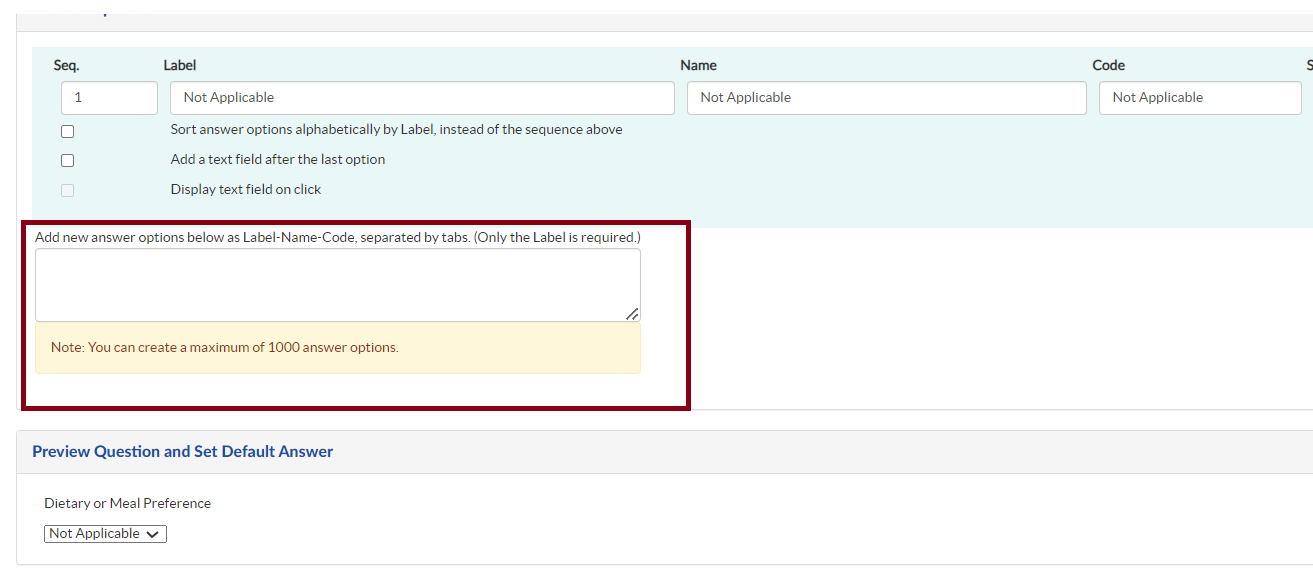

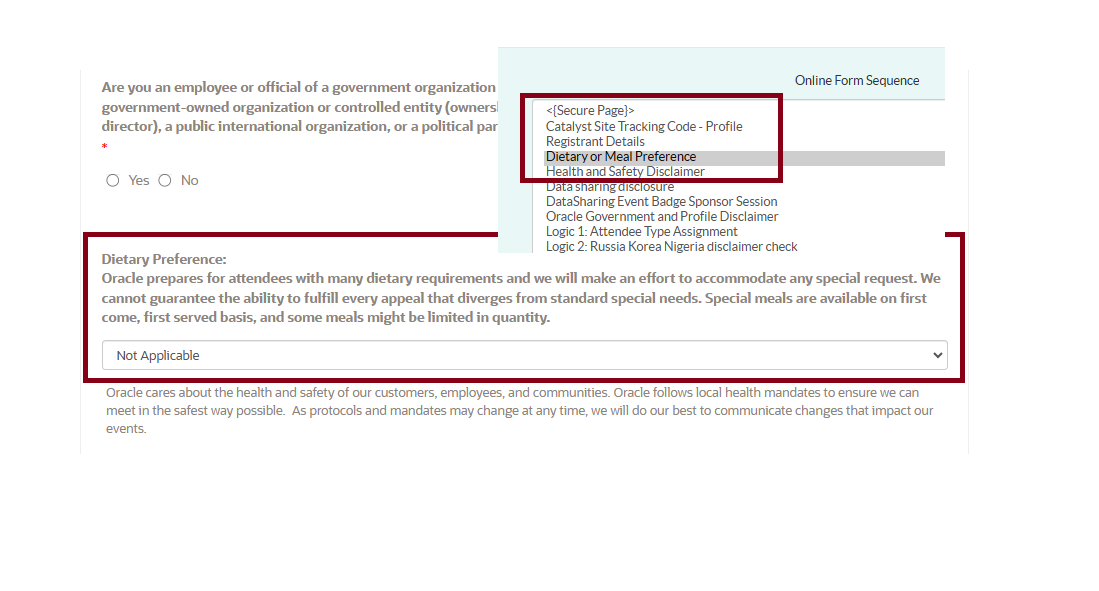
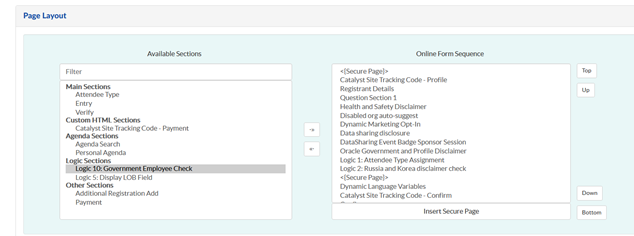
In Certain tool, please make sure to do this update: If Government exclusion: "No",
For My Profile SSO form-> Move Logic 2 : Government Employee Check from right panel to left panel..
For Non My Profile form-> Move Logic10 from right panel to left panel.
There are different types of notifications and this can vary based on the event and registration type.
Certain master templates have the following notifications added as default to support the standard registration type.
Navigate ➔ Communication ➔ Email Templates. All the notifications has been updated with the Default content, and these could be altered based on the requester demand. Each notification should be associated with their respective status.

You can get the HTML code of the notifications directly on the Certain Email Notification Generator where you can select the Language and the Color Scheme so you can update on each one of the email templates (notifications) you need, you can go to the generator Here
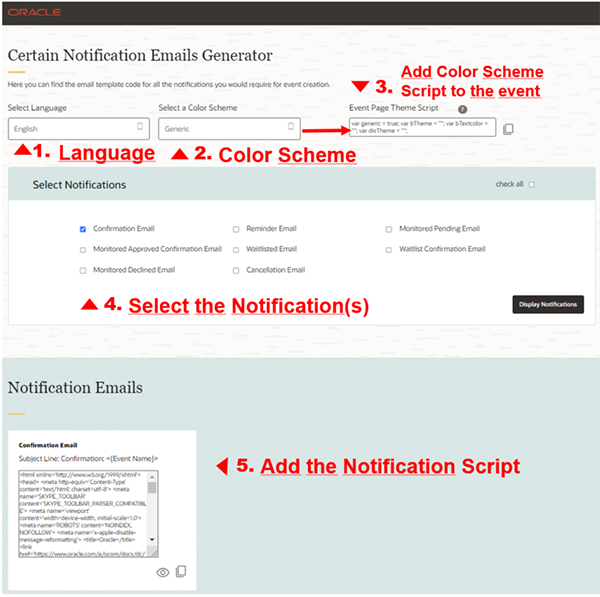
Some of the notifications are:
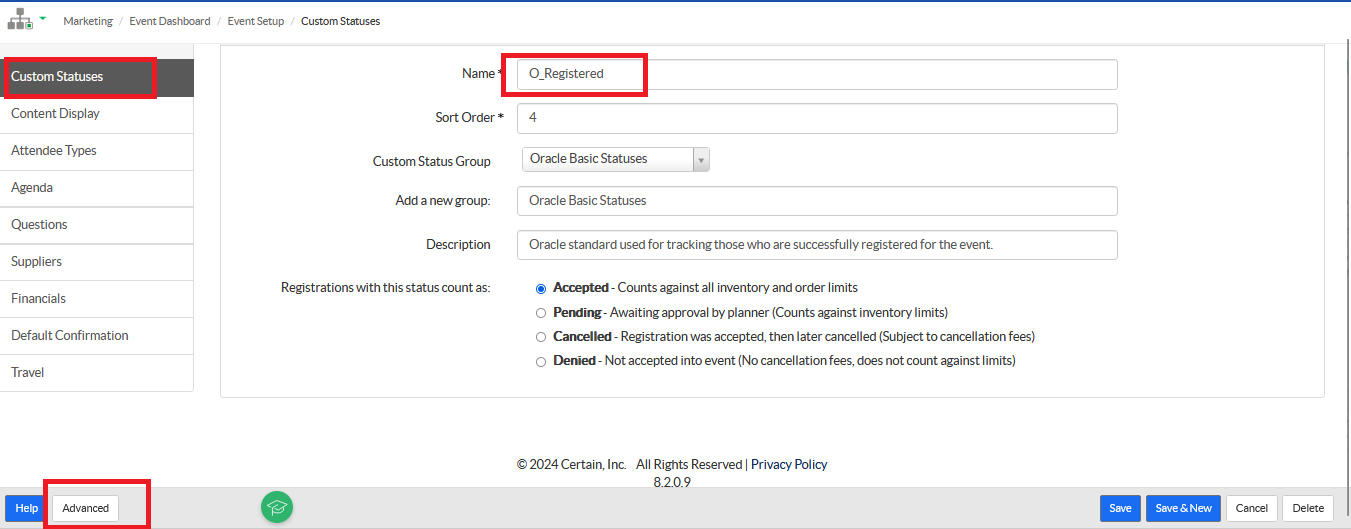
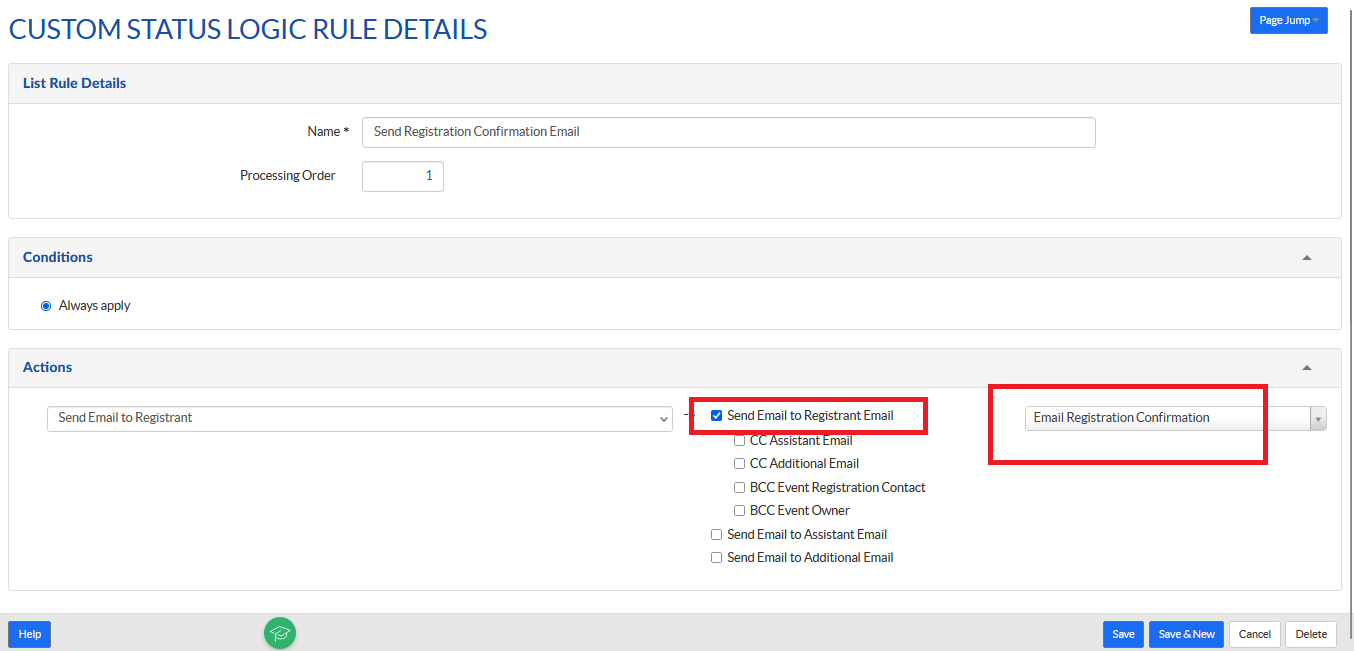
You must also associate the notification pages with the following custom statuses for standard registration. Refer to the steps and screenshot below to set the custom statuses.
This section covers how to send the test notification to the requester for review.

Note: If you select all, then the test notification will be triggered to all.
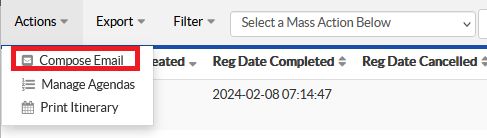
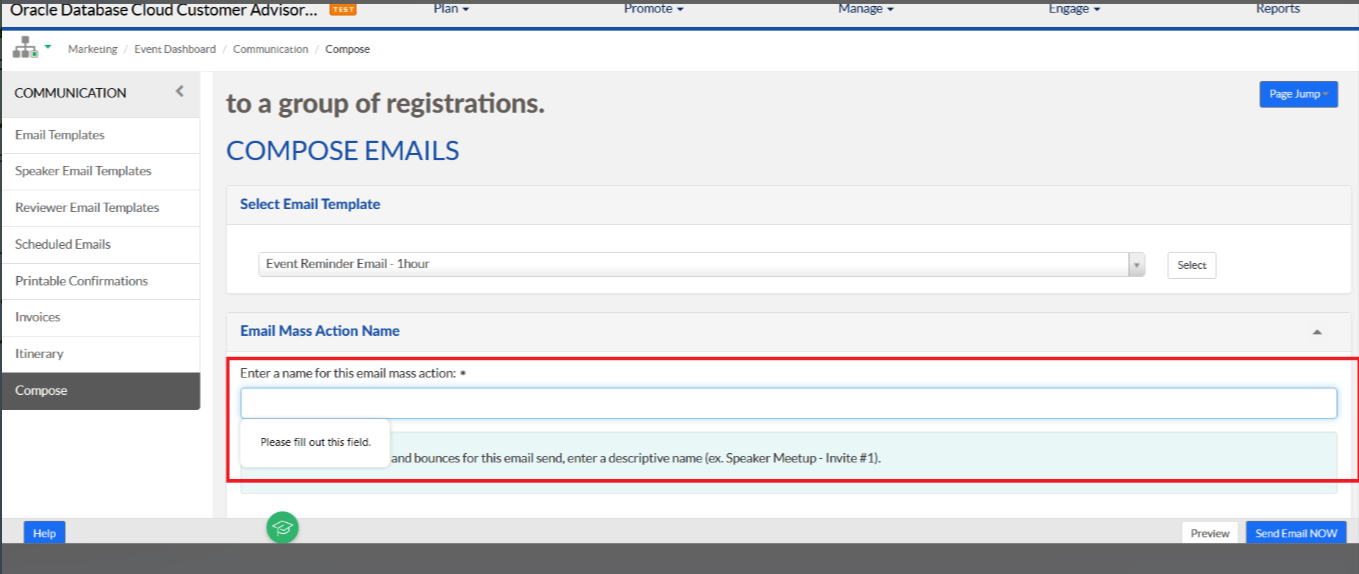
A new field is been added to capture the name of the Mass Action so we can add a unique value to associate a name with the group of registrations getting these emails. The purpose of this new feature is to track delivery, opens, and bounces for this email send. You can then track this mass action email send under Manage > Registrations > Email Analytics.


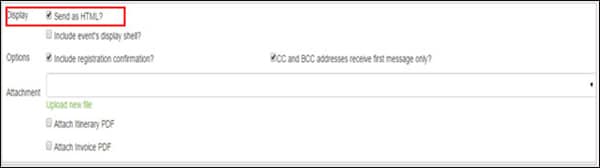
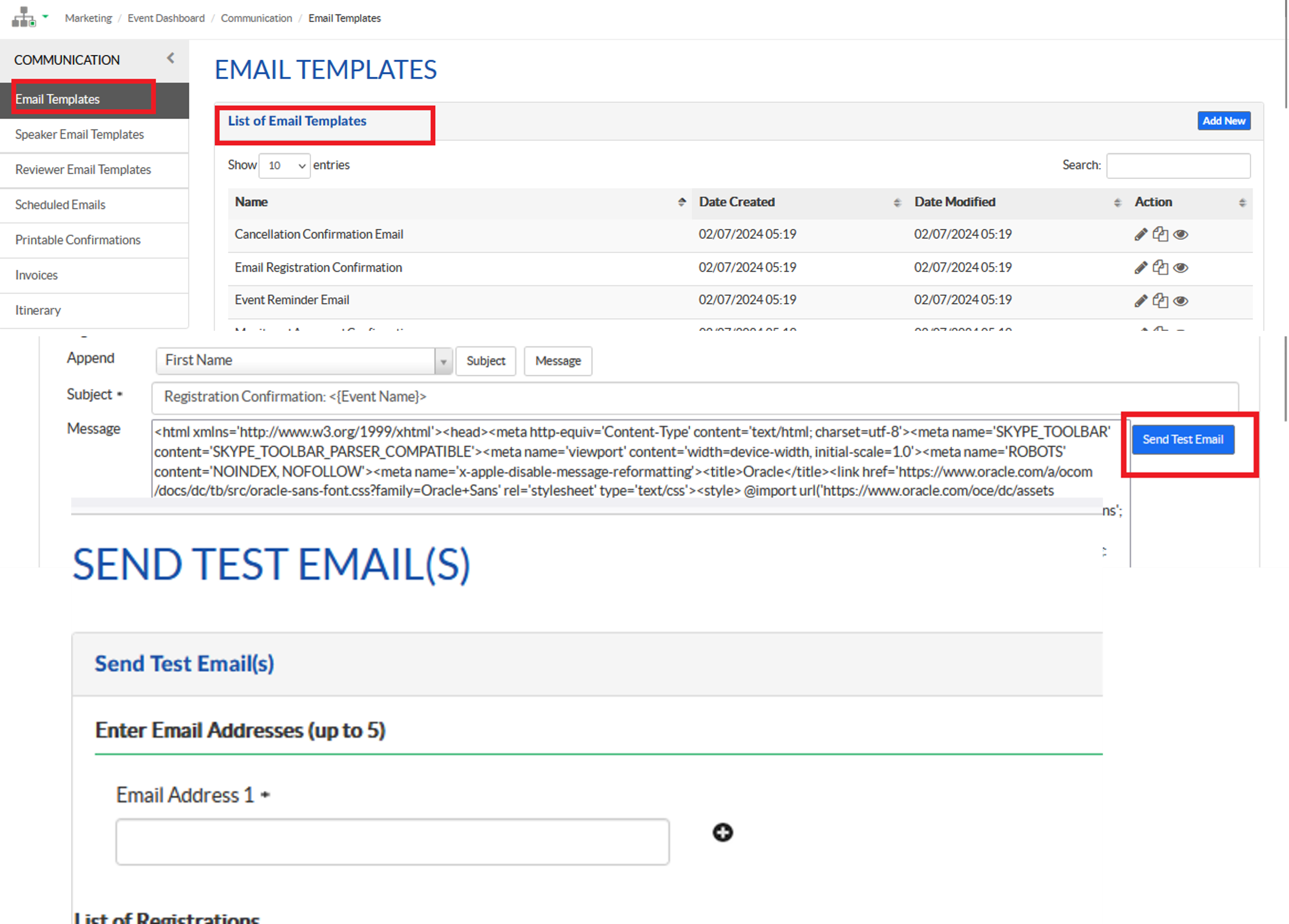
The reminder has to be enabled and scheduled once the event request is approved and externalized.
Filter Values
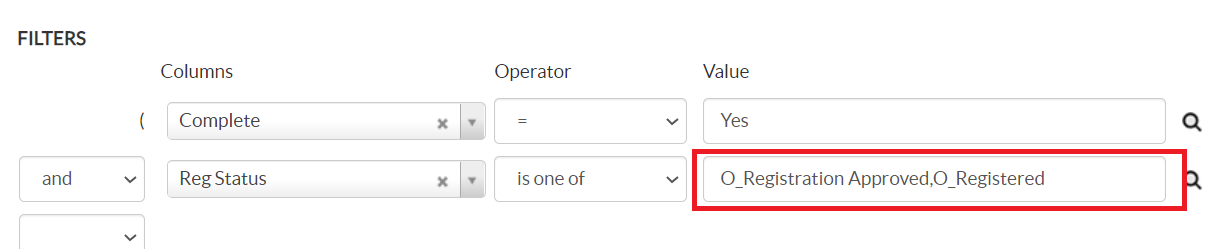
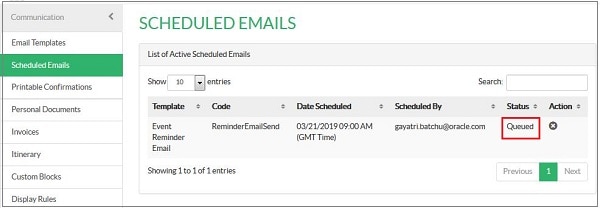
Note: The reminder schedule settings completed need to check scheduled Emails in Comminications left nav.
Navigate ➔ Communication ➔ Scheduled Emails
in right nav check Event Reminer Email status should be "Queued"
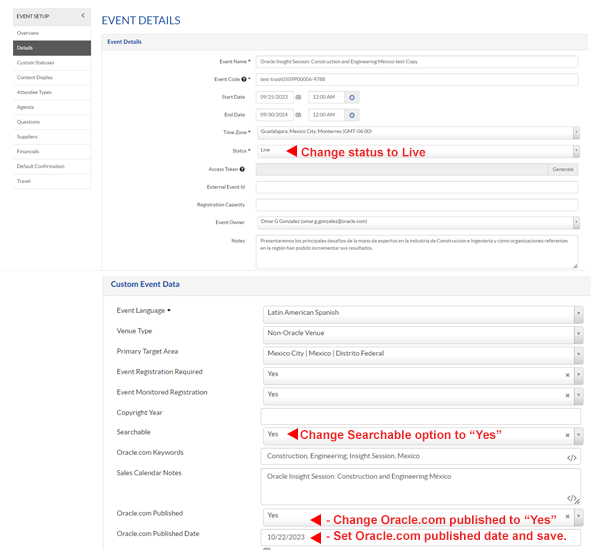
In this section, you will find steps for publishing events on events.oracle.com, also known as the events search page.
In Certain Application,
Under the Plan module, click Event Setup and update the following fields.
In GMSS Portal,
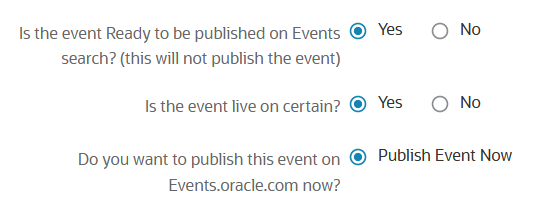
You can view this Guidelines for Events Publishing to know important steps to follow and things to consider when publishing events on the Oracle Events Search.
If yes, click below to confirm completion of this topic.
Yes, I have understood this topic well
