Engage Email
Engage is one of Eloqua's Sales Tools. It reduces the need to constantly recreate emails that are frequently used throughout the sales process. Ensuring sales professionals are using marketing-approved messaging, branding and content, it also allows for personalization and tracking of each email sent. Engage's responsive design makes it easy for sales professionals to send relevant, trackable emails on the go from their mobile phones and tablets.
We will learn the following steps in how to identify an Engage Email request, how to create it in Eloqua, activate it and send the Engage link to the requester.
- Identify Request
- Create and Activate
- On-Demand Tasks

 People
3 |
 Prep time
15 min |
 Time
1.5 h |
 Difficulty
Easy |
STEP 1 - Identify Request (5 min)
The requester/marketer would raise an Engage request of the type EET (Engage Email Template). And would attach the content in a word document.
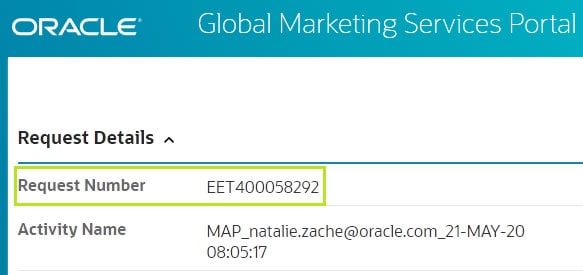
Once the request is assigned below are few points to be checked.
- EET name, subject line and text content
- Engage Template name should not exceed more than 40 characters, do not use hyphen or spaces
- Subject line should not exceed more than 72 characters
- Content should be preferably plain text, though it is now allowed to use header and footer image.
PRE-REQUSITE
STEP 2 - Create Engage Email
- Login to Eloqua
-
Go to Emails ➔ Create an Email ➔ All files ➔ Select Engage Email Template➔ Select Engage Email Standard Template
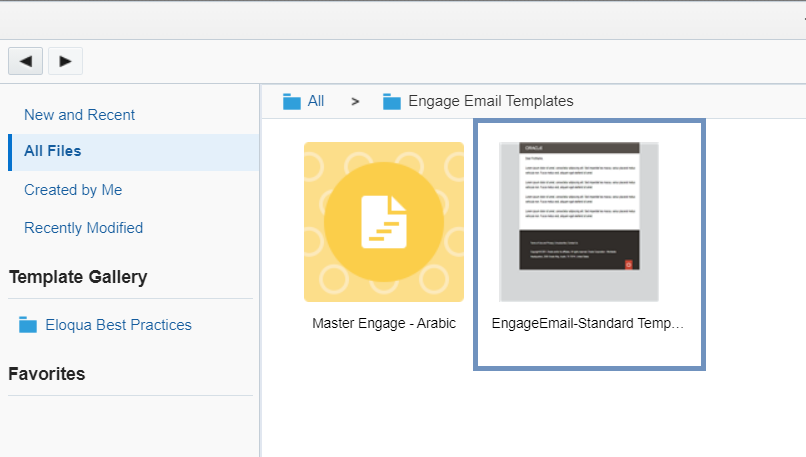
Update the following in Email Settings:
a) Subject Line: Ideally subject line needs to be within 72 characters to ensure seamless rendering in all devices.
b) Email Group: Select Respective language "Engage - [languagename]"
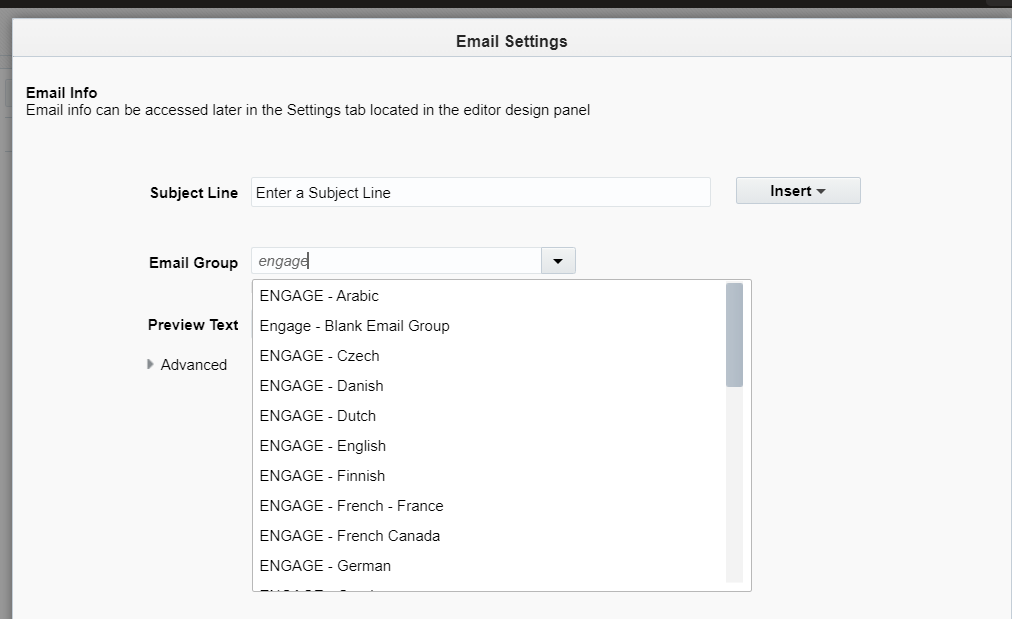 .
.-
In the editor, you will find:
a) Default content, which can be edited like a word document to update content.
b) Signature is standard and the values will populate according to merge fields used.
Note: Signature is shared by all engage emails and hence should NOT be edited. If changes are required, a new signature can be created. - Update Asset Name (default - Untitled Email) in the format - Region_Pillar_Team_Program_OfferType_FileName_Language_ExpDate and Save Engage email.
Note: Upload to OCE - Images and Online files are to be uploaded into Oracle Content and Experience (OCE). Learn more.
STEP 3 - Review and Activate ENGAGE EMAIL
Review Engage Email
- Login to Eloqua
- Go to Emails ➔ Search for Engage email asset name
-
Select Email from the search results page
Go to Actions ➔ Send Test
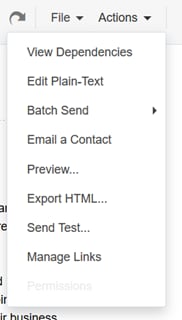
- The pop-up of Email Test opens. Add your email address under to.
- Click Perform Test to send the test email.
- Refer the Engage Email - QA Checklist best practices to review.
Activate Engage Email
-
Copy the email asset id from the URL as shown in the image and keep it handy.

-
The final URL shared with Sales is setup with the Eloqua Engage agreement page.
The URL format is as shown below:
https://go.oracle.com/LP=17721?inst=orcl&engtemp=< emailassetid="">
E.g.: https://go.oracle.com/LP=17721?inst=orcl&engtemp=500004
Related Topics
Nailed it?
If yes, click below to confirm completion of this topic.
Yes, I have understood this topic wellIntegrated Cloud Applications & Platform Services


We're here to help
- For any issues raise a ticket under the appropriate section in the communication tracker.
Discussion Forum
- To participate in our discussion forum join the slack channel #mktg-demandcenter or click here