Multiple On24 Webcasts Registration
Multiple Registration, allows users to register for several On24 Webcasts at once and access all choices from a single registration page.
Here, you will learn all about creating Multiple Registration pages with:
- Case 1: A Single LIVE Webcast & Multiple On-Demand Webcasts
- Case 2: Multiple LIVE Webcasts

 People
3 |
 Prep time
30 min |
 Time
1.5 h |
 Difficulty
Medium |
Case 1:
A Single LIVE Webcast & Multiple On-Demand Webcasts
This Case (Eg: Oracle 3rd Thursday Tech Talks) has a Single Live Webcast and Multiple On-Demand Webcasts on a single registration page. It uses a single ‘program code’ to capture all registrations.
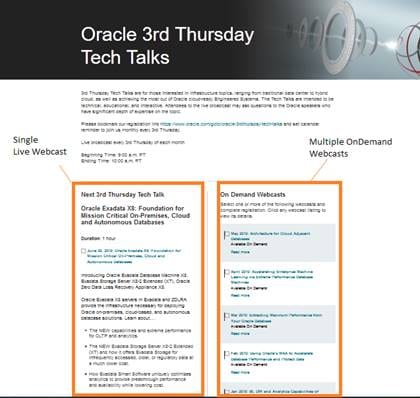
Fig 1a: Example: Oracle 3rd Thursday Tech Talks
IMPORTANT: Download the Welcome Page, Thank you Page and Form from here.
Note: These files have been setup to capture the registrations. Please ensure you use these files provided and not process them from Template Builder.
Creating Welcome Page(5 min)
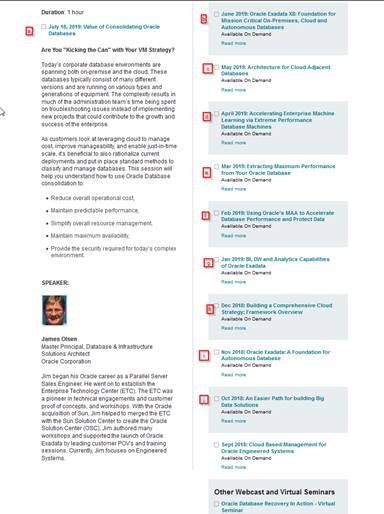
STEP 1 - Update the Live Webcast content on the left hand side and the On-Demand Webcasts on the right as shown on Fig 1. The On-Demand Webcasts are to be listed from the latest month at the top and the subsequent dates below.
STEP 2 - Assign input values ‘a’ to ‘k’ as shown in
Fig 2a below:

STEP 3 - Update the Thank you Page URL
as shown in Fig 3a below:

STEP 4 - Update Form Page Link as shown in Fig 4a below:

Creating Form Page(5 min)
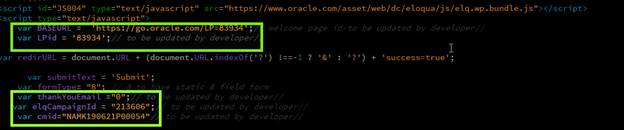
STEP 1 - Update the BaseURL, LPid, thankYouEmail, elqCampaignId and cmid as shown in Fig 5a below:
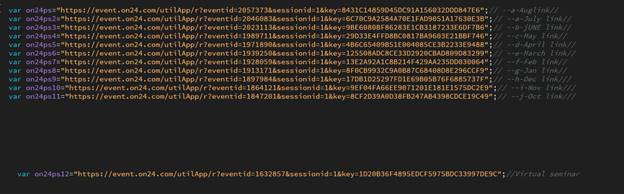
STEP 2 - Assign the On24 Webcast Long URLs (Eg: https://event.on24.com/utilApp/r?eventid=2023113&sessionid=1&key=9BE6080BF86283E1CB3187233E6DF7B6) to the variables - on24ps, on24ps2 and so on upto on24ps12 as shown in
Fig 6a below:
Note: In order to capture registrations, it's important that the values are associated as per the mapping pattern in the table below:
Welcome Page |
Form Page |
Thanks Page |
a |
on24ps |
a |
b |
on24ps2 |
b |
c |
on24ps3 |
c |
d |
on24ps4 |
d |
e |
on24ps5 |
e |
f |
on24ps6 |
f |
g |
on24ps7 |
g |
h |
on24ps8 |
h |
i |
on24ps9 |
i |
j |
on24ps10 |
j |
k |
on24ps11 |
k |
PRO TIP
-
Creating THANK YOU Page (5 min)
Follow the same association as per the table above. But here in the Thank you page, make sure to update the On24 Short URLs (Example: https://event.on24.com/wcc/r/1939250/125508ADC8CE33D2920CBAD809D83299) for the 'Watch now' links appropriately.
CREATING NOTIFICATIONS (5 min)
Process the notifications from Template Builder - Thank you Email, Reminders and Post event mails.
CANVAS SETUP (5 min)
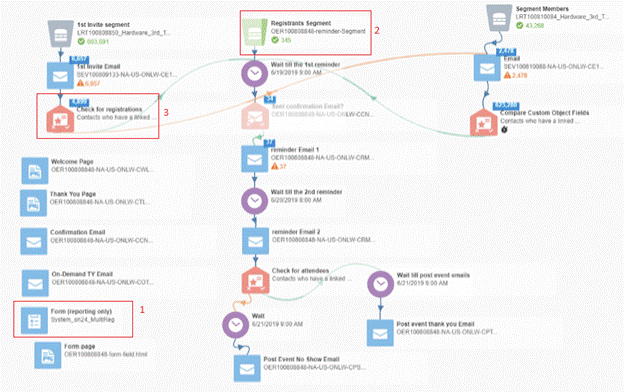
Note:
Dummy Campaign name: ON24-MultiReg-LiveWebcast&MultipleOnDemand-CASE1
Copy and paste elements from the Dummy Campaign into the appropriate campaign.
The Canvas is setup just like a regular On24 Webcast Canvas with just a few changes as listed below:
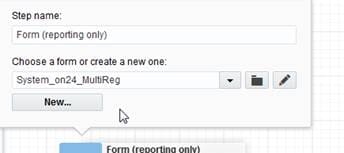
STEP 1 - Form: Make sure to select the System_on24_MultiReg form.
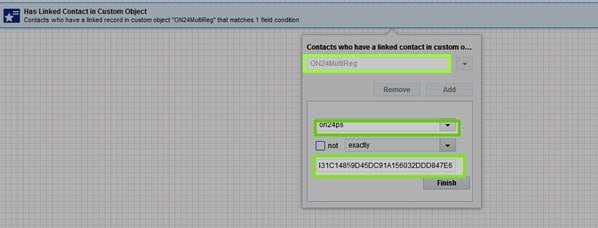
STEP 2 - Registrants Segment: Select the filter criteria called - 'Multi-reg' and select 'Has Linked Contact in Custom Object'. Associate 'ON24MultiReg' to to on24ps.
Set the condition - variable equal to the Long URL of the Live Webcast as shown in Fig below:
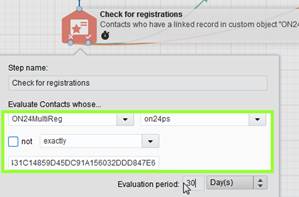
STEP 3 - Check for registrations filter:
Select ON24MultiReg and associate on24ps to the Long URL of the Live Webcast . Set an Evaluation Period of 30 days initially. When setting up the second reminder, set the Evaluation Period to 0 days for the first reminder filter and 30 days for the second reminder filter.
Case 2:
Multiple LIVE Webcasts
This Case (Eg: Live Developer Virtual Events) advertises multiple Live Webcasts on a single registration page. These ON24 Webcasts are already setup on individual canvases when raised as seperate event requests. Registrations are captured by the individual program codes for each Webcast.
1) This Multi Reg canvas has a landing pad setup which uses System_on24_MultiReg form for registration capture.
2) Reminder emails are scheduled in the individual Live Webcast canvas.
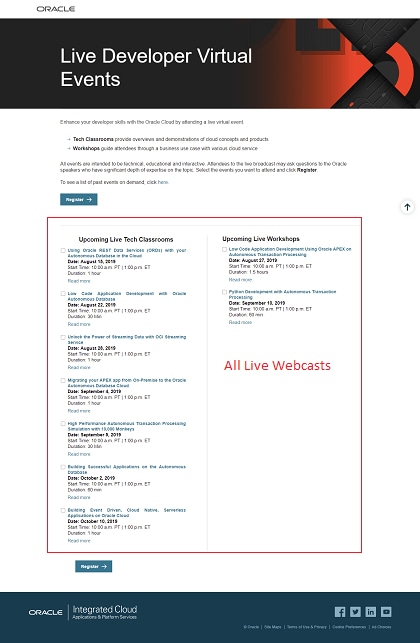
Fig 1b: Live Developer Virtual Events
IMPORTANT: Download the Welcome Page, Thank you Page and Form from here.
Note: These files have been setup to capture the registrations. Hence please ensure you use these files provided and not process them from Template Builder.
Creating Welcome Page,THANK YOU Page, FORM PAGE & NOTIFICATIONS
Follow the same steps given for Case 1.
MULTI REG Canvas Setup
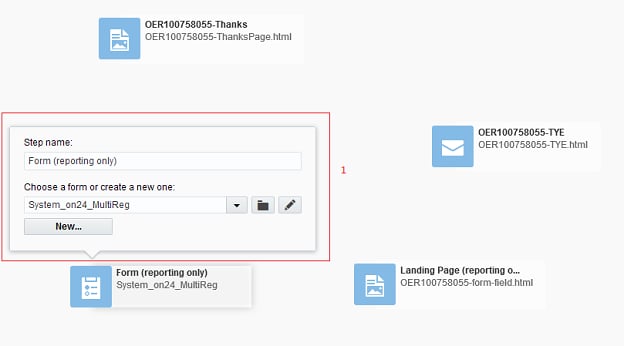
Fig 2b: Multi Reg Canvas Setup
Note:
Dummy Campaign name: ON24-MultiReg-MultipleLiveWebcast-CASE2
Copy and paste elements from the Dummy Campaign into the appropriate campaign.
The Multi Reg Canvas is setup as listed below:
STEP 1 - Form: Make sure to select the 'System_on24_MultiReg' form.
INDIVIDUAL Canvas Setup - ADDITIONAL STEPS
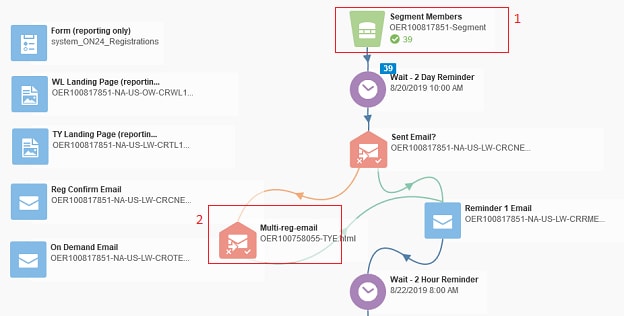
Fig 3b: Individual Live Webcast Canvas Setup
The following steps need to be followed in the individual canvases for each Live Webcast:
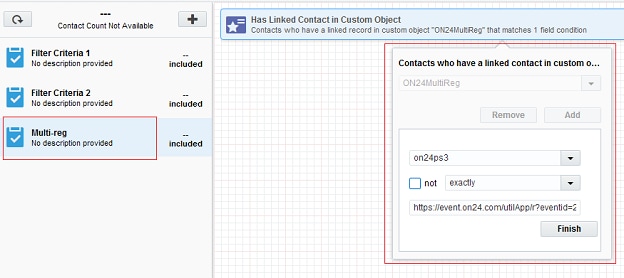
STEP 1 - Registrations Segmant: Add a new criteria called - 'Multi-reg' and select 'Has Linked Contact in Custom Object'. Associate 'ON24MultiReg' to the appropriate variable(Eg: on24ps3) as set in Welcome page.
Set the condition - variable equal to the appropriate Long URL of the Live Webcast as shown in Fig 3b below:
STEP 2 (Refer Fig 3b) - Multi Reg Confirmation Email : From the filter, check for the registrants that have NOT recieved the individual Live Webcast confirmation emails and associate them to recieve the Multi Reg Thank you email. Connect the filter such that those who recieve this confirmation, also recieve the Reminder.
Related Topics
Nailed it?
If yes, click below to confirm completion of this topic.
Yes, I have understood this topic well
