Zoom - ondemand


A solid agenda for your project kick-off meeting gets your team off on the right foot.

People

3

Prep time

15 min

Time

1.5 h

Difficulty

Easy

STEP 1 - Identifying Request (5 min)

In the GMSS Portal

  • Once the Zoom live webinar is completed, the requestor will share the video link and ask to change it to on-demand

  • The On demand request will consist of a
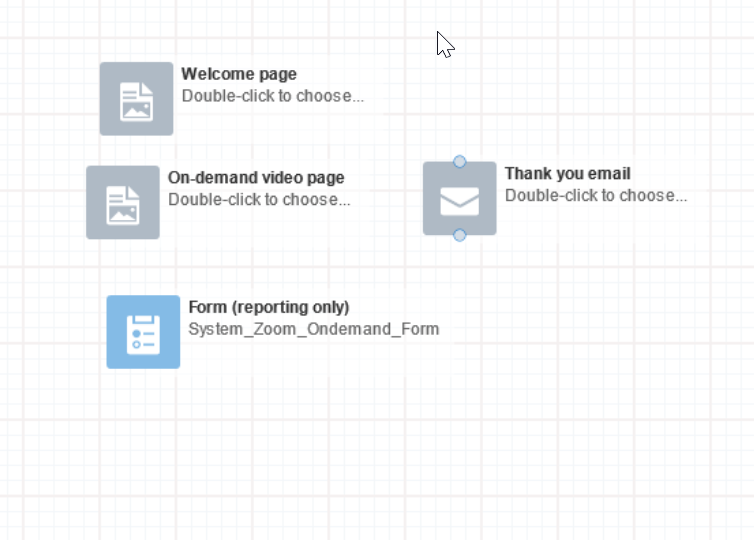
    Welcome page (WLP) – Which will be the same welcome page of the live webinar
    On Demand Video Page (OVP) - The Confirmation page consisting of the video embedded in the page
    Thank you email (OTE) – which consists the link of the recorded webcast and any other cross promotion

STEP 2 - Creating Pages (10 min)

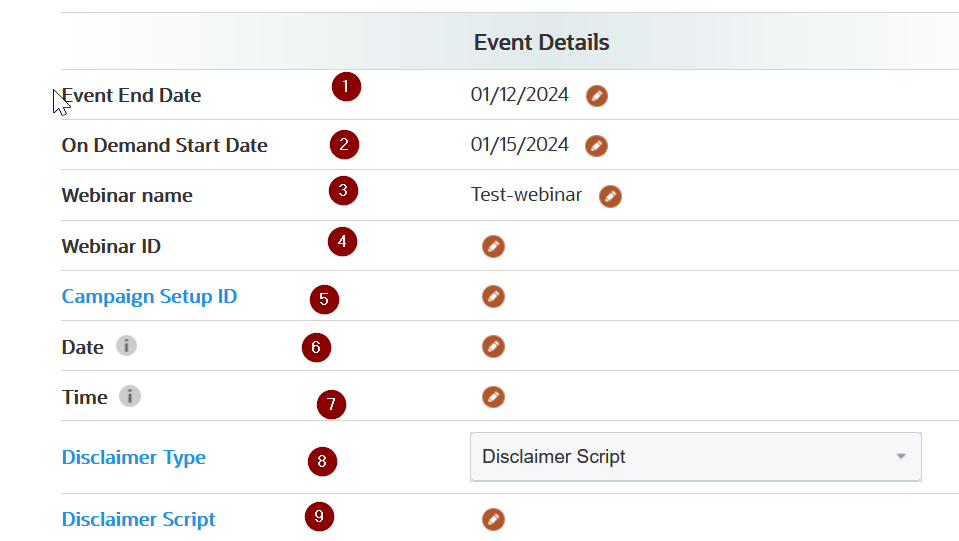
  • Stage Properties in Template Builder
    • After verifying the request in the GMSS portal, search for the landing page with either the GMSS request number or one of the asset id, under the Manage Campaign option.

    • Under stage properties - verify all the fields filled by the requestor are complete. If not get back to the requestor for their feedback.
    • Field text highlighted in Black - To be updated by Marketer.
      Fields highlighted in Blue - To to be filled by the Demand Center Analyst.


  • Creating Pages

    Welcome page:

    The welcome page details need to be updated before working on the page

    • The speaker placeholder image is provided if present. The requestor should provide the image
    • Edit the image (200 x 200 px). Upload in OCM and update the link in the placeholder with an appropriate alt text

    On-Demand Video page:

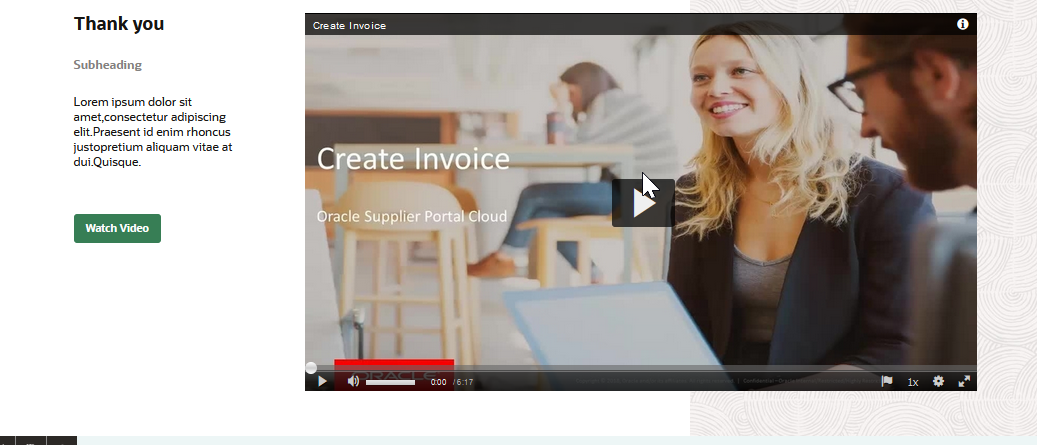
    The thank you page for an On Demand Webcast hosts the video in Videohub/youtube. This will be an embedded video player

    Embeding the video in the videoplayer placeholder

    YouTube: Get the Embed Code from your YouTube page > Share > Embed section. Copy the default script available.

    Video Hub: Get the Embed Code from your Video Hub page > Share > Embed section. Copy the default script available. DO NOT enable 'Responsive Sizing' attribute.
    Auto response email:

    Thank you email is an auto response email, which triggers once you access the thank you page

    Before working on the email, ensure that the asset properties are complete
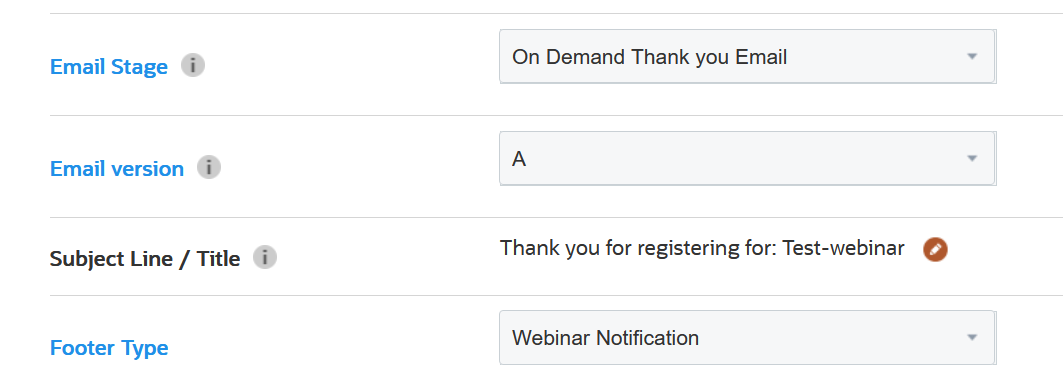

    1. Email stage should be on demand thank you email, footer type - Webinar Notification

    Update the link and assets in the template builder. Once completed use the TB beta upload to Eloqua

  • Verifying Data Flow and Registration

    End to end review/testing has to be performed, to ensure the data is flowing seamlessly.

    1. Open the Welcome page
    2. Click on the Registration button.
    3. Should arrive at the Thank you page after successful registration.
    4. Confirmation email should get triggered immediately, on arriving at the Thank you page.
    5. Click on the CTA link which should redirect to the Video Link


    1. In Eloqua->Forms
    2. Search for "System_Zoom_Ondemand_Form"
    3. Actions->View submission data->Your submission details should be captured
PRO TIP

-

STEP 3 - Publishing Pages (5 min)

The Eloqua campaign canvas is where you drop all of the elements of your campaign.

Canvas Setup

  • Search for the Program name in Eloqua ➔ Campaigns to arrive at the appropriate campaign canvas.
  • To add the landing pad assets select campaign steps ➔ landing page
  • Under choose a landing pad, search by your GMSS request number id and choose the welcome page, name the step name as welcome page
  • For adding the auto response email select ➔ email
  • Under choose an email, search by your GMSS request number id and choose the auto response email
  • Select campaign step ➔ choose form ➔ System_Zoom_Ondemand_Form
  • Once complete, verify the canvas elements


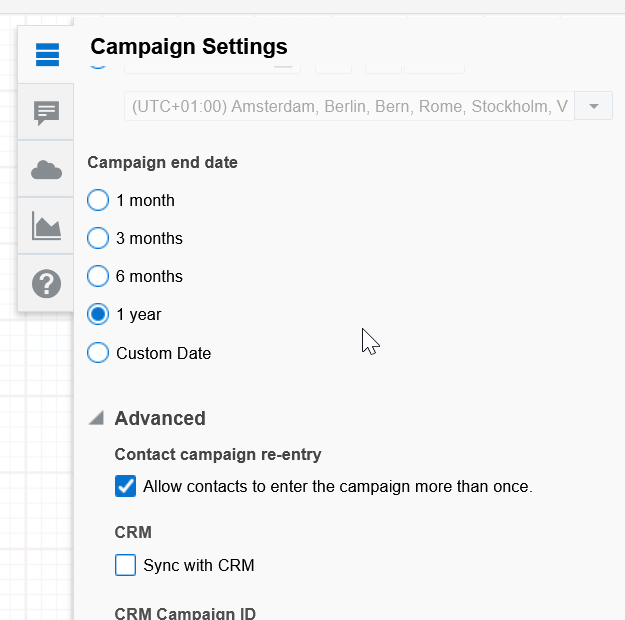
Campaign Settings


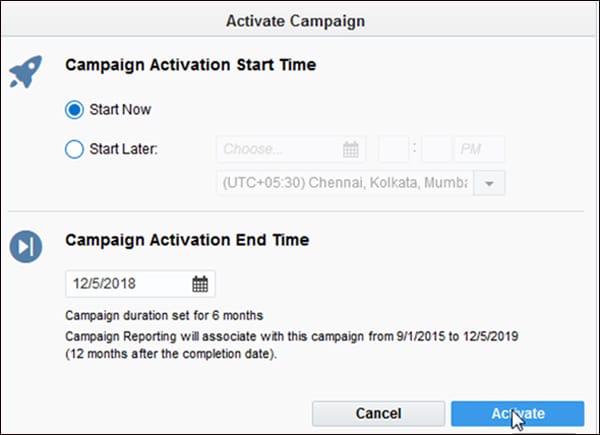
  • Campaign start date ➔ default is immediately unless you want to schedule the launch later
  • Campaign end date ➔ choose a minimum 6 month period from the activation date
  • Once completed save the canvas and activate
PRO TIP

-

Nailed it?

If yes, click below to confirm completion of this topic.

Yes, I have understood this topic well

Integrated Cloud Applications & Platform Services

We're here to help

Discussion Forum

  • To participate in our discussion forum join the slack channel #mktg-demandcenter or click here