Eloqua/WeChat Integrator Overview
Wechat is the most popular and influential social media platform in China. There are 889 million active Wechat users, China Marketing Wechat account has 25k followers so far.
Wechat/Eloqua integrator app was developed by Oracle product development team in China. It leverages Eloqua’s cloud connector functionalities.
The integrator app links WeChat users with Eloqua contacts and forwards marketing information generated by Eloqua to WeChat users. Meanwhile, it automates the data process by allowing contact data with Wechat attributes flow into Eloqua and CXD.

 People
3 |
 Prep time
20 min |
 Time
1.5 h |
 Difficulty
Easy |
STEP 1 - Channel Code Creation
On Monday:
Program Code (APMK180831P00001) will be same for all the campaign only new channel code will be created for each campaign.
- One program code.
- New channel code for each message — Li Min Will create the new channel code every Monday.
Channel code Example: APMK180831P00001C0001.
Once we receive the new channel code we have to check the program name in Eloqua.
Program name will be like: CN_FY19_WeChat Generic Message Sending_20180920 WeChat Generic Message Sending ➔ Only yellow highlighted part will be change as per the month and launching date.
STEP 2 - Blank Message in Eloqua
On Tuesday:
Once we receive the new channel code we have to create the blank message in Eloqua WeChat integrator:
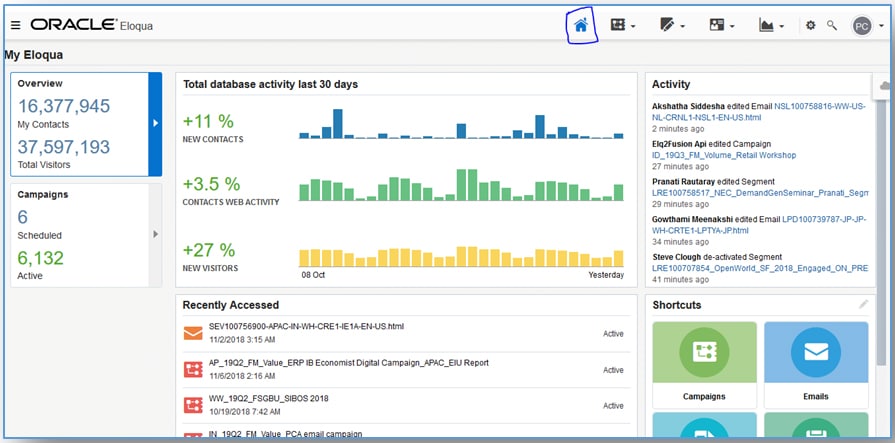
A. First we have to click on Eloqua home tab.
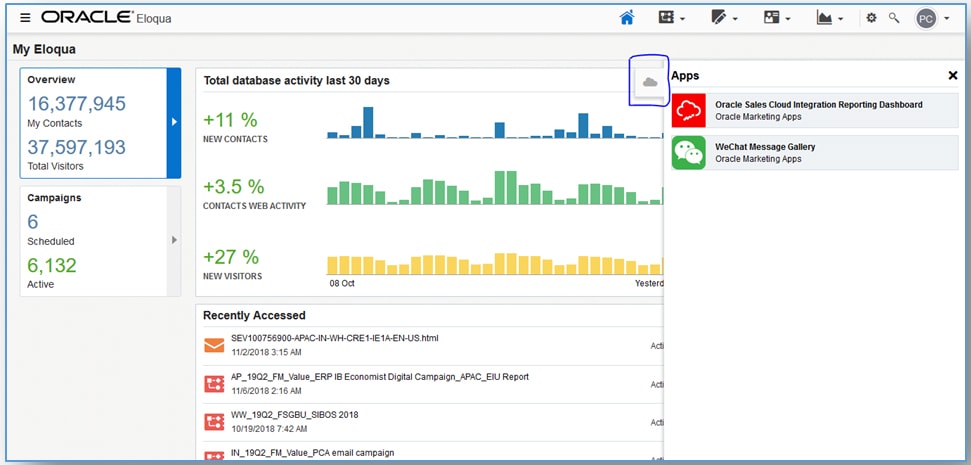
B. Second step in top right side of corner we have a cloud apps we have to click on that, Once we click we will get WeChat Message Gallery integrator app. Click on WeChat app it will open in another tab.
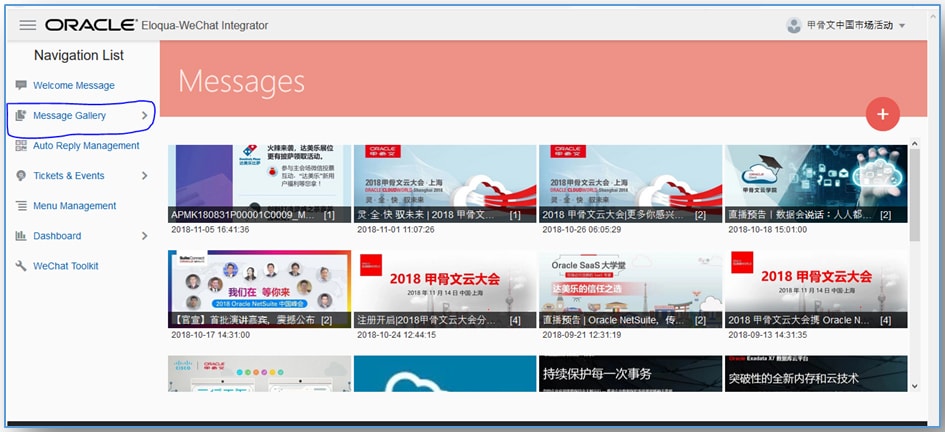
C. Once WeChat tab is opened click on Message Gallery, it will display Messages tab. In that click on “+” Plus button. Click on that we will get the new blank message tab to create the WeChat message.
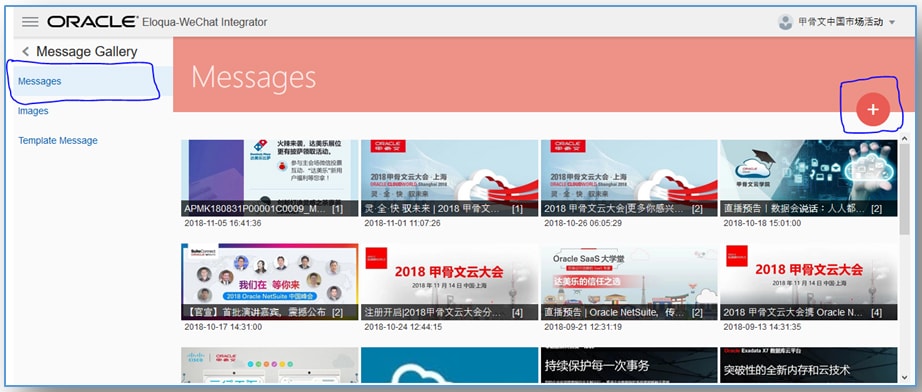
Blank message tab:
Here we have to fill Title, Author, Body and original page URL. Also default image to be select.
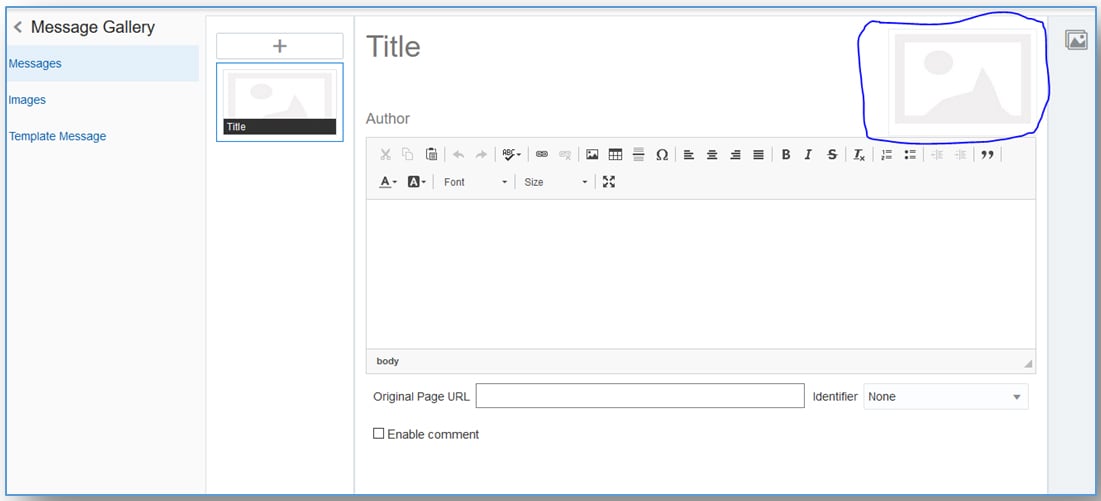
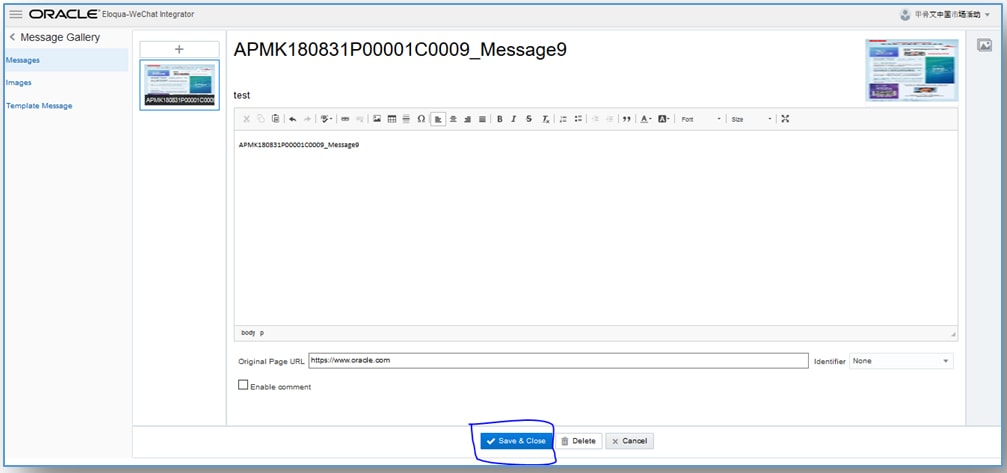
Example for filling the blank message:
Message title: APMK180831P00001C0009_Message9
Author: Test
Body: APMK180831P00001C0009_Message9
Page URL: https://www.oracle.com
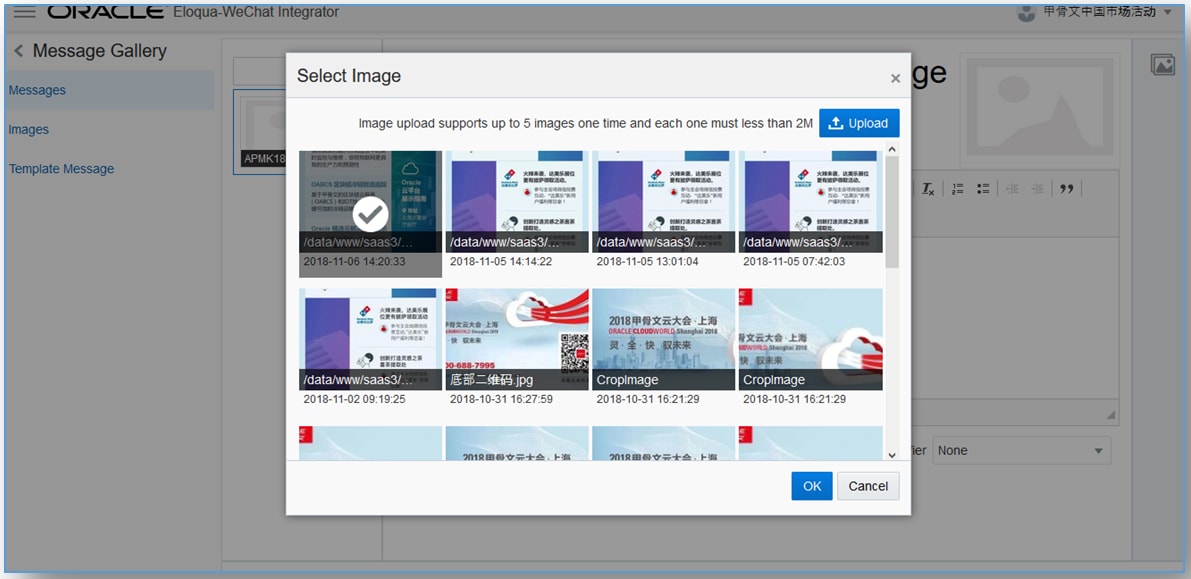
Image: Click on above highlighted image symbol one tab will be open like below. Select any one image and click on “ok” Button. Once we click on “OK” Button blank message tab will be display.
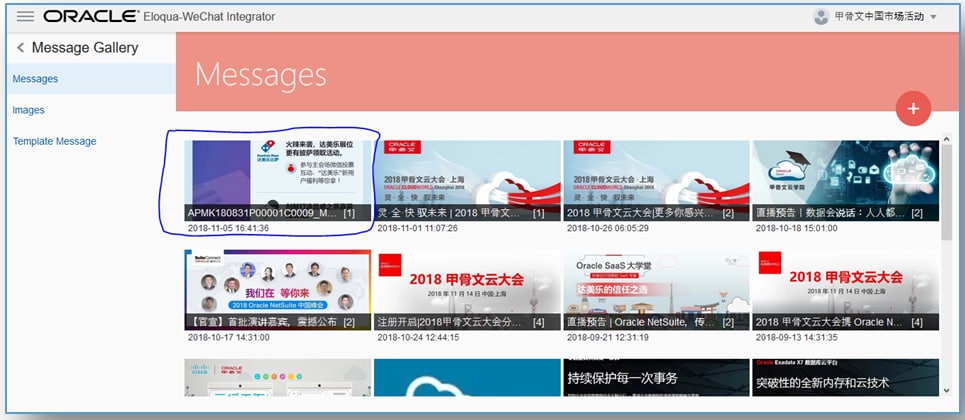
Final blank message: Here we have to click on “Save and close” button to create the blank message. Once we click on “Save and close” button, Messages tab will display with created blank message thumbnail.
NOTE: Once we create the blank message we don’t have any work or editing in Eloqua WeChat integrator, Close the WeChat integrator tab.
D. After creating blank message we have to setup the campaign canvas in Eloqua.
Example: CN_FY19_WeChat Generic Message Sending_20181031 WeChat Generic Message Sending (Live Campaign)
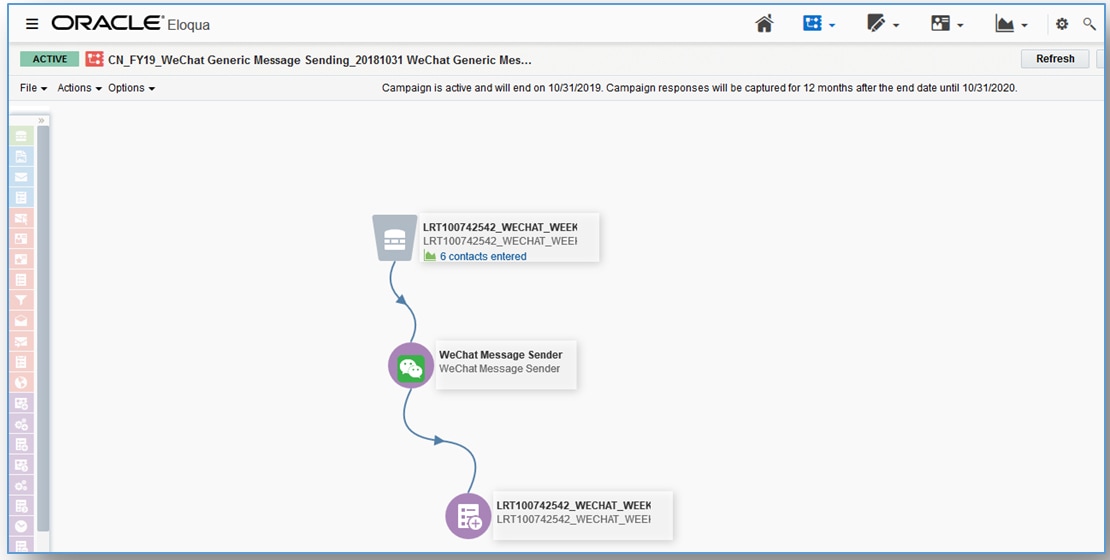
Note: Don’t edit or change the segment and shared list. Segment and shared list remains same for all campaigns.
Copy the assets from any old canvas and paste it in new canvas. Here we have to map the properties and blank message which we created. Clicking on WeChat message sender asset we will have editing option.Click on edit option to map. Once we click on “Pencil” edit option tab will open like below.
Here we have to map the “WeChat Official Account”, Send subject to be select “Send by Tag” and WeChat Tags should be “Weekly Generic Message” For live campaign.
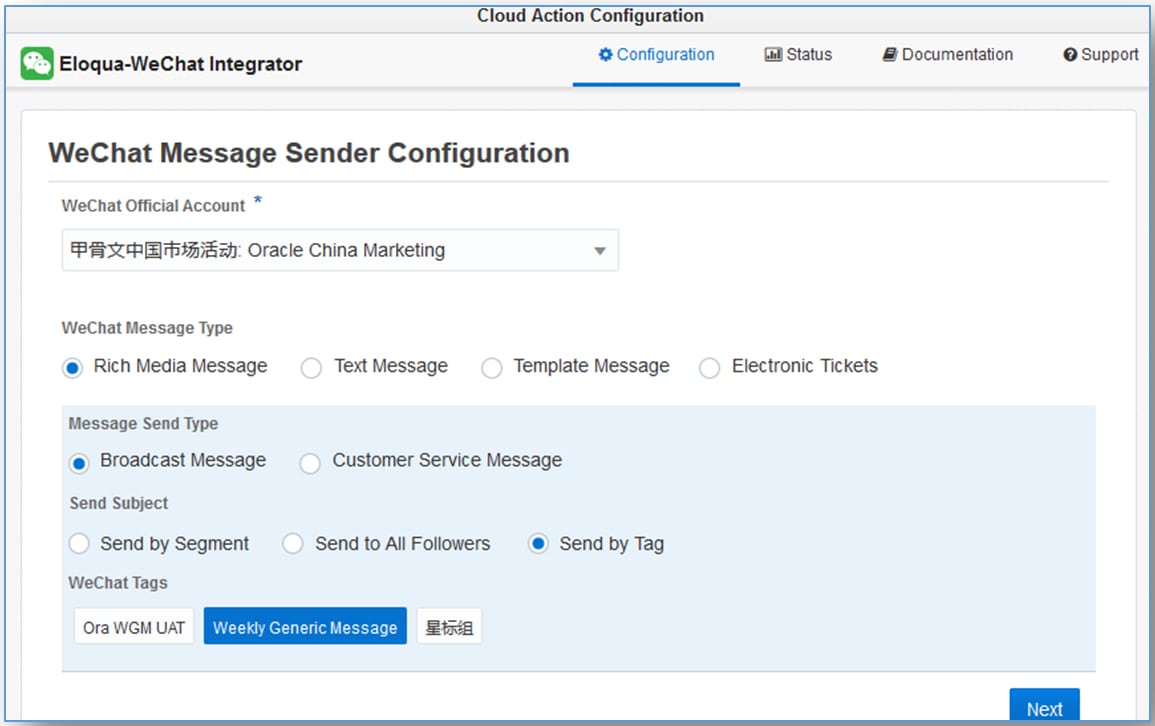
Once its mapped correctly click on “Next” button it will move to next tab.
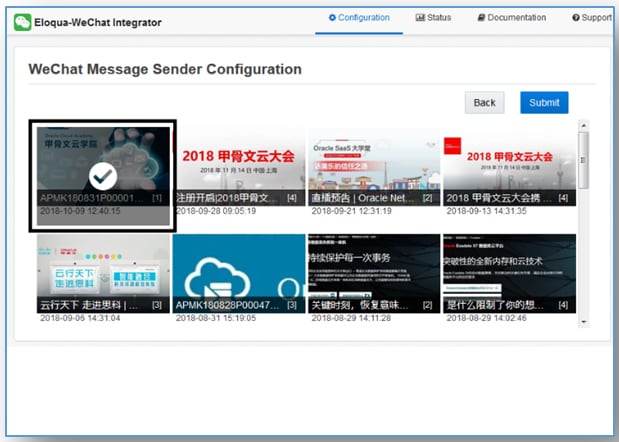
Here we have to map the blank message like above and click on submit button to save the configuration.
Once it’s saved, go to campaign settings and check the “Allow contacts to enter the campaign more than once” and save the campaign.
E. Once Live campaign is saved copy the same campaign and add the “Test” word to the campaign name for internal testing. Here one check point is we have to select the different tag “Ora WGM UAT” and blank message is already selected. Submit the button for saving the configuration.
Example: Test_CN_FY19_WeChat Generic Message Sending_20181031 WeChat Generic Message Sending.
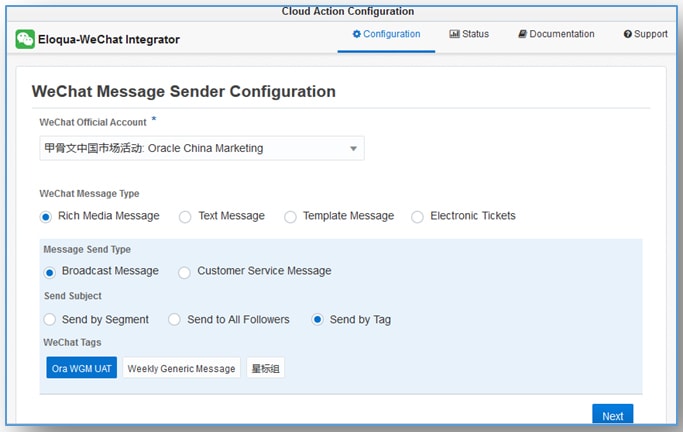
Like live campaign check the “Allow contacts to enter the campaign more than once” and save the campaign.
Please click here to download the Attachment
Once everything done take the screenshots and send it to “Min Li”. Attached the zip file for your reference. Tuesday task is completed. Wednesday Min Li will update the Original content.
STEP 3 - Verify the WeChat content in Eloqua
On Wednesday:
Once Min Li updated the comment saying content has been updated in portal. We have to check the content is dumped correctly in our blank message and take the screenshots of it. Send it to Min Li for confirmation.
Note: When we taking the screenshot of actual message in "Eloqua WeChat integrator" don’t click on “Save and close” button instead of that click on "Cancel" button and also check the configuration in Eloqua which we mapped earlier in setup. Mapping is correct or not.
Original message looks like below image.
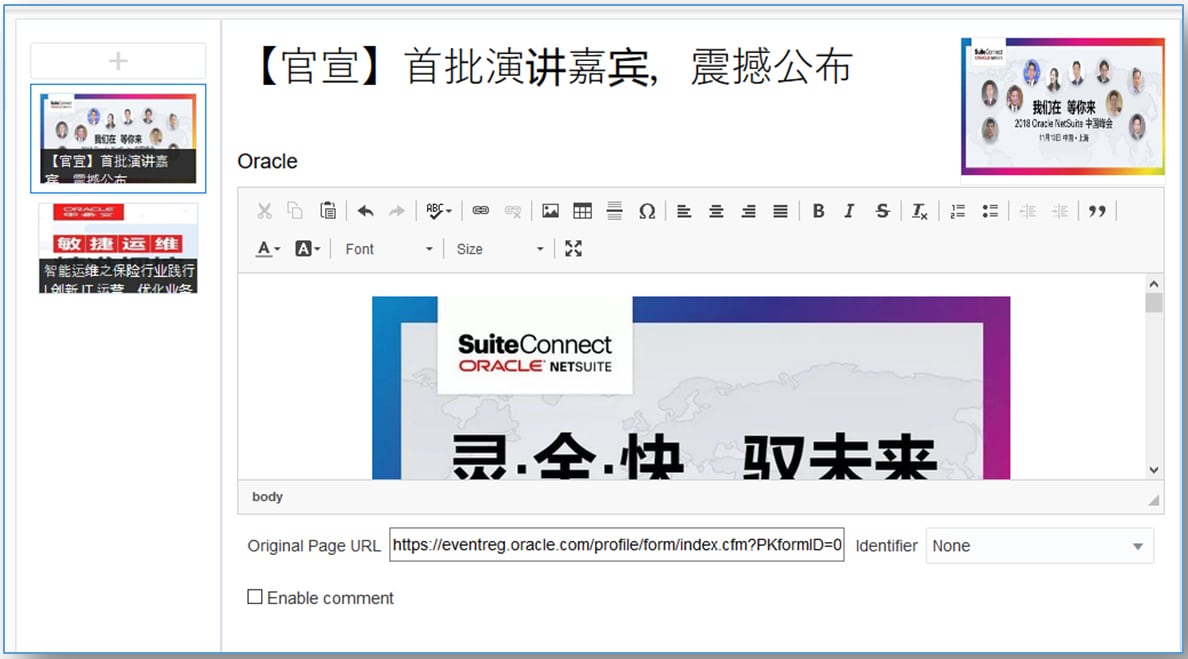
Attached the screenshot for your reference which all images to be send for Min Li for confirmation.
Please click here to download the Attachment
Once “Min Li” confirmed the content message. We have to activate the test campaign message on Thursday at 4.30 PM Beijing time and live campaign at 5 PM Beijing time.
Note: Please ask 30 minutes gap for test campaign and live campaign activation. Before activating the live campaign check with “Min Li” for they have received the test campaign message successfully.
PRO TIP
Click here for more detailed content.
Related Topics
Nailed it?
If yes, click below to confirm completion of this topic.
Yes, I have understood this topic well
