Intrado Webinar Setup
Intrado Webinar setup requires setting up 2 canvases.
Canvas 1 - with program code for Registration Page and Sending out Invitation, Reminder Emails and Post Event mails.
Canvas 2 - with a channel code created with form setup to flow data to Intrado platform.
Here, you will learn:
- Identify request
- Registration Types
- Email Executions
- Post Event Activities
- Create Channels
 People
2 |
 Time
30 min |
 Difficulty
Moderate |
Step 1 - IdentifY INTRADO Webinar Request
- Intrado Link
- APIUserAuthCode
- APIUserCredentials
- ShowKey
- ShowPackageKey
- Update Language on Intrado - 0
- AttendeeTypeKey
- Send Email from Intrado
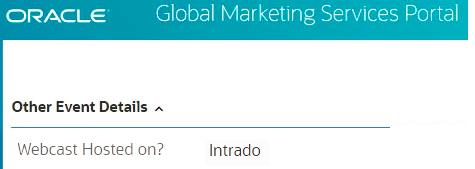
Go to GMS Portal → Other Event Details
• Identify if the Webcast is Hosted on 'Intrado'
In addition, the following information will be provided in the request:
Go to GMS Portal→ Event Setup Details
• Identify the Registration Method : 'Standard'
Note: Supports the for Standard Registration process. If Monitored, kindly to reach out to the Operations Team for guidelines.
STEP 2 - STANDARD REGISTRATION & PAGE SETUP
Download the following from the Template Builder
Note: The Intrado templates are available under the Webinars and Virtual Events Category - Tier1 & Tier 2 Events.
● Welcome page
● Thank you page
● Confirmation Email (if applicable)
● Reminder Email 1 & 2
● Post Event Thank you Email (based on requirement)
● Post Event Sorry Email (based on requirement)
REGISTRATION PAGES UPDATE & SETUP
WELCOME PAGE:
Update the following values in stage properties.
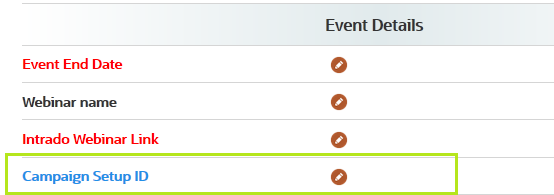
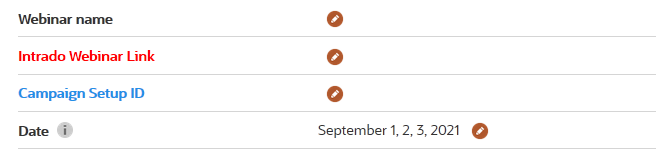
● Event End Date - Refer Portal
● Intrado Webinar Link - Refer Portal
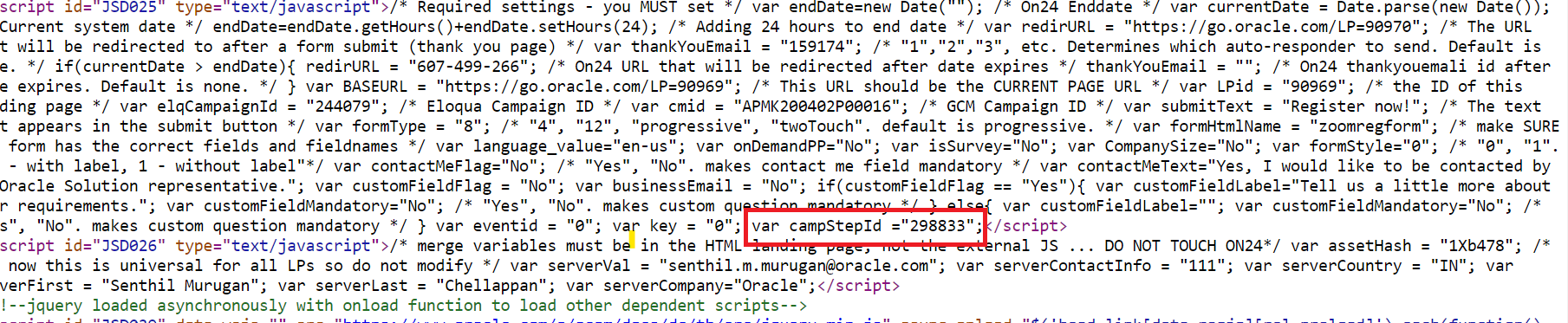
● var campStepId ="XXXXX"
Ensure Campaign Setup ID has been updated in Stage Properties (with value identified under the developer tools. Know more.)
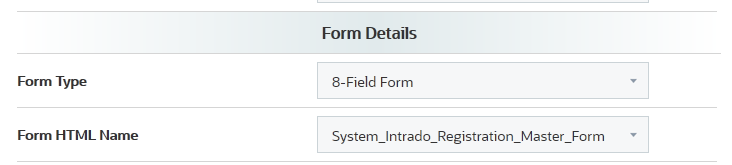
● formHtmlName = "System_Intrado_Registration_Master_Form"
● var formType = "8"
● If a Multiple date webcast: Update the Date in Template Builder Stage Properties
THANK YOU PAGE:
Download the asset from Template Builder and Upload it to Eloqua
CONFIRMATION EMAIL:
Update Confirmation(Thank you) email ID as 0 Stage Properties.
Note: This email will be setup and triggered from Canvas 2(Channel Code 1 Canvas)
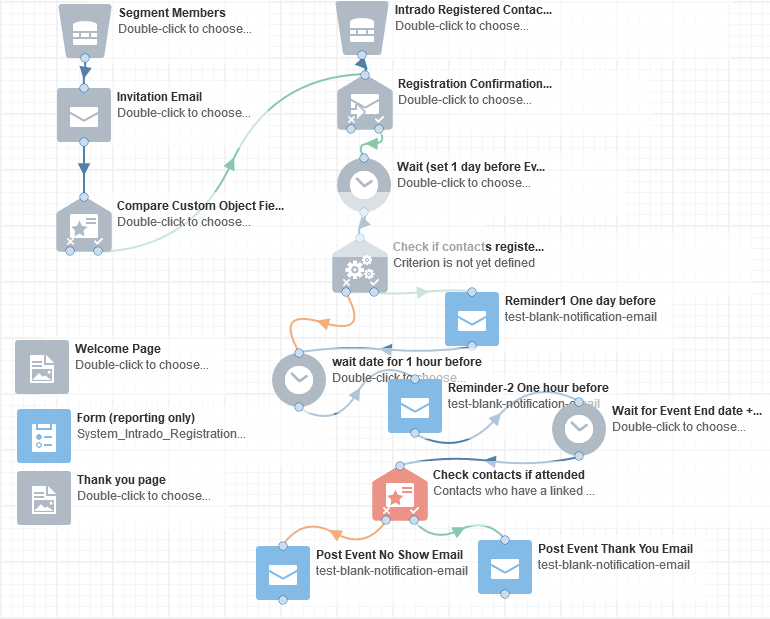
STEP 3 - INVITATION AND REMINDER EMAIL & POST EVENT MAILS Execution - Canvas 1(Program code)
-
Welcome, Thank you pages and Form - Add the following assets and associate the form - System_Intrado_Registration_Master_Form
- If an invitation email needs to be sent, add the email asset & list segment and activate the campaign again to deploy the emails. If there is a second invitation, deactivate the canvas again and repeat.
- Reminder Emails Setup
a) Registrants Segment: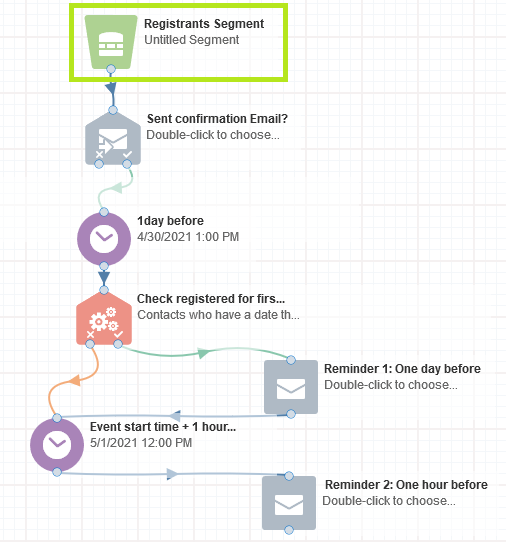
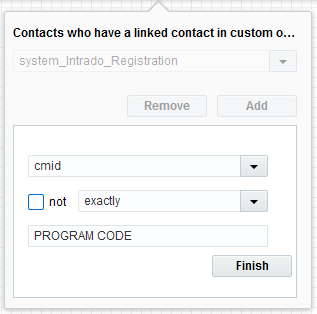
● Create the segment and add a filter "Has linked contacts in Custom Objects"

● Select the "system_Intrado_Registration" and click Add.
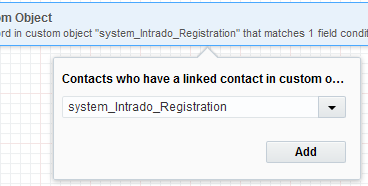
● Click add and select cmid = PROGRAM CODE and click finish
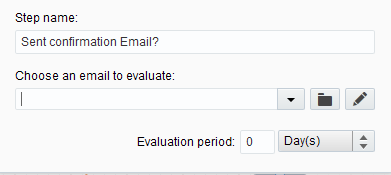
b) Evaluate Confirmation Email Sent
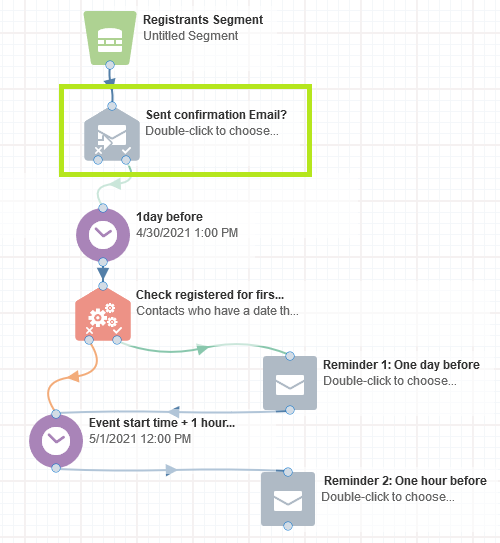
● Select your confirmation email and set Evaluation Period: 0
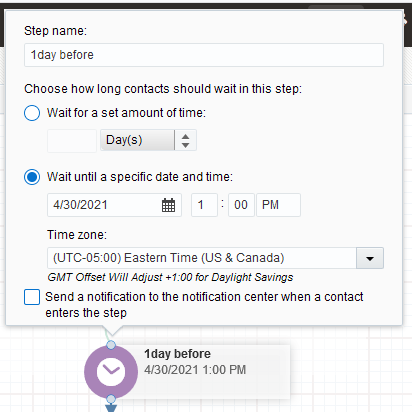
● Attach to a Wait set to exactly 1 day before 'event start date time'
● Connect the Wait to a 'Compare Date' object set to evaluate to (1 day before the'event start date time)' + 1 minute
Note: You can refer time set in wait and add 1 minute to it.
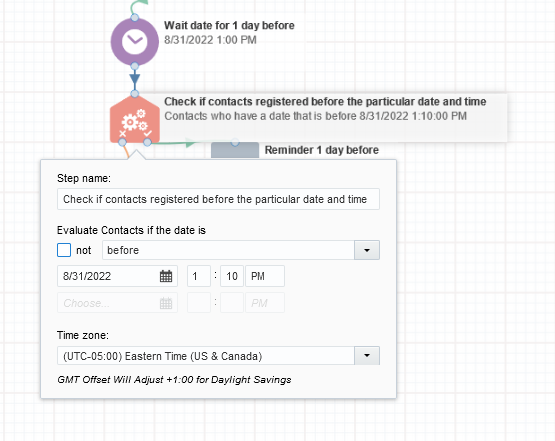
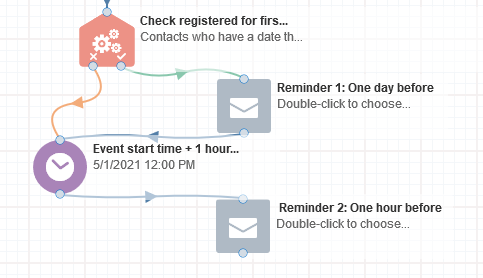
● If the 'Compare Date Object' evaluation is satisfied.( i.e if the date of registration is 1 day and a minute before than the event date time), trigger the 1st Reminder and are moved to a Wait(set to one 1 hour before the 'event start date time') to recieve Reminder2.
● If the 'Compare Date Object' evaluation is not satisfied connect to Wait(set to until one 1 hour before the 'event start date time') to recieve Reminder2.
Note: The time period to trigger to trigger the Reminder 1 and Reminder 2 can be customised as per requirement.
c) Associating First email
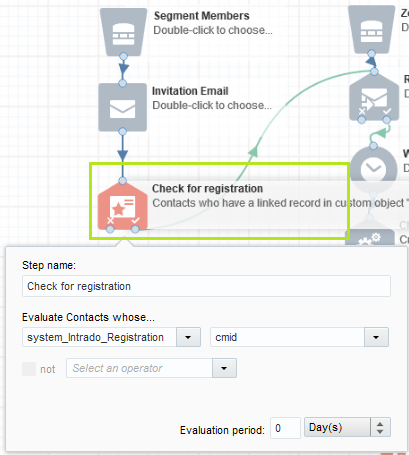
● To the first email element, connect a “Compare Custom Object Fields” in the Canvas -> Edit and Add the following parameters for validation check.
Evaluate Contacts Whose
a. system_Intrado_Registration
b. Cmid = Program Code
c. Set the Evaluation period based on 'event start date'.
● Connect the true condition of the “Compare Custom Object Fields” to the 'Send Confirmation Email - Compare DateObject'.
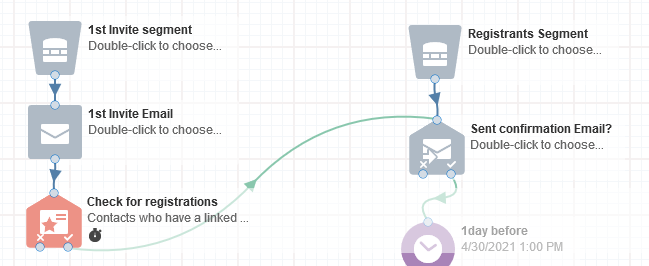
● "UNCHECK Allow contacts to enter campaign more than once". Activate the Canvas.
d) Associating Second or Multiple Invitation Email
● Deactivate the Campaign, if already activated.
● To the Second email element, connect a “Compare Custom Object Fields” in the Canvas -> Edit and Add the following parameters for validation check.
Evaluate Contacts Whose
a. system_Intrado_Registration
b. Cmid = Program Code
c. Set the Evaluation period based on 'event start date'.● Connect the true condition of the “Compare Custom Object Fields” of the second email to the 'Send Confirmation Email - Compare DateObject'.
● Connect the false condition of the “Compare Custom Object Fields” of the First email to the Second Email.
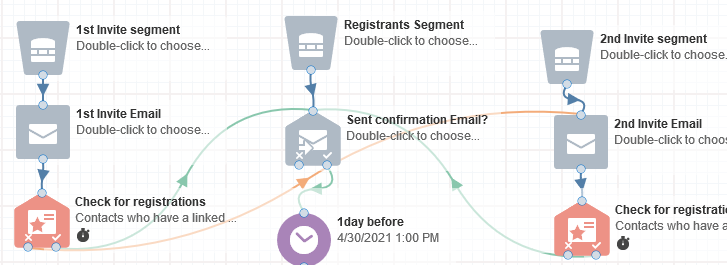
● "UNCHECK Allow contacts to enter campaign more than once". Activate the Canvas.
- Post Event Mails Setup
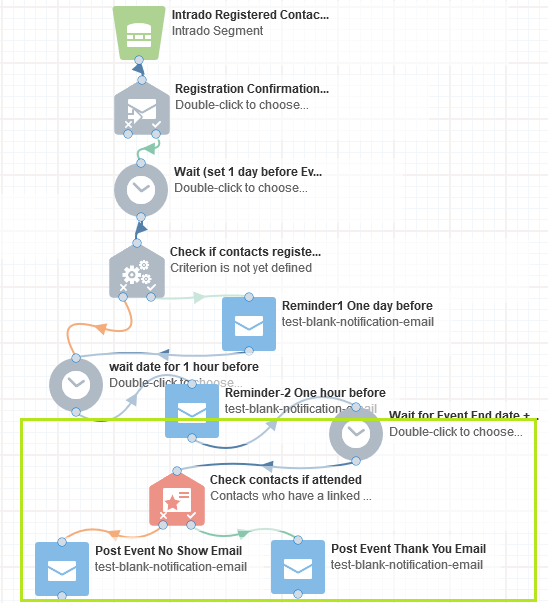
a) Check for Attendees:
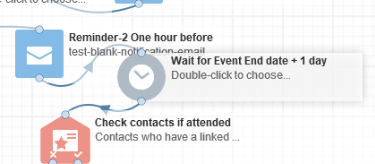
● Move contacts from Reminder Email 2 to a Wait set to Event End Date +1 day
● Use a Custom Compare Object to check how many of these contacts Attended the event checking contacts whose System_Intrado_Attendee with External Show ID is exactly PROGRAM CODE
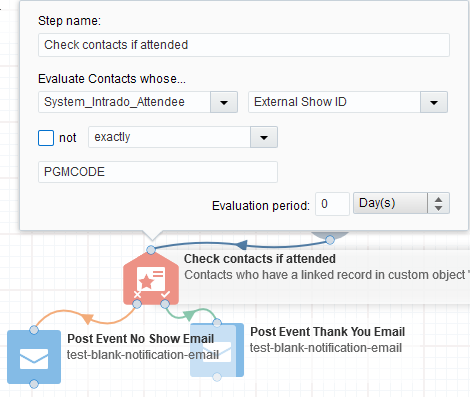
● Associate the Post Event mails to the Custom Compare Object:
a) Satisfy the condition to recieve the Post Event Thank you Emailb) Does not satisfy the condition to recieve Post Event Sorry Email.
Copy the below canvas and update the sections as required.
Intrado-Live Webinar
PRO TIP
● For invitation emails, footer type in Eloqua will always be Resp_Generic_Language
STEP 4 - INTRADO REGISTRATIONS (CHANNEL CODE1 CANVAS)
-
Create Channel code1. Find out how. Actions → Name it as "IntradoRegistered".
-
a)On the Campaign Canvas Tools → Actions → Form Submit. Name it as "Intrado Form Submit". Update the following:
i) Edit and Search Eloqua Form name to "Intrado_Credential_Form"
ii) Update APIUserAuthCode (Select Static and then updatevalue to be provided my marketer”)
iii) Update APIUserCredentials (Select Static and then update “value to be provided my marketer”)
iv) Update OpCodeList - Enter = Cr(Select Static and then update “Cr”)
v) Update LASCmd - Enter = AI:4;F:APIUTILS!50500(Select Static and then update “AI:4;F:APIUTILS!50500”)
vi) Update UBMLCPWD - Enter = 1(Select Static and then update “1”)
vii) Update ShowKey(Select Static and then update “value to be provided my marketer”)
viii) Update ShowPackageKey(Select Static and then update “value to be provided my marketer”)
ix) Update Language on Intrado - 0 for English(Select Static and then update “0 for English. Other language values to be provided by marketer”)
x) Update AttendeeTypeKey (optional) (Select Static and then update “value to be provided my marketer”)
xi) Update Send Email from Intrado - No=0, 1=Yes(Select Static and then update “Update 0 for No/1 for Yes”)
x) Save Form Submit
-
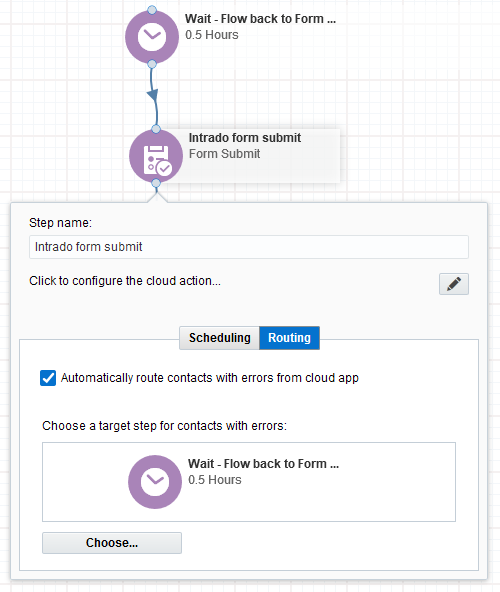
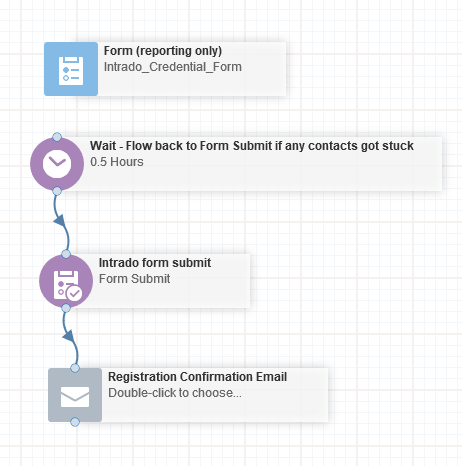
Configure Form Submit as shown below (route the contacts to wait step if errored out and then move back to the Cloud Form Submit.)
- Add a wait and set to 0.5 hours
- Double click Intrado Form Submit
- Go to Routing Tab.
- Enable the check box next to "Automatically route contacts with errors from cloud app"
- Click Choose and specify a target. In this case we will add it to Wait step
- Click Save and close the tab once you have completed your configuration- Link to flow contacts from 'Wait' back to 'Form Submit'. (Please see image for reference).
-
Identify the Eloqua Webinar setup ID (keep this handy to update in Template Builder -> Stage Properties -> Campaign Step ID) to connect Intrado to Welcome Page:
a) Open Eloqua in browser (preferably Google Chrome).
b) In the browser, go to Developer Tools → Network tab.
c) If there are no links displayed, refresh the page again.
d) Search for link with same number as the Eloqua Campaign ID of canvas.
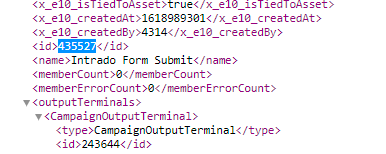
e) Identify link as shown below: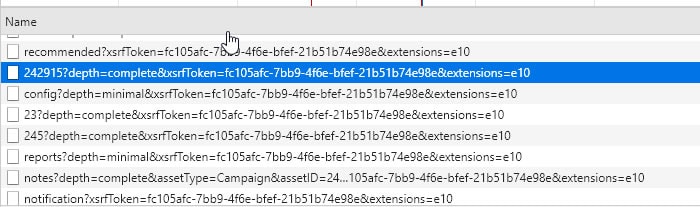
-
Double-click on link to open script and identify id just above Intrado Form Submit
-
Activate Canvas.
Note: Allow contacts to enter the campaign more than once should be checked.
Copy the below canvas and update the sections as required.
Intrado_Webinar-Registered
PRO TIP
● Update the webinar ID without any space in Feeder
STEP 5 - Post Event Activities GUIDELINES
POST EVENT SURVEY: REQUESTED BY MARKETER TO UPDATE IN INTRADO SETUP
- Create an Post Event Survey Form as per guidelines (Note: Use the program code of Live webinar)
-
Append Survey Form link created with Tracking.
E.g.: ?src1=:ex:pw:::IntradoPostEventSurvey&pcode=XXXXXXXXXXX -
Share the Tracked Survey form link to the Marketer through Portal, which they can update into their Intrado setup.
IDENTIFY AND SETUP POST EVENT EMAIL GUIDELINES
Note: Kindly check the option selected by the Marketer related to the post event activities.
-
USE CASE: Post Event Follow Up/ Offer from Certain = No
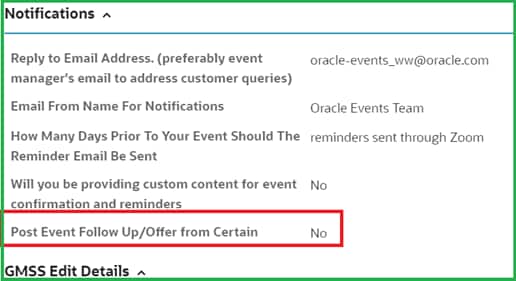
DC Responsibility: Delete the Post event elements, the Wait and Custom Compare Object right above it copied from the Master Canvas. Associate all other elements and activate the canvas.
-
USE CASE:
Post Event Follow Up/ Offer from Certain = Yes
Post event email send date: DD-MM-YYY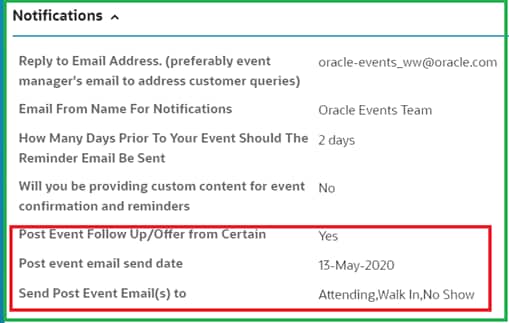
DC Responsibility:
- Kindly Review the content provided in TB, and follow-up with requester if any missing
-
DO NOT Connect the post event emails in the Canvas until the content is ready and approved. Keep the canvas with Wait set to Event End Date +1 day from the Reminder Email 2.
PRO TIP
● Allow contacts to enter the campaign more than once should be unchecked.
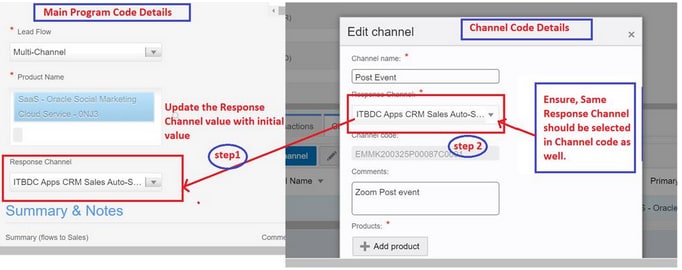
Create a new Channel
-
-
Select the Lead Flow “Multi Channel”, so that it enables channel code creation.
- Create the Channel Code for the Post event activities and set the response channel to with right value as per the screenshot and Save.
-
Search the program code again in MRM
-
Update the Response channel from “No Lead Flow” to initial value as per the screenshot taken initially.
Take the screenshot of the current program code details in MRM for reference purpose.
Related Topics
Nailed it?
If yes, click below to confirm completion of this topic.
Yes, I have understood this topic well
