Nurture Requests in Unity
For Analysts
List Team plays a vital role in targeting the right audience and engaging the prospects in modern marketing cycle. The team consists of Demand Center managers and Analysts who work closely with their respective regional Sales and Marketing campaign managers to source and build high-quality contact lists to drive engagement, build lead pipelines and ensure optimal revenue results.

 People
2 |
 Prep time
30 mins |
 Time
10 mins |
 Difficulty
Medium |
1 - ABOUT NURTURE CAMPAIGNS
In Nurture campaigns automated communications are sent to a highly targeted and segmented audiences on a daily basis where the campaigns are designed based on multiple factors.
Nurture campaigns are long term campaigns which are running successfully on regular time intervals pulling contacts to build relationships with potential customers and guiding them through the buying process and nurturing them to the lead flow.
Nurture campaigns are designed by the campaign owner anticipating the needs of the buyer based on who they are (using profile characteristics, such as title, role, industry, persona and so on) and where they are in the buying process. In Nurture campaigns contacts receive up to three to five email communications with 'last chance to confirm activity'.
2 - CURRENT NURTURE SEGMENTATION PROCESS
Nurture campaign owners currently define their segmentation criteria in the standard excel template and upload the excel file in GMSS portal under LRT request and submit the LRT request for processing.
3 - UNITY NURTURE SEGMENTATION PROCESS
Nurture campaign owners can directly define their segmentation criteria in Unity tool by copying the base segment created by DC Team and add any additional include / exclude criteria filters in Unity and submit the OUL request for processing by DC team.
4 - NURTURE SEGMENTATION PROCESS WORKFLOW IN UNITY
4.1.1. SEGMENTATION PROCESS
4.1.1.1. ROLE OF MARKETERS
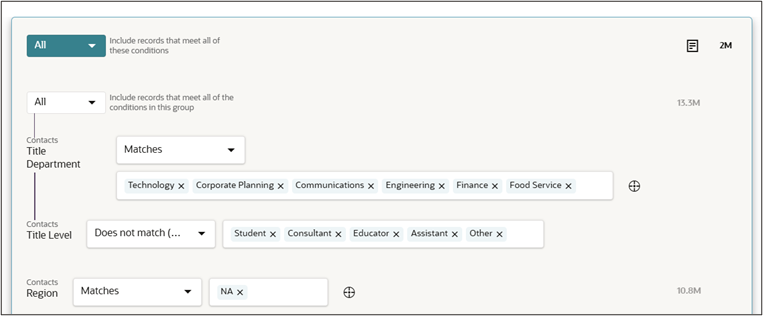
• Marketers set up the nurture criteria filters in Unity using the base template in Unity.
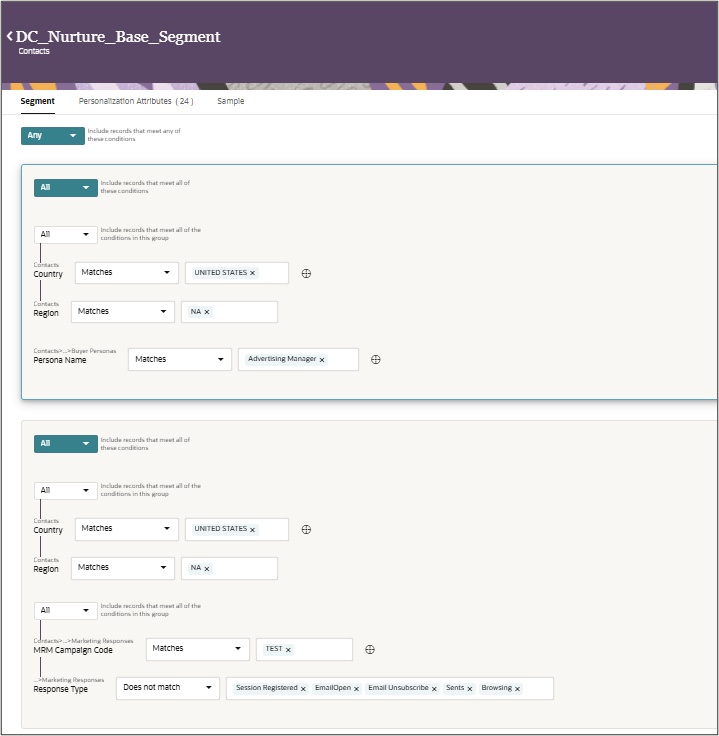
• Screenshot of the base template DC_Nurture_Base_Segment is attached for reference.
Inclusion Filters of Unity Nurtures:
(Marketers just need to select and fill in their inclusion criteria for nurture)
Exclusion Filters of Unity Nurtures:
• DC_Nurture_Base_Segment has a pre-defined exclusion block with All basic exclusion filters and nurture specific exclusion filters are already part of the template segment. Hence marketers may need to use the exclusion criteria block, only for campaign specific exclusions like excluding a particular title or a country or an industry etc.,
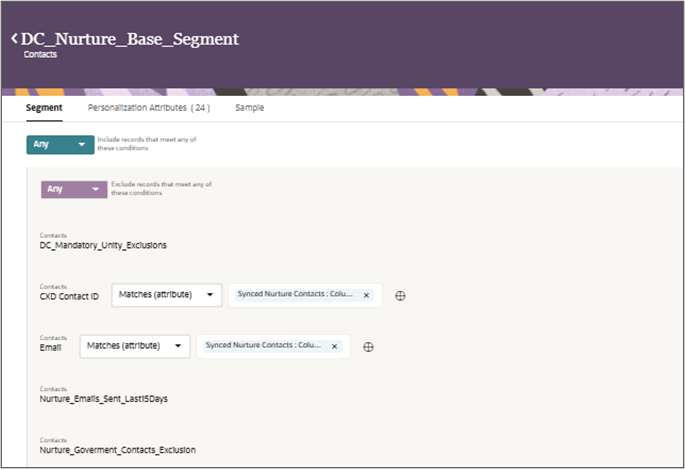
Pre-Defined Exclusion segments inside Exclusion Block:
• Child segment under the DC_Nurtrure_Base_Segment with name DC_Mandatory_Unity_Exclusions has all the basic mandatory exclusion filters.

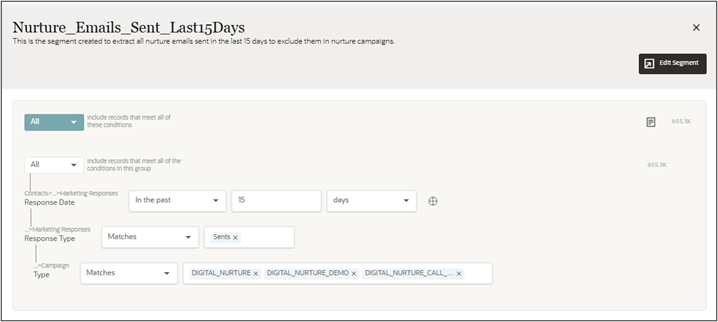
• Nurture_Emails_Sent_Last15Days screenshot for reference:
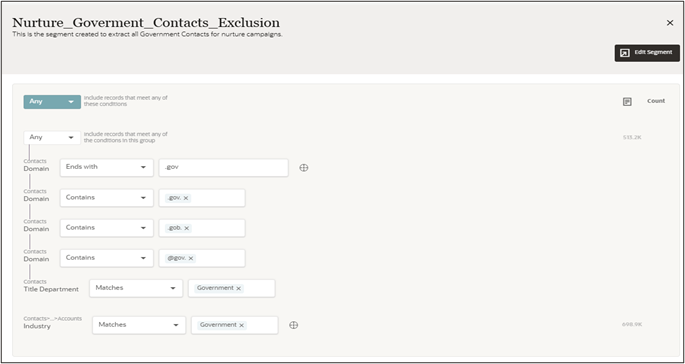
• Nurture_Government_Contacts screenshot for reference:
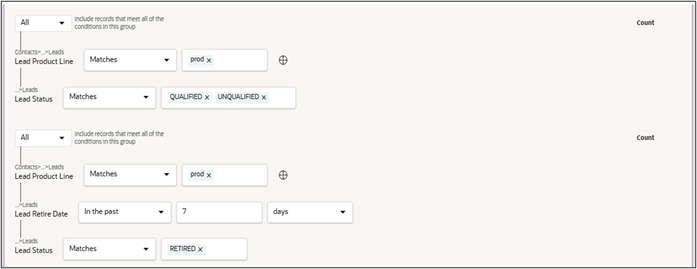
• Lead Exclusions - screenshot for reference:
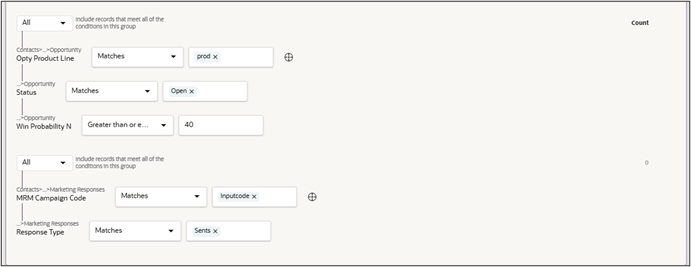
• Opportunities and Responses Exclusion - screenshot for reference:
• Marketers need to submit an OUL request with their defined Nurture Unity segment association using this base segment.
4.1.1.2. ROLE OF PRODUCTION TEAM
• Production analyst to check the assigned nurture OUL request and get the doubts clarified with marketer if any, to start processing.
• Production analyst to check for the below mandatory inclusion / exclusion filters required for processing and add the filters if anything is missing.
• Ok To Email - No
• Partner Exclude
• Competitor Exclude
• Govt Contacts Exclude
• OverTarget Flag
• O2K C Level Contacts
• Recency above 12 months
• Mandatory nurture specific exclusion filters
• Active Lead Exclusions (MRM Code and Product Line need to be added by the Production Analyst).
• Last 7 days retired leads exclusion (MRM code and Product Line need to be added by the Production Analyst)
• Opportunity contacts exclusion (MRM code and Product Line need to be added by the Production Analyst)
• Contacts of the Current Nurture Emails Sent (MRM code of the current nurture to be added by the Production Analyst)
• Save the Unity segment with all mandatory inclusion and exclusion filters.
Important points to note:
To identify the nurture unity segments from the normal Unity segments, marketers are advised to ensure the keyword Nurture in the Unity segment name, OUL request Name and Campaign Name as part of the standard naming convention. This helps to monitor the nurture performances in Unity and will be useful for reporting purposes.
Marketers are advised to copy and rename the Unity Base template DC_Nurture_Base_Segment while creating the segmentation for Nurture requests in Unity.
4.1.2. LIST APPROVAL PROCESS
• Production Analyst to select the predefined template with the name Preview_List_Template, where the standard personlisation attributes are already defined for generating the preview list.
• Production Team to create an Export Job following the below steps to generate the list of contacts to provide the preview list to the marketers.
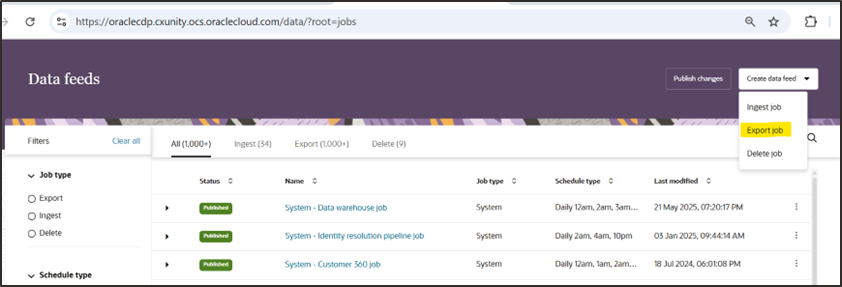
• Select Data Feeds from Main Menu > Export Job > Provide an Export Job Name following the standard naming convention rules (Request number followed by OULxxxxx_Export_Job)
• Select the appropriate regional destination folder and a file name to retrieve the stored zip file in (.gzip format)
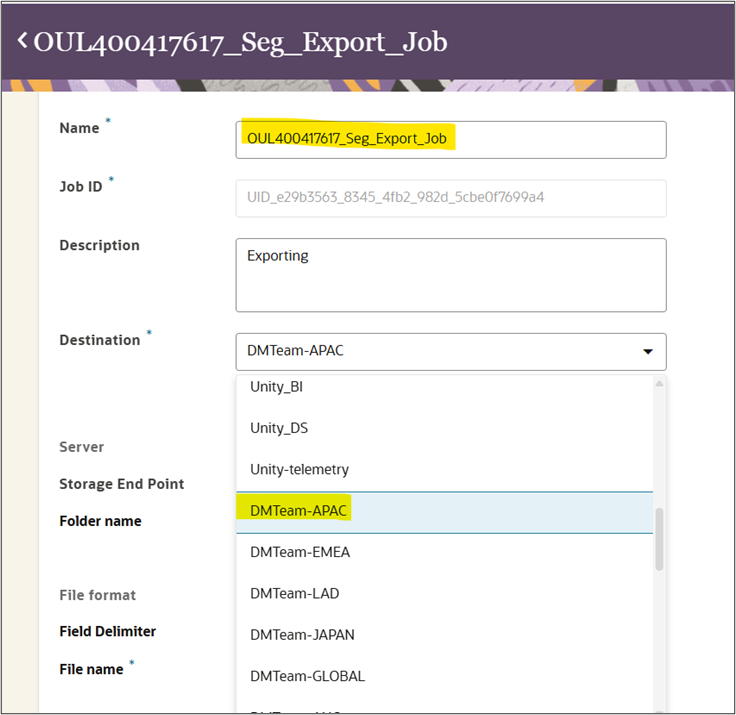
• Select the Unity Segment Name under Data Payload Section which loads the personalization attributes selected using the Preview_list_Template.
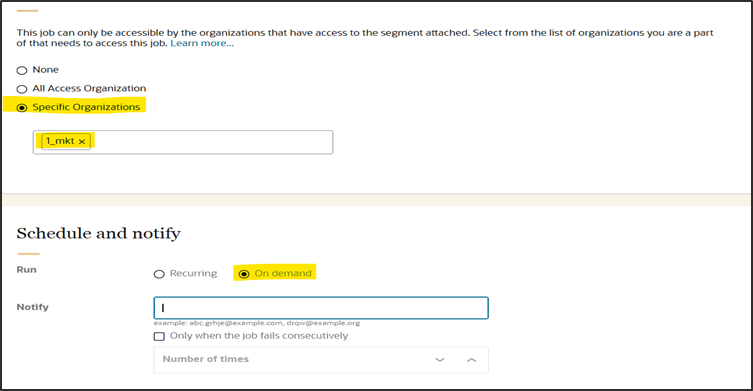
• Select the option Specific Organizations > 1_mkt under Access section.
• Select the notification email and On Demand option (for one time execution) under Schedule and Notify Section.
• Save and close the screen from the top right corner.
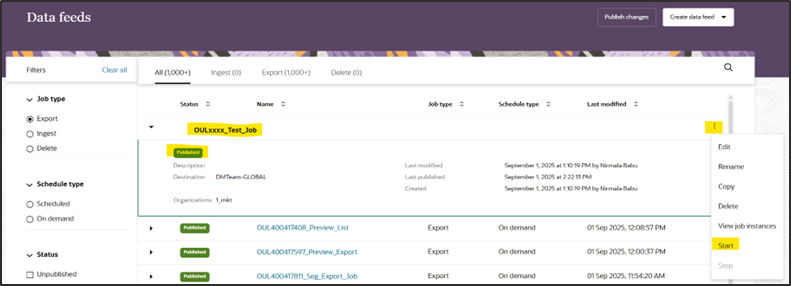
• Select Publish Changes option and select the export job and click Publish > Start Publish Job after the job is saved and closed.

• Production Analyst can check the Publish status under the Data Feed section and start the job for execution by clicking the : dots on the right corner of the specific Job.
• When the job execution is over, analyst will get a notification mail with subject line ‘Job Success’ > Segment Export Job completed Successfully.
• Analyst can download the preview list file available in .gzip extension from the respective regional folder in the OCI environment and upload the preview list in GMSS portal along with protected audience counts detailing approved and rejected contact counts under each category.
• When Preview list is approved by markters in GMSS portal, production analyst to proceed with the final list sync with Eloqua after excluding the approval rejected contacts by creating a campaign job.
4.1.3. NURTURE FINAL LIST PROCESS
• Unity Segment count need to be re-generated and save the segment after making the changes related with the approvals / rejection of approved contact filters.
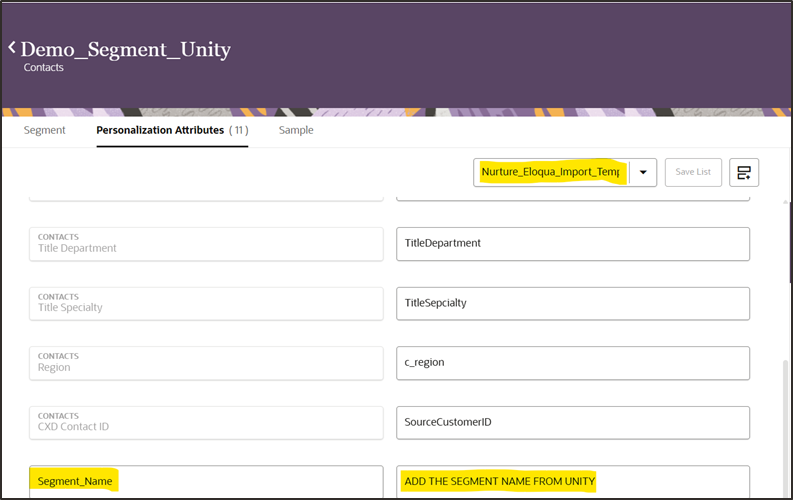
• To sync the contacts with Eloqua from Unity segment, Production Analyst need to select the predefined template with the name Nurture_Eloqua_Import_Template under personalization attributes section in Unity segment canvas before creating a segment Delivery Job. This is to define the standard personlisation attributes for generating final list in Eloqua. (Refer Screenshot below)
• Fill the Unity Segment Name under the value for Segment_Name attribute and save the segment before running the segment delivery job.
• Segment Delivery Job need to be created to sync the contacts in Eloqua for daily run by setting the option as recurring campaign.
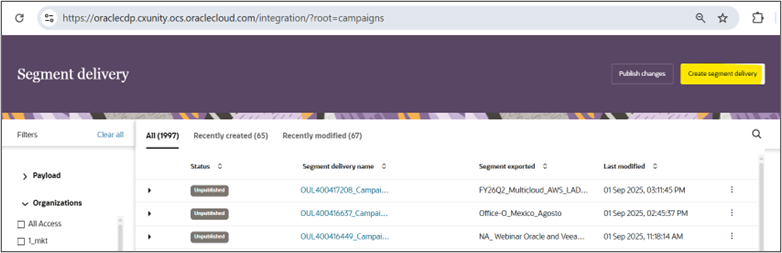
• Select Main Menu > Segment Delivery > Create Segment Delivery > Provide a Segment Delivery Job Name following the standard naming convention rules (FYxx_Region_OULxxx_Recurring_Nurture_Job)
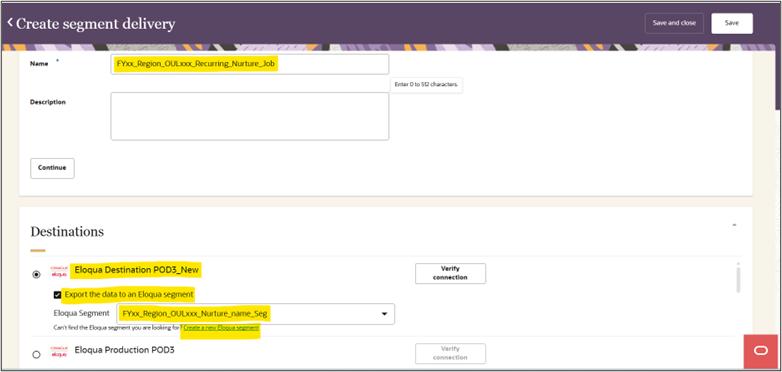
• Select the Destination option as Eloqua Destination POD3_New > select the checkbox ‘Export the data to eloqua segment’ > Click a ‘Create a new segment’ > <<Enter a Eloqua Segment Name as per naming convention>>
• Eloqua Segment Name Naming Convention : FYxx_Region_OULxxx_Nurture_name_Seg
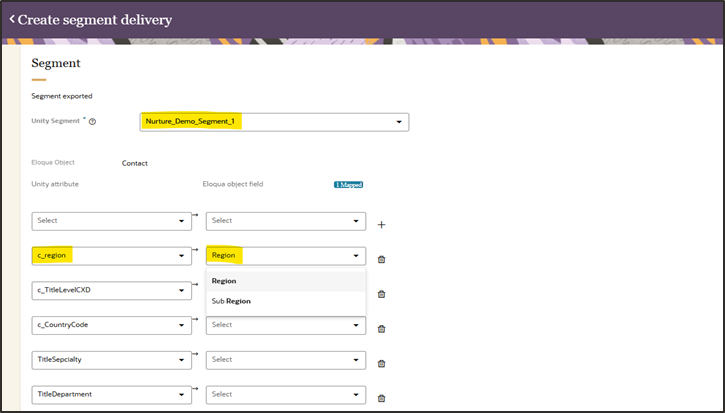
• Under Segment Section select the Unity Segment Name and map the respective columns from Eloqua with the selected personalization attributes. Please note to choose the right field for mapping the columns as selecting a wrong field might overwrite the data in the back end.
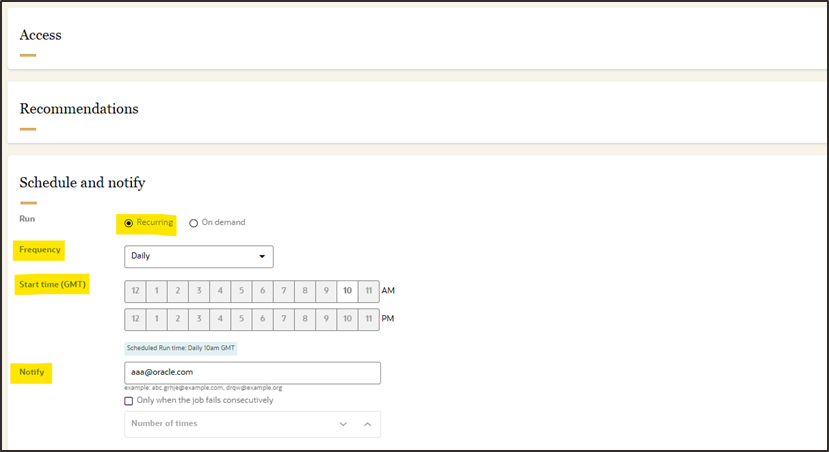
• Select 1_mkt under Access section and None under Recommendations.
• For a one-time launch campaign, option On Demand need to be selected.
• For a nurture campaign, to sync the contacts on a regular frequency, option Recurring need to be selected with the Frequency set as Daily or Hourly etc., based on the requirement.
• Enter the email address to receive the notification mail to receive the job status and save and close the window.
• Select Publish Changes option and select the Segment Delivery job and click Publish > Start Publish Job after the job is saved and closed.

• Select Publish Changes option and select the Segment Delivery Job name and click Publish > Start Publish Job to initiate the process.
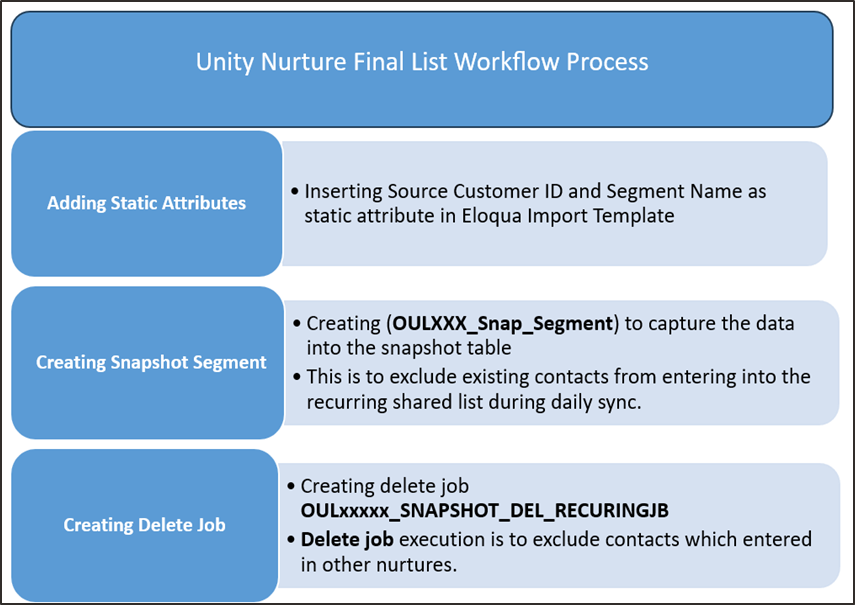
• IMPORTANT STEP: After publishing the segment delivery job and BEFORE RUNNING the segment delivery job, provide the job name to Ramesh Iyer in the production team to get the job included in the snapshot table and to enable the snapshot. This step is to exclude existing contacts from entering into the recurring shared list during daily sync.
• Production Analyst can get the confirmation from Ramesh on snapshot table insertion then start the job for execution by clicking the: dots on the right corner of the specific segment delivery job to sync the contacts in Eloqua.
• When the job execution is over, analyst will get a notification mail with subject line ‘Job Success’ > Segment Delivery Job completed Successfully.
4.1.3.1. NURTURE CONTACTS EXCLUSION USING DELETE JOB
• Production Analyst need to create a new segment for SnapShot Deletion using the base object: SyncNurtureContacts following the naming convention (OULXXX_Snap_Segment) to capture and filter current nurture contacts in the unity segment.
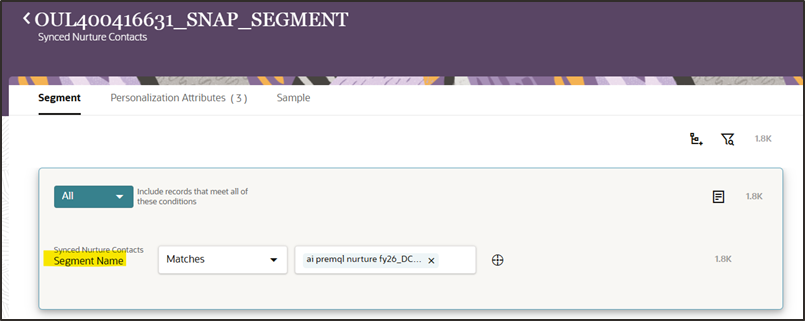
Note:
Ramesh is including contacts from the segment delivery job into the snapshot API for daily sync exclusion. After receiving confirmation from Ramesh, Production analyst need to proceed with the delete job execution to exclude the contacts which entered in other nurtures.
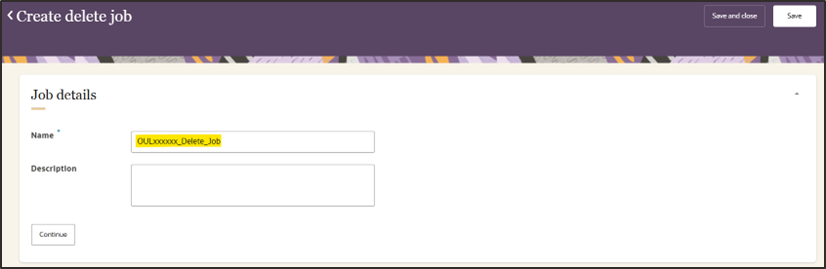
• Production Analyst to create a delete job following the naming convention (OULxxxxx_SNAPSHOT_DEL_RECURINGJB) to exclude contacts from other nurtures.
• Delete Job can be created following the below steps:
Step 1: Select Main menu and choose Data Feeds > Delete Job > Click Continue
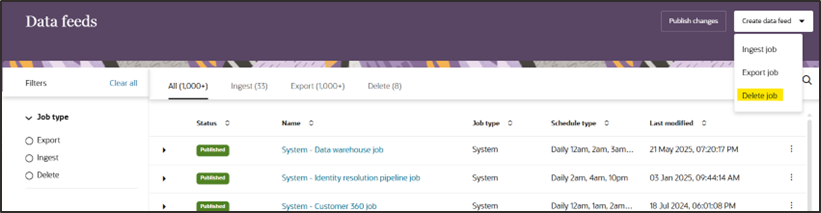
Step 2: Enter a job name with naming convention (OULxxxxx_SNAPSHOT_DEL_RECURINGJB)
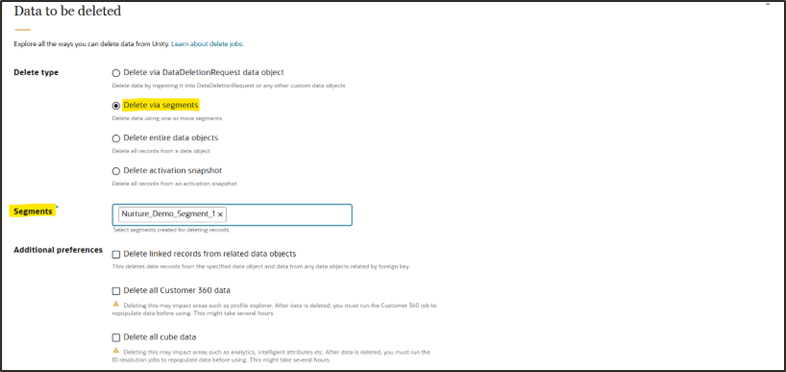
Step 3: In the Data to be Deleted Section > select Delete via Segment > Choose Segment Name.
Step 4: In the Confirmation Report section > choose Destination > File Name
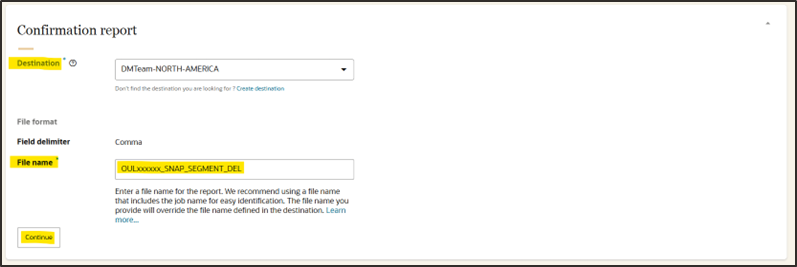
Step 5: In Schedule and Notify section > choose Run as Recurring > Set the Frequency > Save and close the job with email id to receive the job success notification.
Note: Delete job should run 1 hour prior to the actual segment delivery job so the active contacts from other nurtures can get excluded from the nurture that is going live.
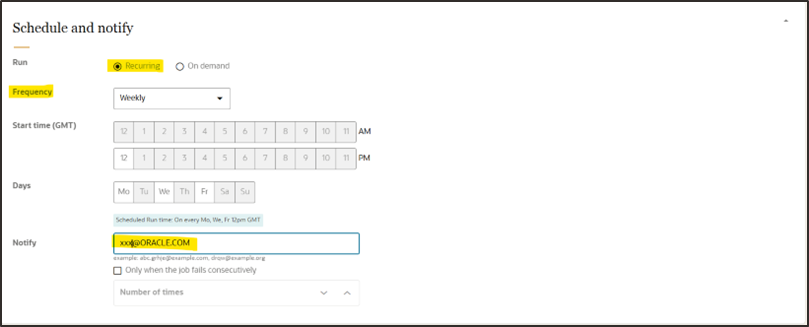
• When the delete job gets executed successfully, the mandatory nurture exclusions will get implemented for the current nurture and start executing in the set frequency with the recurring job.
• Include the Eloqua Segment and Shared List details in the Eloqua Campaign Canvas and Activate the eloqua campaign for nurture activation.
• After Activating the Unity Nurture, the nurture meta data need to be included in the Global Nurture Details table for reporting purposes and for reference details.
CX_SEG_TOOL.GLOBAL_NURTURE_DETAILS – INSERT STATEMENT
| NURTURE | Nurture Region Eg: APAC NURTURE / LAD NURTURE / EMEA NURTURE / NA NURTURE / JAPAN NURTURE / GLOBAL NURTURE |
| NURTURE_NAME | Name of the Nurture Eg: LAD FY25 FINANCE NURTURE / NA FY25 CX SERVICE HIGHER ED NURTURE |
| SHARED_LIST_NAME | Name of the Shared list as per the naming convention Eg: OULxxxx_XXX_XXX |
| PROGRAM_NAME | To be filled based on details from GMSS Portal |
| LIST_REQ_NUMBER | OULxxxx / LRTxxxx |
| EMAIL_REQ_NUMBER | SEVxxxx |
| ASSIGNED_TO | List Analyst Name - Assigned |
| PROGRAM_CODE | To be filled based on details from GMSS Portal |
| CAMPAIGN_CODE | To be filled based on details from GMSS Portal |
| CAMPAIGN_NAME | To be filled based on details from GMSS Portal |
| NURTURE_START_DATE_OLD | Can be left blank for both LRT and OUL nurtures |
| NURTURE_NAME_PARAM | Valid Only for LRT SR's – For Unity Nurtures this can be left blank |
| MODIFIED_NURTURE_NAME | Valid Only for LRT SR's – For Unity Nurtures this can be left blank |
| PACKAGE_NAME | Valid Only for LRT SR's – For Unity Nurtures this can be left blank |
| PACKAGE_LOCATION | CX_NURTURE_CAMPAIGN Valid Only for LRT SR's – For Unity Nurtures this can be left blank |
| NURTURE_RETIRE_REASON | This can be left blank for both LRT and Unity Nurtures. This needs to be filled while decommissioning the Nurture. |
| NURTURE_START_DATE | Nurture Activation Date |
| ELOQUA_EMAIL_ASSET_ID | Last Email Asset ID |
| ELOQUA_EMAIL_ASSET_COUNTS | Can be left blank for both LRT and OUL nurtures |
| SCHEDULER_JOB_NAME | Valid Only for LRT SR's – For Unity Nurtures this can be left blank |
| NURTURE_PRIORITY | Can be left blank for both LRT and OUL nurtures |
| FREQUENCY_DAYS | Number of days the nurture contacts are getting synched in a week |
| BASE_TABLE_NAME | Valid Only for LRT SR's – For Unity Nurtures this can be left blank |
| NURTURE_END_DATE | To be filled on Nurture Retiring Date |
| UNITY_NURTURE | Y or N |
| FIRST_EMAIL_ASSET_ID | Nurture First Email Asset ID |
• Daily sync of contacts in nurture shared lists can be monitored regularly through the shared list application or through the automated reports.
New Steps in Unity Final list Nurture Workflow:
Related Topics
Nailed it?
If yes, click below to confirm completion of this topic.
Yes, I have understood this topic well
