Zoom Webinar Setup - Standard
Eloqua Zoom Integration process requires setting up 3 canvases.
Canvas 1 - with program code for Registration Page and Sending out Invitation & Reminder Emails.
Canvas 2 - with a channel code created to capture Zoom contacts to Eloqua and send out the Eloqua Zoom Confirmation email. Find out how to create it.
Canvas 3 - with a channel code created to send out Post event mails. Find out how to create it.
Here, you will learn:
- Identify request
- Registration Types
- Email Executions
- Zoom Register Feeder Setup
- Post Event Activities
- Create Channels
- Zoom Recorded Webcast Flow
Supported Languages:
- English - French - German - Japanese - Korean - Portuguese - Russian - Spanish - Simplified Chinese - Traditional Chinese
 People
2 |
 Time
30 min |
 Difficulty
Moderate |
Video Tutorial
Step 1 - IdentifY Zoom Webinar Request
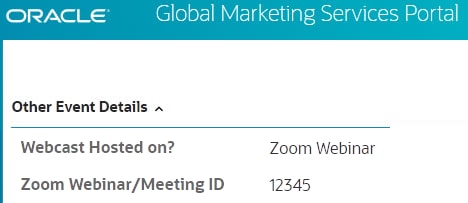
Go to GMS Portal → Other Event Details
• Identify if the Webcast is Hosted on 'Zoom Webinar'.
• In addition, the ID will also be provided - Zoom Webinar ID
Go to GMS Portal → Event Setup Details
• Identify the Registration Method : 'Standard' or 'Monitored'.
STEP 2 - STANDARD REGISTRATION & PAGE SETUP
Upload the following assets from the Template Builder into Eloqua:
● Welcome page
● Thank you page
● Zoom Confirmation Email
● Zoom Reminder Email 1 & 2
● Post Event Thank you Email (based on requirement)
● Post Event Sorry Email (based on requirement)
REGISTRATION PAGES UPDATE & SETUP
WELCOME PAGE:
Update the following variables in stage properties.
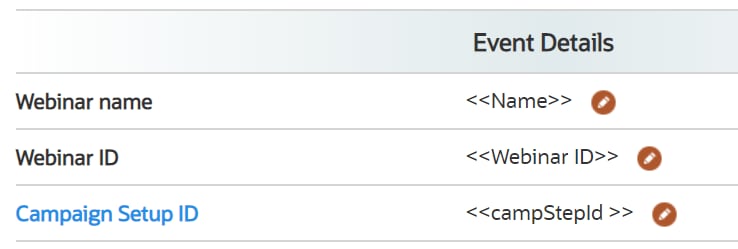
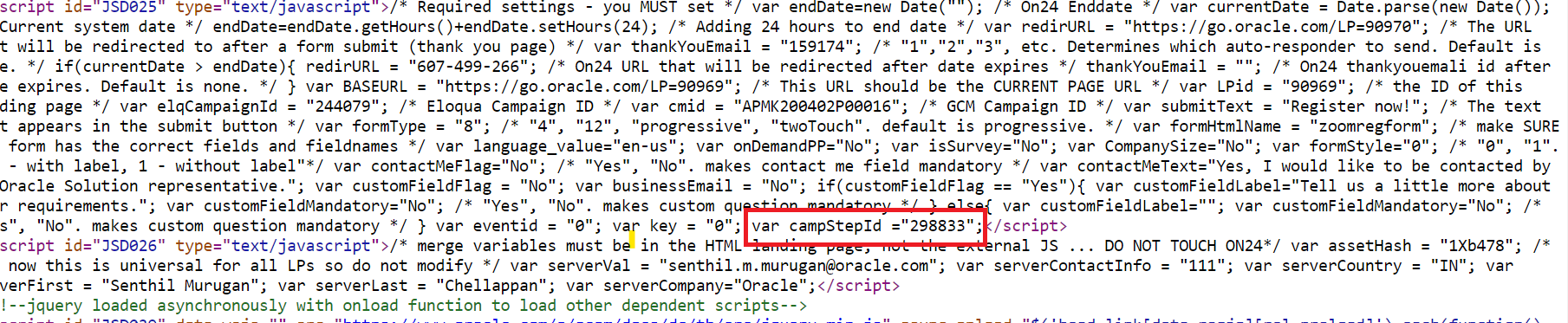
● var campStepId ="XXXXX"
Ensure Campaign Setup ID has been updated in Stage Properties (with value identified under the developer tools. Know more.) Note: The campStepId will be different for each campaign, every time this has to be obtained from Network tab from developer tools.
● formHtmlName = "zoomregform"
● var formType = "8"

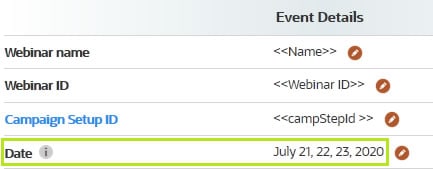
● If a Multiple date webcast: Update the Date in Template Builder Stage Properties
THANK YOU PAGE:
If it's a recurring webinar, kindly add these following sentences in your event.
Please watch for your Zoom registration confirmation email and be sure to save it. If you decide to unregister before the event series concludes, you’ll need to use the original confirmation email to do so.
THANK YOU EMAIL:
Update Thank you email ID in Stage Properties to 0
IMPORTANT NOTE: You need to re-upload the event assets into Eloqua once all Stage Properties sections are complete, so the codes carry over onto the final Eloqua pages.
STEP 3 - INVITATION AND REMINDER EMAIL Execution - Canvas 1(Program code)
-
Welcome, Thank you pages and Form - Add the following assets and associate the respective form and pages into canvas as shown in the below screenshot.
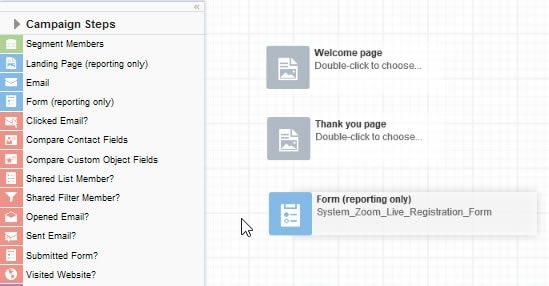
- If an invitation email needs to be sent, add the email asset & list segment and activate the campaign again to deploy the emails. If there is a second invitation, deactivate the canvas again and repeat.
-
Reminder Emails Setup if reminder emails are coming from Eloqua (If Marketer is using zoom notifications you can skip these steps)
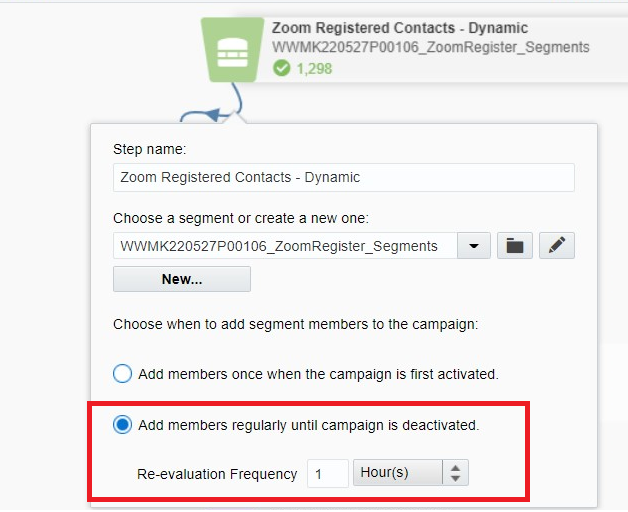
● Registrants Segment :- Be sure to check “Add members regularly until the campaign is deactivated”
- Add 1 hour for Re-evaluation frequency
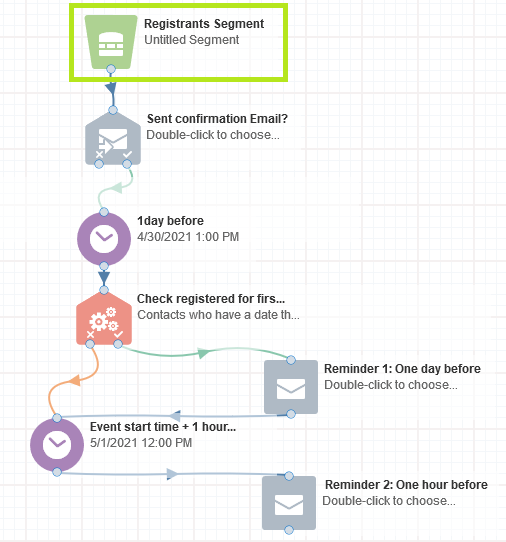
Copy the below canvas and update the sections as required.
Zoom_Invitation_Reminder_Complete_Flow_Template

● Create the segment and add a filter "Has linked contacts in Custom Objects"
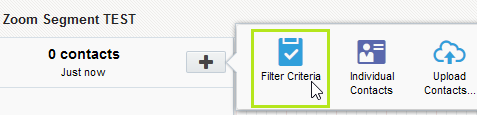
● Select the "Zoom Registered" and click Add.
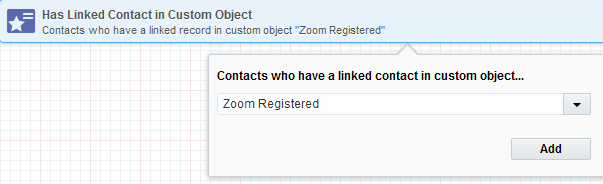
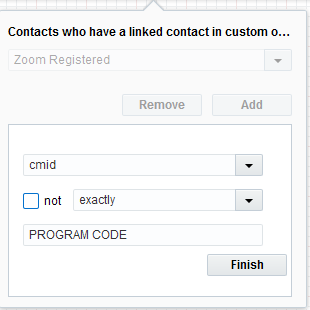
● Click, add, and select cmid exactly PROGRAM CODE (add the program code of your event) and click finish.
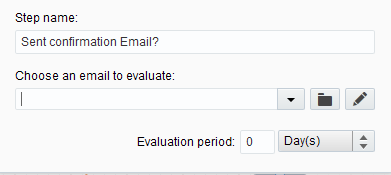
b) Evaluate Confirmation Email Sent
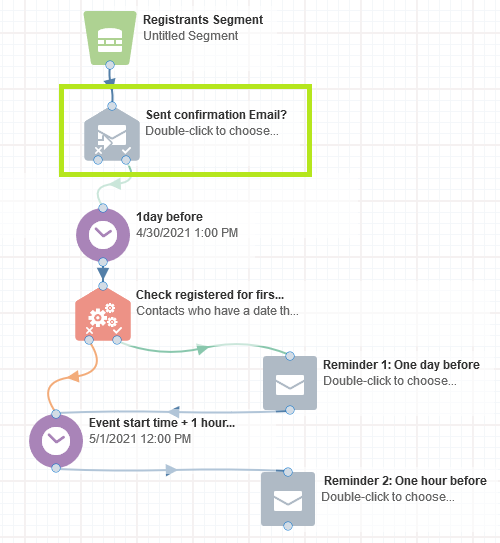
● Select your confirmation email and set Evaluation Period: 0
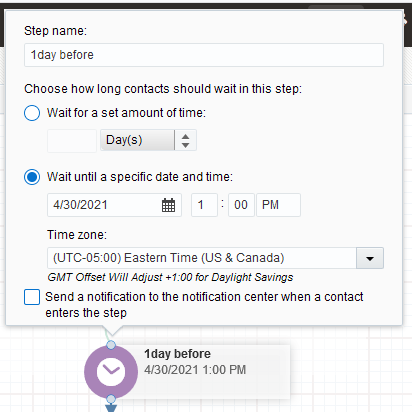
● Attach to a Wait set to exactly 1 day before 'event start date time'
● Connect the Wait to a 'Compare Date' object set to evaluate to 1 day before :
'event start date time' + 10 minutes
Note: You can refer time set in wait and add 10 minutes to it.
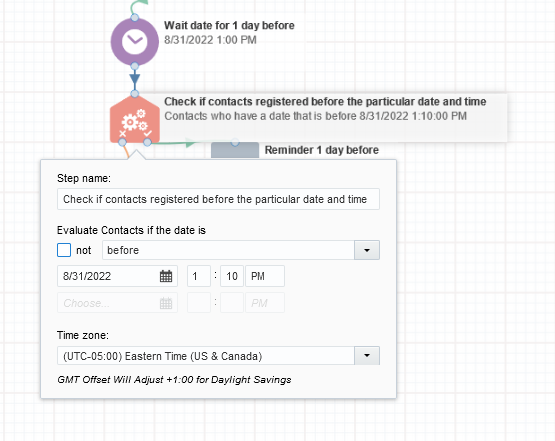
● If the 'Compare Date Object' evaluation is satisfied.( i.e if the date of registration is 1 day + 10 minutes before than the event date time), trigger the 1st Reminder and are moved to a Wait(set to one 1 hour before the 'event start date time') to recieve Reminder2.
● If the 'Compare Date Object' evaluation is not satisfied (i.e the date of registration is after 1 day + 10 minutes before the event date time), 1st Reminder won’t be triggered to these contacts and contacts will get directly moved into the Wait step (set to until one 1 hour before the 'event start date time') and will only receive the 2nd Reminder.
Note: The time period to trigger the Reminder 1 and Reminder 2 can be customised as per requirement.
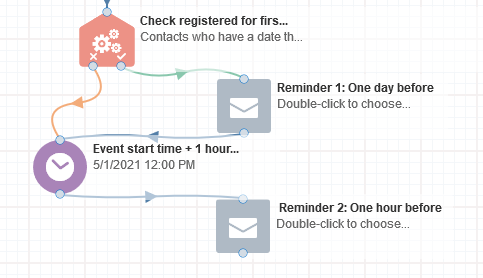
c) Associating First email
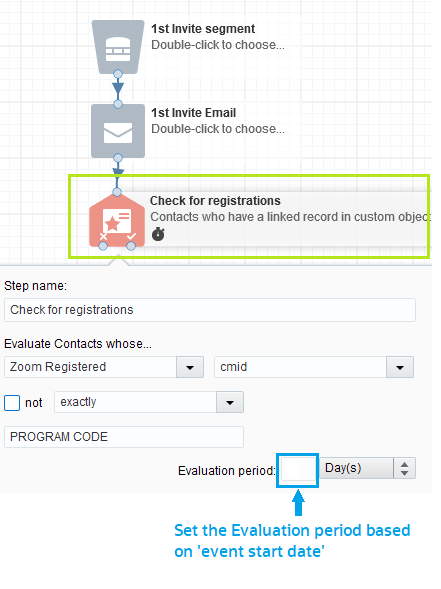
● To the first email element, connect a “Compare Custom Object Fields” in the Canvas -> Edit and Add the following parameters for validation check.
Evaluate Contacts Whose
a. Zoom Registered.
b. Cmid = Program Code
c. Set the Evaluation period based on 'event start date'.
Note that this evaluation (c) must be active until the event date, so select the number of days that will cover the entire time span between the current date and the event date (including the day of the event)
eg: If you are setting up your event canvas on Sep 3rd and the event takes place on Sep 12th – you’ll need to select 10 Day(s) for your ‘Evaluation period’
● Connect the true condition of the “Compare Custom Object Fields” to the 'Send Confirmation Email - Compare DateObject'.
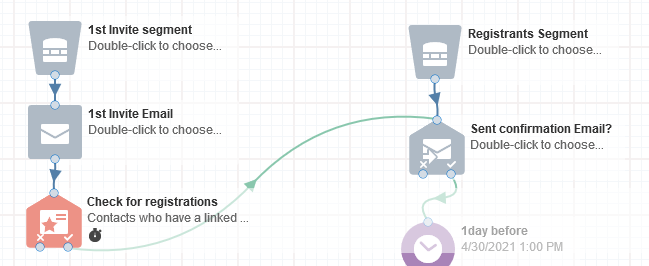
● Uncheck 'Allow contacts to enter the campaign more than once' and activate the canvas.
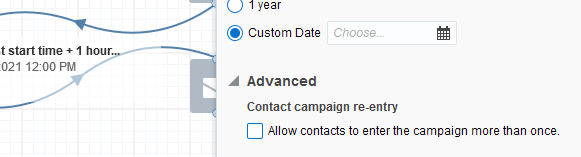
Note: If you don’t have your invitation email and segment ready at this point, delete the 2 elements from your canvas, along with the the Check for registrants element, and activate. Come back when you have them ready > deactivate the canvas > add all three placeholders back and map your invite email and segment, along with the check for registrants element > activate to trigger the invitation email.
d) Associating Second or Multiple Invitation Email
● Deactivate the Campaign.
● To the Second email element, connect a “Compare Custom Object Fields” in the Canvas -> Edit and Add the following parameters for validation check.
Evaluate Contacts Whose
a. Zoom Registered.
b. Cmid = Program Code
c. Set the Evaluation period based on 'event start date'.
Note that this evaluation (c) must be active until the event date so select the number of days that will cover the entire time span between the current date and the event date (including the event day)
eg: If you are setting up your event canvas on Sep 3rd and the event takes place on Sep 12th – you’ll need to select 10 Day(s) for your ‘Evaluation period’
● Connect the true condition of the “Compare Custom Object Fields” of the second email to the 'Send Confirmation Email - Compare DateObject'.
● Connect the false condition of the “Compare Custom Object Fields” of the First email to the Second Email and change it's evaluation period to 0 hours.
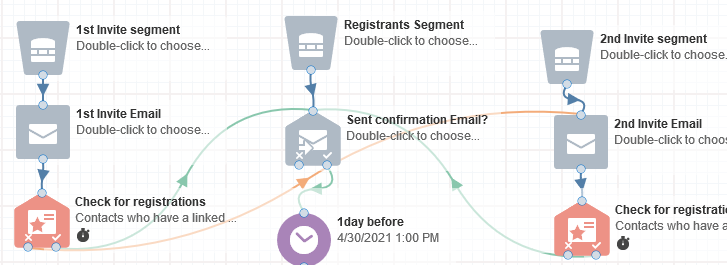
● Make sure that 'Allow contacts to enter the campaign more than once' is unchecked and activate the canvas.
PRO TIP
● For invitation emails, footer type in Eloqua will always be Resp_Generic_Language_
Footer
The footer type in Template Builder should be Generic.
● For Confirmation emails, Reminders and Post Event emails will be this footer:
Resp_Event_Notification_
Language_Footer
The footer type in Template Builder should be Webinar Notification.
STEP 4 - Zoom Register FEEDER (CHANNEL CODE1 CANVAS)
-
Create Channel code1. Find out how. Name it as "Registered".
-
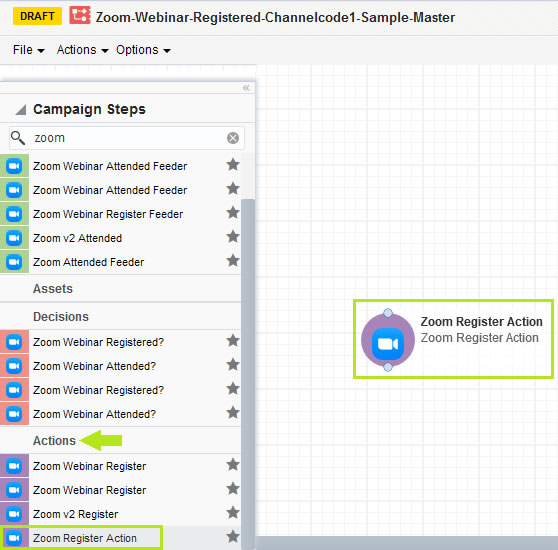
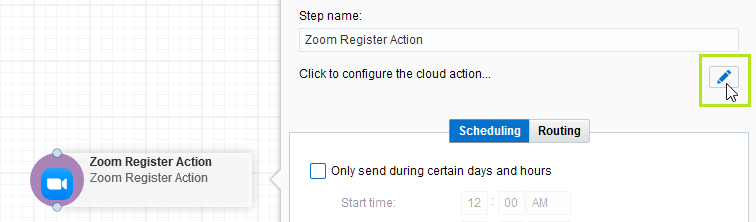
a) Zoom Register Action: On the Campaign Canvas Tools → Campaign Steps → Actions → Drag and drop Zoom Register Action. Select Meeting/Webinar as required and update the Event ID (Note: Update ID without any space) given by the requester in the GMS Portal/ Template Builder → Stage Properties.
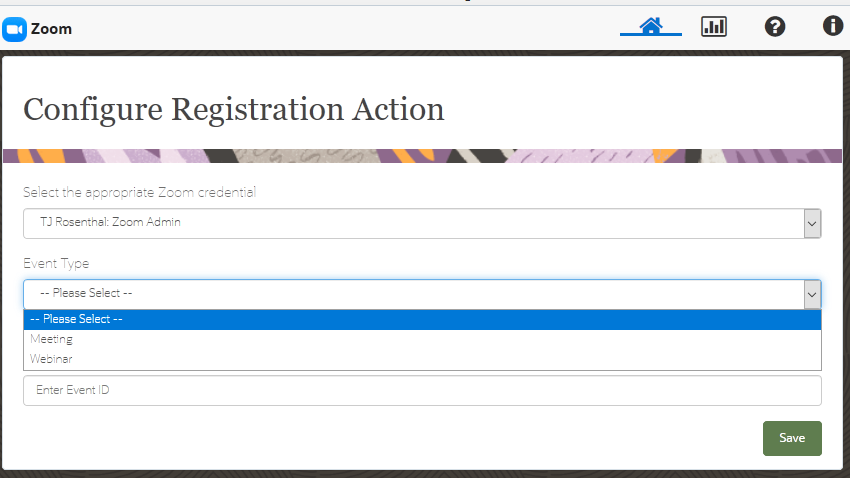
Map the Eloqua contact fields to Zoom fields as per the below image
- Email Address = Email
- First Name = First Name
- Last Name = Last Name
- Title = Job Title
- Company = Organization
- Oracle Sales Cloud Last Campaign Id = Address
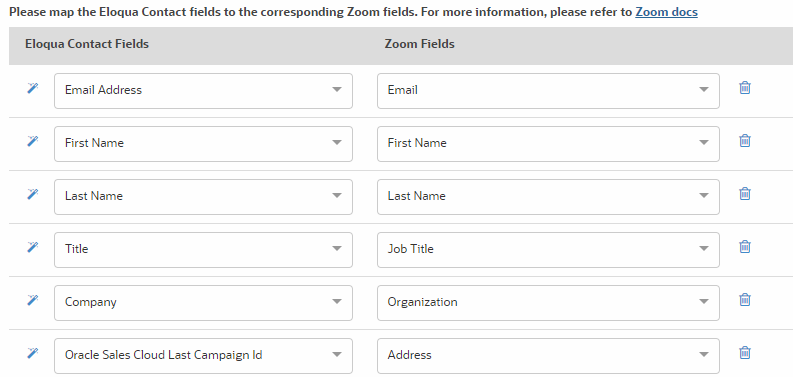
Kindly place the following comments in the portal for Marketers so that they can enable the Address field while setting up the webinar / meeting.
Please ensure the Address and Last Name fields are set as mandatory when setting up new Webinars or Meetings in Zoom. Capturing the MRM code in the Address field is crucial for our analytics. This requirement applies only to new requests. Do not edit existing ones, as it may cause data flow issues due to dependencies between Zoom settings and Eloqua mapping.
b) Configure Zoom Register Action feeder as shown below (This helps to route the contacts whenever they are stuck in feeder with errors)
- Add a wait and set to 0.5 hours
- Double click Zoom Register Action
- Go to Routing Tab.
- Enable the check box next to "Automatically route contacts with errors from cloud app"
- Click Choose and specify a target. In this case we will add it to Wait step
- Click Save and close the tab once you have completed your configuration.
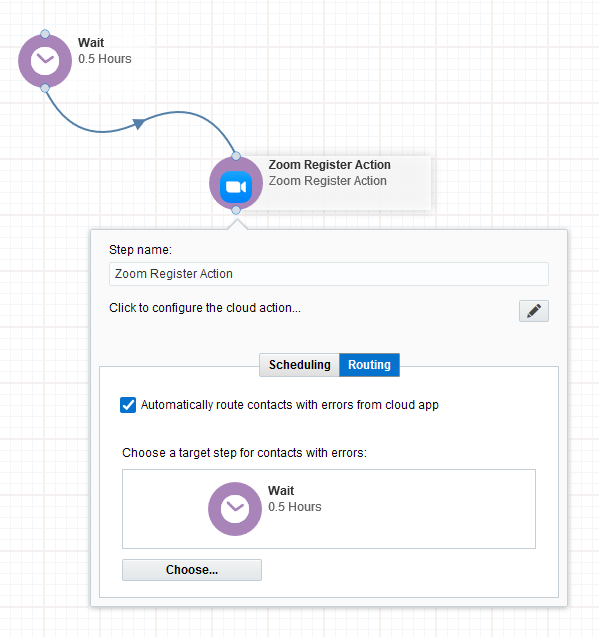
c) Link to flow contacts from wait back to feeder. (Please see image for reference)
d) Setting up Confirmation Email:
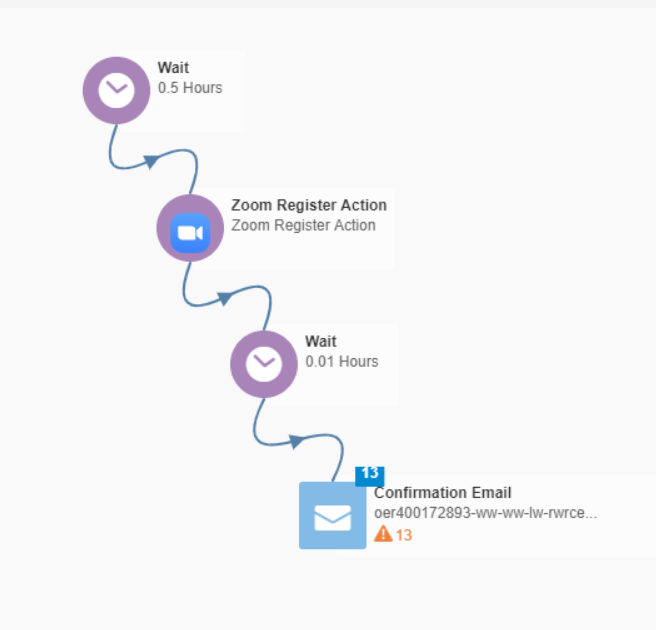
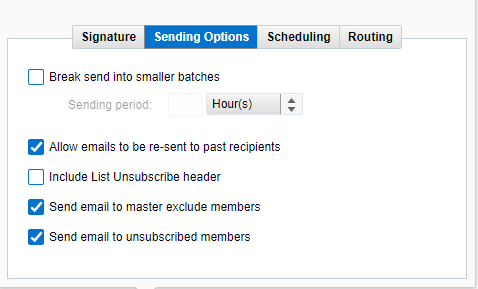
- Add wait element with period of 0.01 and add an email object and associate confirmation email uploaded from TB.
- Open email and follow the below steps in email:
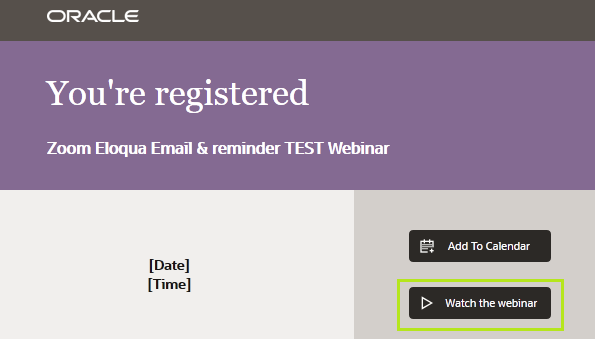
- Select the anchor tag content for the Watch the webinar
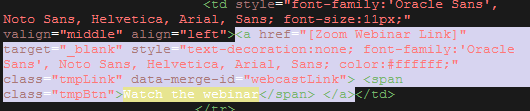
- Replace the anchor tag content. Drag and Drop 'Zoom Email Content Service' from the 'Cloud Content' Menu.
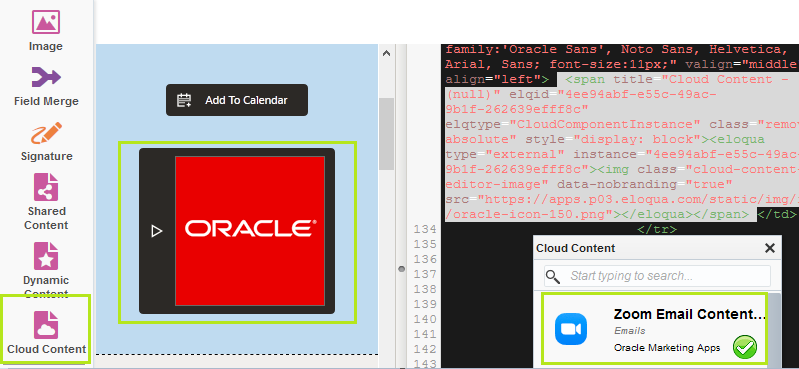
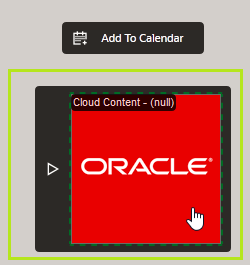
- Double Click the 'Cloud Content' added and update the form:
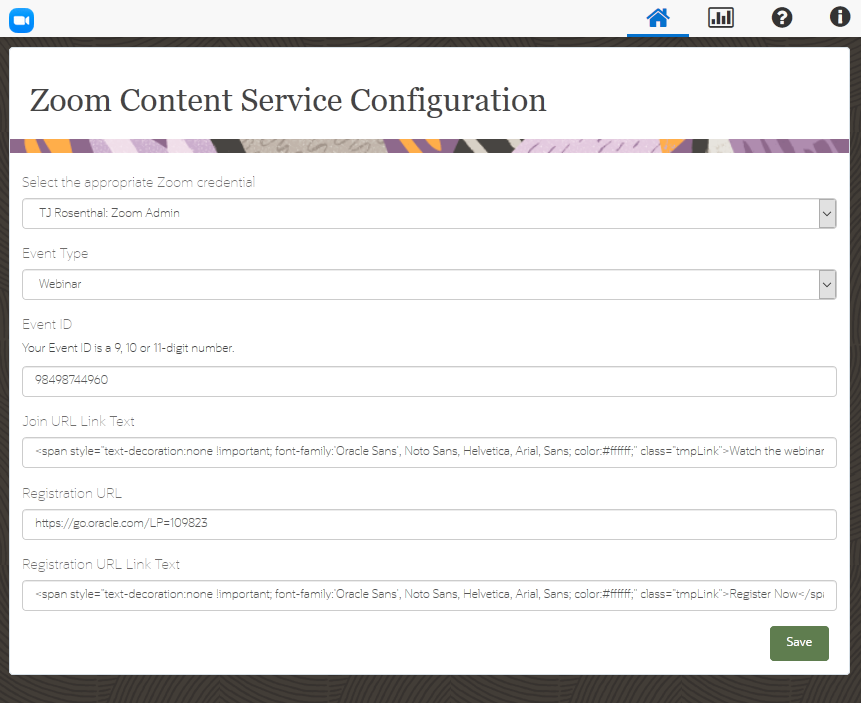
- Event Type: Update Webinar/ Meeting
- Event ID: Update the Zoom Event Webinar ID/ Meeting ID
- Join URL Link Text: Update the following code
<span style="text-decoration:none !important; font-family:'Oracle Sans', Noto Sans, Helvetica, Arial, Sans; color:#ffffff;" class="tmpLink">Watch the webinar</span>
- Registration URL: Update the URL of Welcome page
- Registration URL Link Text: Update the following code
<span style="text-decoration:none !important; font-family:'Oracle Sans', Noto Sans, Helvetica, Arial, Sans; color:#ffffff;" class="tmpLink">Register Now</span>
- Save and Close.
Note: Repeat the above steps to add Content Cloud Service to other parts of the email.Ensure color codes are updated as mentioned below:
For CTA text:
color:#ffffff;
For hyperlinked text:color:#161513;
d) Update the language specific 'Zoom Support' links in the 'Webinar Help' section of Confirmation and Reminder Emails. For language specific links that are not available, kindly use English by default.

Here are the links:
English
https://support.zoom.us/hc/en-usEspanol
https://support.zoom.us/hc/esDeutsch
https://support.zoom.us/hc/deChinese (PRC)
https://support.zoom.us/hc/zh-cnChinese (Taiwan)
https://support.zoom.us/hc/zh-twFrench
https://support.zoom.us/hc/frPortuguese
https://support.zoom.us/hc/pt-brJapanese
https://support.zoom.us/hc/jaRussian
https://support.zoom.us/hc/ruItaliano
https://support.zoom.us/hc/it-itKorean
https://support.zoom.us/hc/ko-krVietnamese
https://support.zoom.us/hc/vi-vn
e) Save and close Email. -
Identify the Eloqua Webinar setup ID (keep this handy to update in Template Builder -> Stage Properties -> Campaign Step ID) to connect Zoom to Welcome Page:
a) Open your Zoom Registered Canvas in browser (preferably Google Chrome).
b) In the browser, go to Developer Tools → Network tab.
c) If there are no links displayed, refresh the page again.
d) Search for link with same number as the Eloqua Campaign ID of canvas.
e) Identify link as shown below: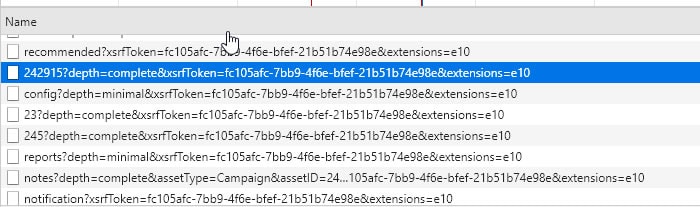
-
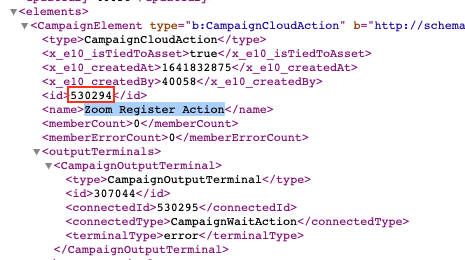
Double-click on link to open script and identify id just above Zoom Register Action
-
Allow contacts to enter the campaign more than once should be checked. Activate Canvas.
Copy the below canvas and update the sections as required.
Zoom-Webinar-Registered-Channelcode1-Sample-Master
PRO TIP
● Update the webinar ID without any space in Feeder
STEP 5 - Post Event Activities Setup (CHANNEL CODE2 CANVAS)
-
Create Channel code2. Find out how. Name it as "PostEvent".
-
a) Edit Zoom Attended Feeder (Campaign Steps → Segment → Zoom Attended Feeder(Last one).
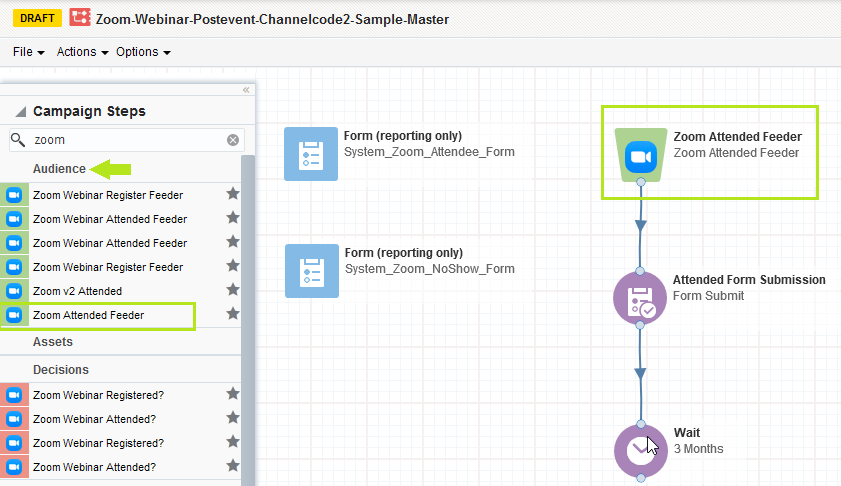
b) Update the following:
1. Zoom Credential: Select default
2. Event Type: Select Meeting / Webinar
3.Store Attendance Data in :Select Custom Object
4.Select Custom Object to store data in: Zoom Feeder - Attended CDO
Note: By the selecting required CDO Name, you can save the attendee details to it.5. Mapping value from Zoom Fields to Eloqua Contact Fields. :
Email - Email Address
Join Time - Lead description
Leave Time - Lead description
Total Duration - Lead description
Polling - Lead description
Q&A - Lead description
6. Mapping value from Zoom Fields to Eloqua CDO:Event ID + (Email) - Unique Code
Email Email - Address
Event Type -Event Type
Event ID - Event ID
Join Time - Join Time
Leave Time - Leave Time
Total Duration - Total Duration
Polling - Polling
Q&A - Q&A
7. Run Every: 6 hours
8. Until: End Date Time + 1 Day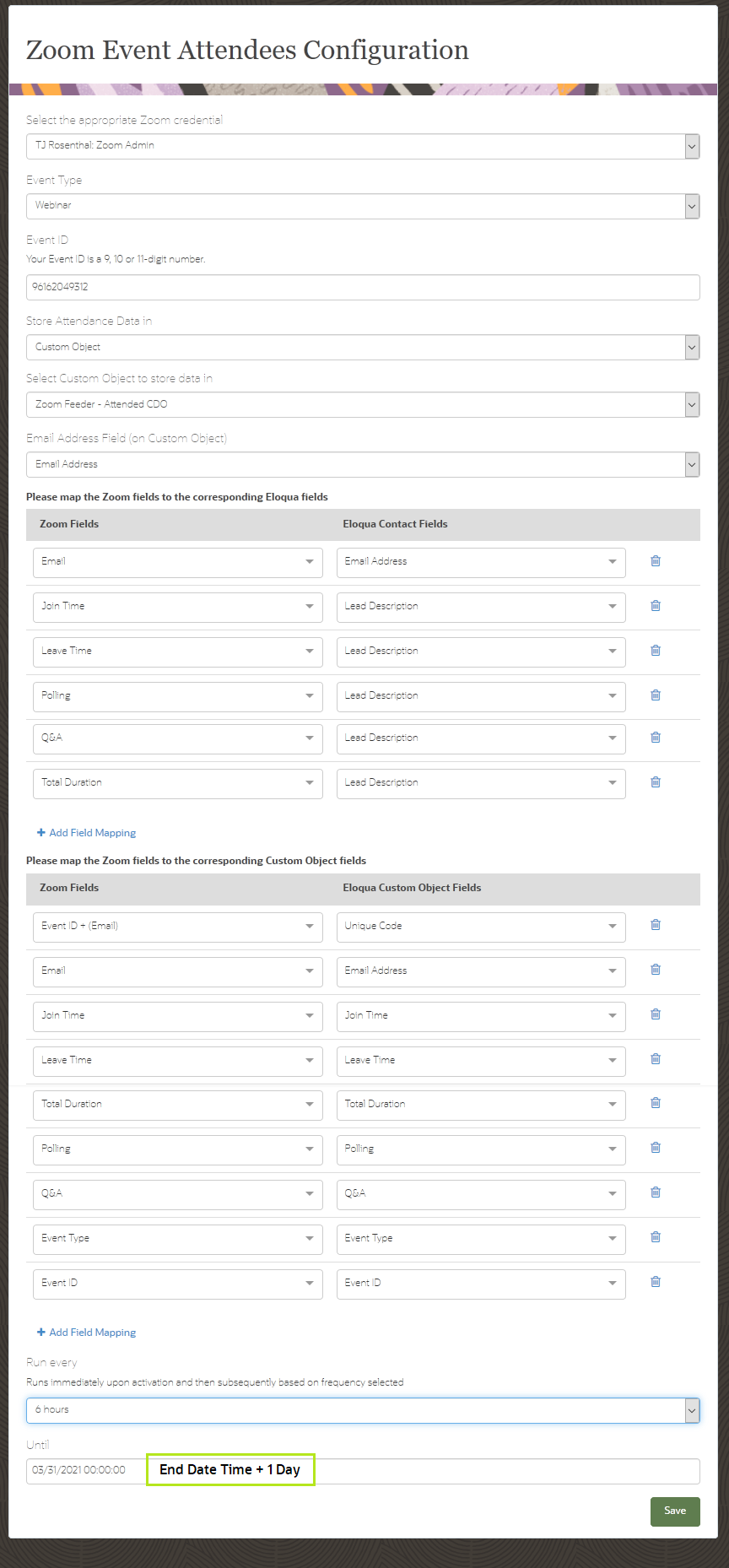
- Add Attended form - Rename to Attended Form Submission
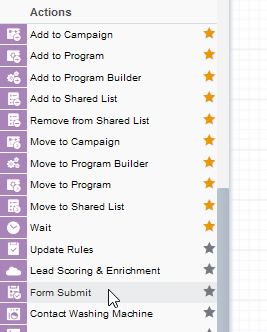
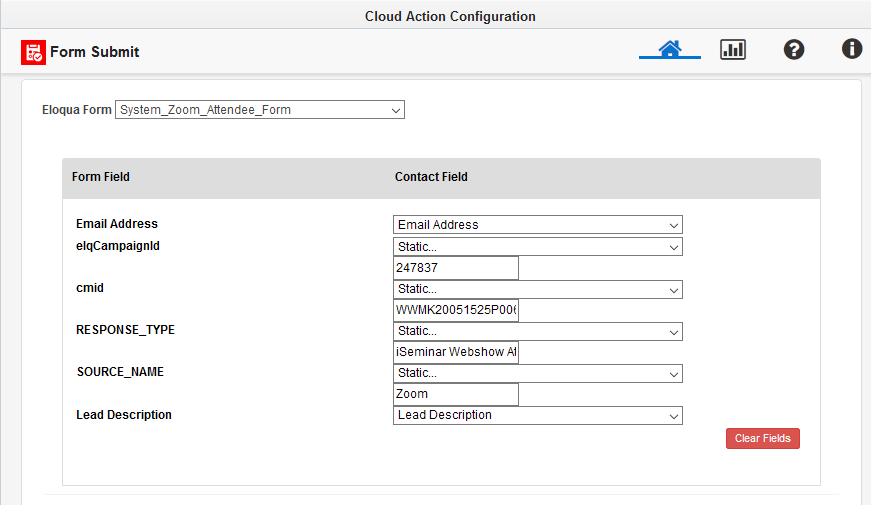
Update Form feilds as mentioned below:
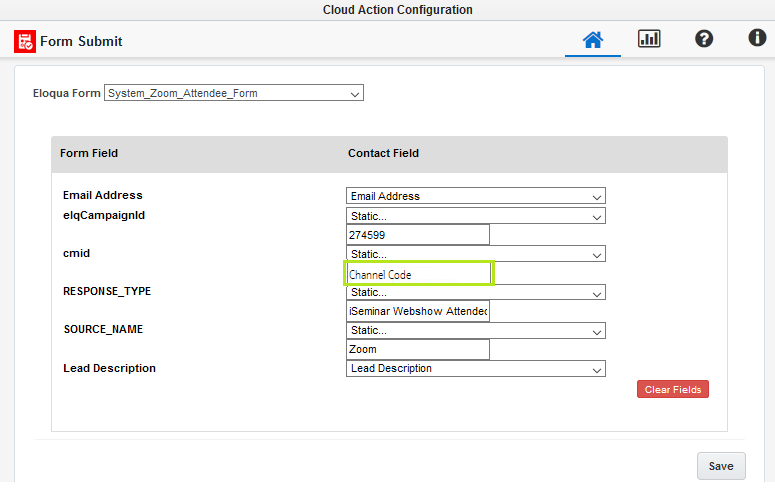
i) Edit and search Eloqua Form name to "System_Zoom_Attendee_Form"ii) Map Emailaddress to contact level, cmid (Select Static and then update Program code or Channel code) based on the requirement, elqcampaignid (Select static and update the campign id of Program Code Canvas)
iii) Update RESPONSE_TYPE (Select Static and then update “iSeminar Webshow Attended”)
iv) Update SOURCE_NAME (Select Static and then update “Zoom”)
v) Map Lead Description to Lead Description
vi) Save Form Submit and attach Thank you Email.
● Add Wait period and set it to 3 months
● Connect it to email asset for Post Event Thank You Email (if required, and above wait can be removed)
-
Add Forms for reporting - System_Zoom_Attendee_Form, System_Zoom_NoShow_Form.
-
Go to Campaign Settings → Advanced → UNCHECK → "Allow contacts to enter campaign more than once".
-
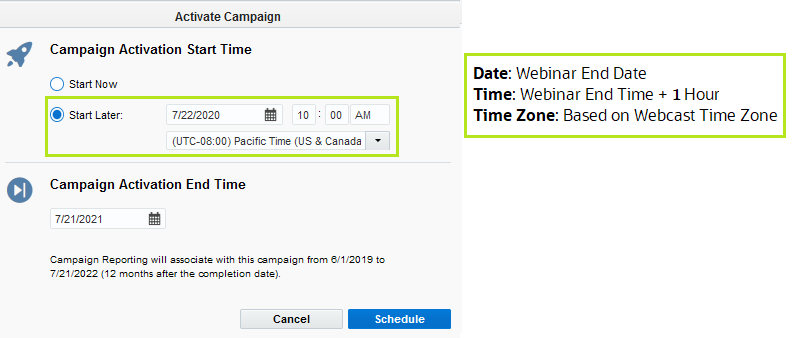
Activate → Schedule Campaign on the set date (Webinar End Date, Webinar End time + 1 Hour). Refer screenshot below.
Copy the below canvas and update the sections as required. Associate the respective form and pages into Canvas.
Zoom-Webinar-Postevent-Channelcode2-Sample-Master
Attendee Form Submission Guidelines and Thank you Email Execution
-
Deactivate Canvas after Post event Attendee Form has been processed
-
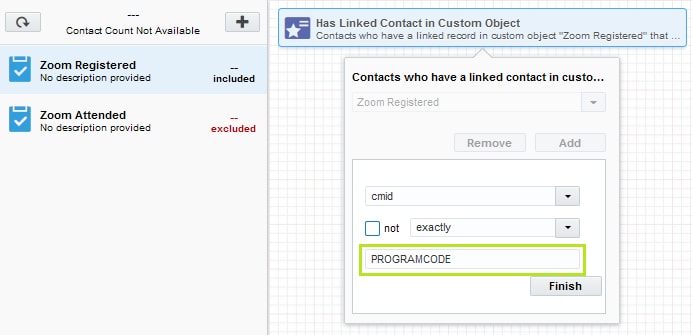
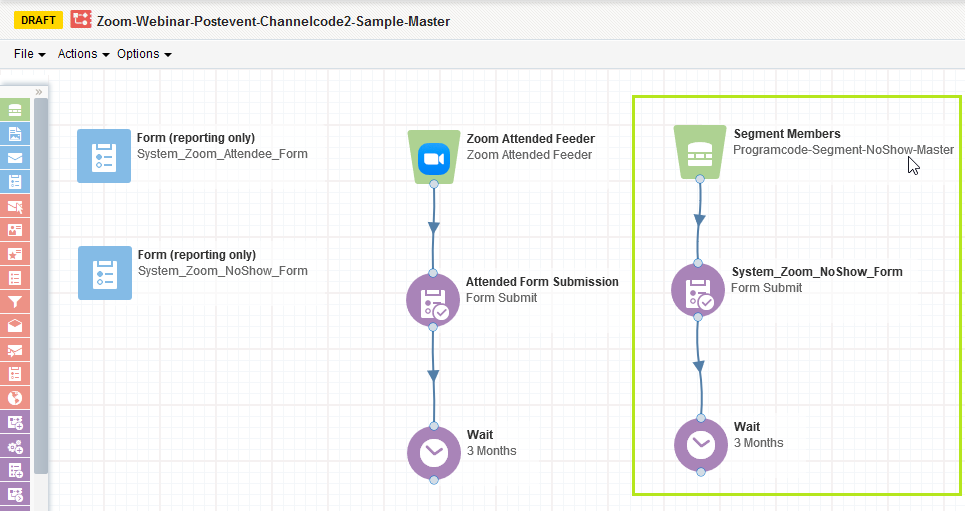
a) No Show Segmentation: (Refer Master Segment Canvas - Programcode-Segment-NoShow-Master)
b) Go to Segments → Search the "Programcode-Segment-NoShow-Master" and duplicate segment (Rename to Programcode-NoShow).
IMPORTANT! DO NOT modify and use "Programcode-Segment-NoShow-Master" segment directly in your campaign.
This will cause incorrect data enter into your campaigns and send post event emails to wrong audience.
Please make sure to create a copy of the master segment and save it for your campaigns.
Please refer the step below to copy.
1. Go to segments in Eloqua and Search for the master segment. Right-Click and "Copy".
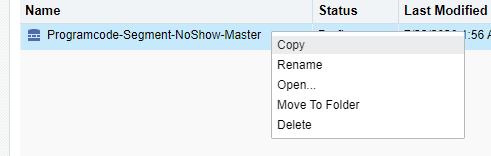
2. Copy and rename
c) Save the segment to the regional folder (FY20_XXXX)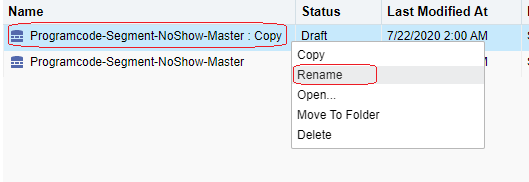
d) Registered Contacts: Click "+" to add the filter (Has Linked Contact in Custom Object)
Edit and Select "Zoom Registered"→ cmid = programcode → Save.
e) Attended Contacts: Click "+" to add the filter (Has Linked Contact in Custom Object)
Edit and Select "Zoom Attended" → cmid = programcode → Save.
f) Right click on the Zoom Attended filter and select "Switch to exclude" to remove the attendee counts for Noshow.
g) No Show Form: Drag and Drop from Campaign Steps → Form Submit
f) Rename it to No Show Form Submission
Update the following: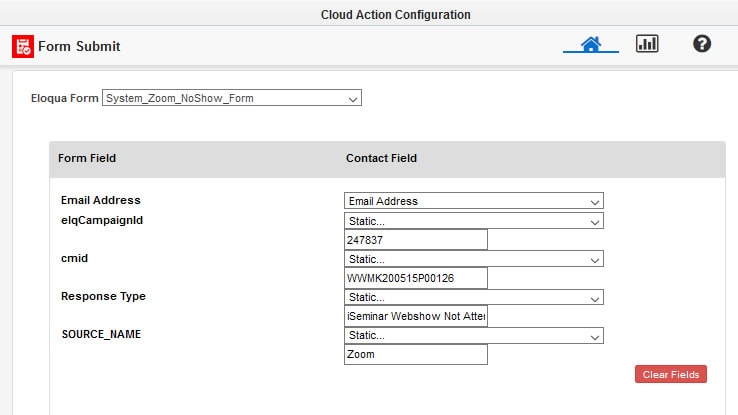
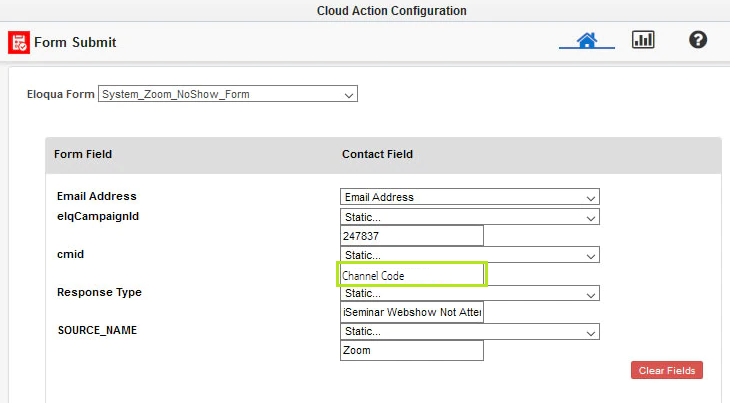
i) Edit and Search Eloqua Form name to "System_Zoom_NoShow_Form"
ii) Map Emailaddress to contact level, cmid (Select Static and then update Program code or Channel code) based on the requirement, elqcampaignid (Select static and update the campign id of Program Code Canvas)
iii) Update RESPONSE_TYPE (Select Static and then update “iSeminar Webshow Not Attended”)
iv) Update SOURCE_NAME (Select Static and then update “Zoom”)
v) Save Form Submit
● Add Wait period and set it to 3 months
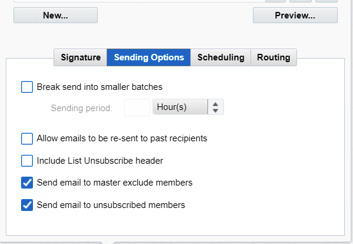
● Attach Sorry Email (if required).Bypass Suppression is needed for both Post Event emails. Ensure the following two boxes are checked. (You may need an authorized team member to assist with bypass suppression).
● Send email to master exclude members
● Send email to unsubscribed members
(Note: Allow emails to be resent only needs to be checked if you have other emails on the canvas that have been previously sent.)
No Show Form Submission Guidelines and Sorry Email Execution
POST EVENT SURVEY: REQUESTED BY MARKETER TO UPDATE IN ZOOM SETUP
- Create an Eloqua NPS Form as per guidelines (Note: Use the program code of Live webinar)
- Append NPS Form link created with Tracking.
E.g.: ?src1=:ex:pw:::ZoomPostEventSurvey&pcode=BUMK180531P00018 -
Share the Tracked NPS form link to the Marketer through Portal, which helps Marketer to update into their Zoom setup.
RECURRING WEBINARS
Follow the same process for Main Program canvas and Registration Canvas. The difference in setting up Recurring Webinars is in triggering post event mails and form submissions for each recurring webinar. Follow the regular steps in 'Post Event Activities Setup' with a few slight changes mentioned below:
- Create Channel codes specific to each day of recurring webinar and setup post event mails in individual Channel canvases.
Note: 'Post Event Activities Setup' with these changes needs to be followed for each channel code canvas created. - For Attendees:
a) Modify 'Zoom Attendee Feeder' setup as shown below:
-
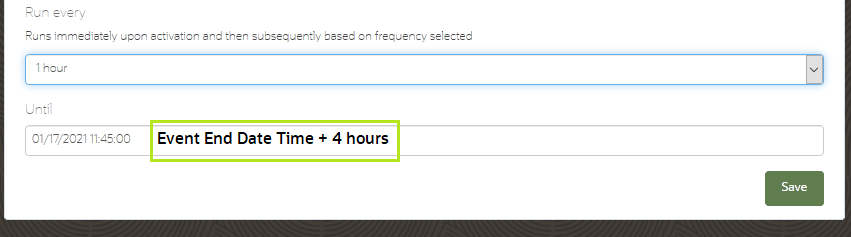
i) Runs immediately upon activation and then subsequently based on frequency selected: 1 hour
ii) Until: Event End Date Time + 4 Hours
Note: Event End Date Time applied for the day of recurring webinar associated for the a channel canvas.
b) Attendee Form Submission
Modify cmid - Select Static and then update Channel code or Program code based on the requirement.
- For No-shows:
a) For to fetch the registrants, use the Program code to create a filter. For Attended - Kindly use the program code or channel code based on the requirement to identify the attendee. , update the individual Channel code or program code created specific to the day of the recurring webinar.
b) No Show Form Submission
Modify cmid - Select Static and then update Channel code or Program code based on the requirement.
-
Activate → Schedule Campaign on the set date (Recurring Webinar End Date, Webinar End time + 1 Hour). Refer screenshot below.
Note: As always ensure post event content is approved and ready before activating the canvas.
Compliance requirements for Recurring Webinars
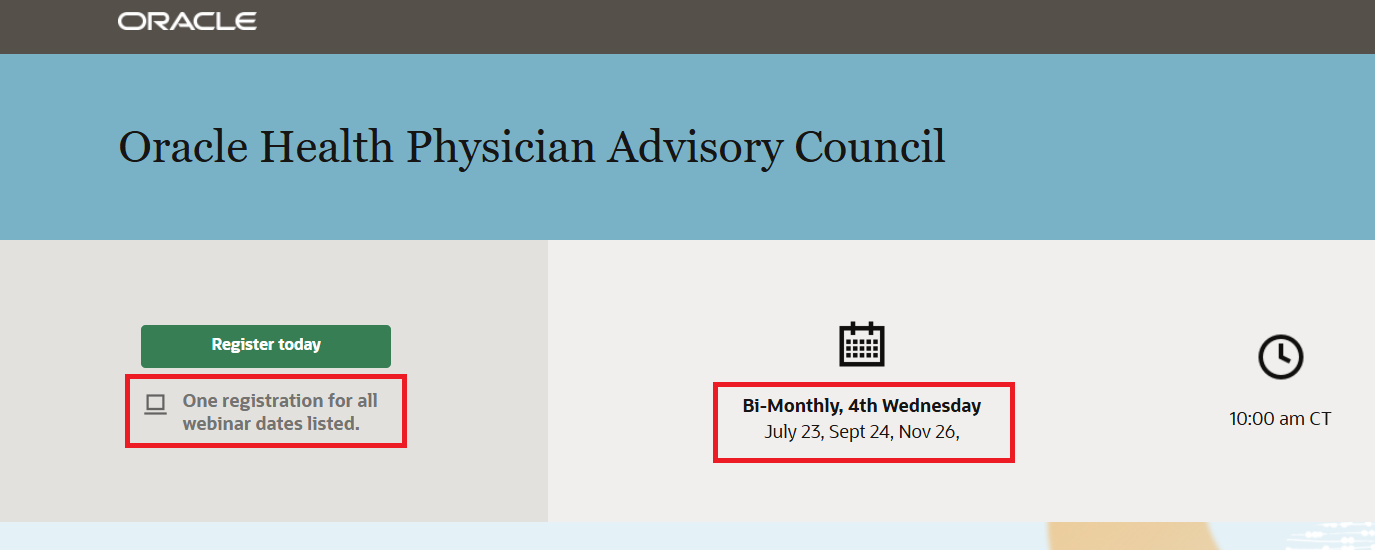
- For recurring webinars, all dates must be listed on the WLP in Template like example shown. (Dates cannot be added after WLP goes live).
- In Eloqua, add “One registration for all webinar dates listed.” This so that registrants are very clear they are signing up for all listed webinars.
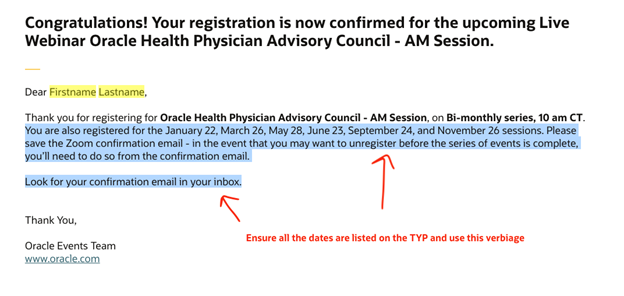
- On the TYP, list all the webinar dates and the following verbiage after the first sentence:
- Ask your marketer add a custom message in the Zoom confirmation email. “Please save this Zoom confirmation email - in the event that you may want to unregister before the series of events is complete, you’ll need to do so from this confirmation email.”
“You are also registered for the Date XX, Date XX, Date XX and Date XX sessions. Please save the Zoom confirmation email - in the event that you may want to unregister before the series of events is complete, you’ll need to do so from the confirmation email.
Look for your confirmation email in your inbox.”
(Example below)
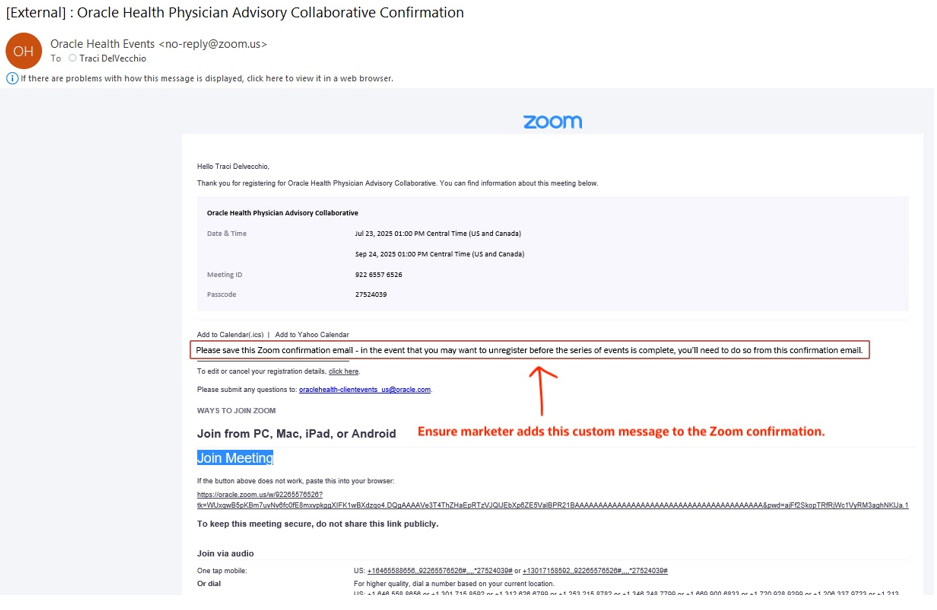
Here are the steps to help guide the marketer on where to add this custom message:
- Log into the Zoom browser (https://oracle.zoom.us/webinar/list#/upcoming) and click into the webinar. (Or, this can also be done right away once they're done scheduling the webinar)
- Go to the email settings tab and click "Edit" next to confirmation email
- Add the text in the text box below the greeting
IDENTIFY AND SETUP POST EVENT EMAIL GUIDELINES
Note: Kindly check the option selected by the Marketer related to the post event activities.
-
USE CASE: Post Event Follow Up/ Offer from Certain = No
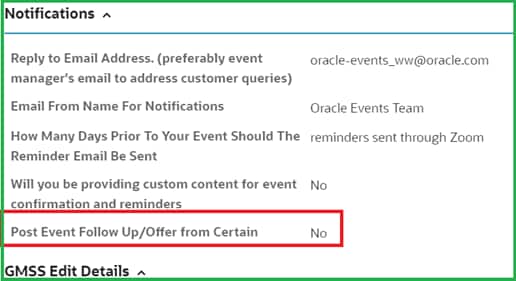
DC Responsibility: Not required to add the ONLY post event emails into Canvas but rest of the elements should be added and canvas should remain in Active.
-
USE CASE:
Post Event Follow Up/ Offer from Certain = Yes
Post event email send date: DD-MM-YYY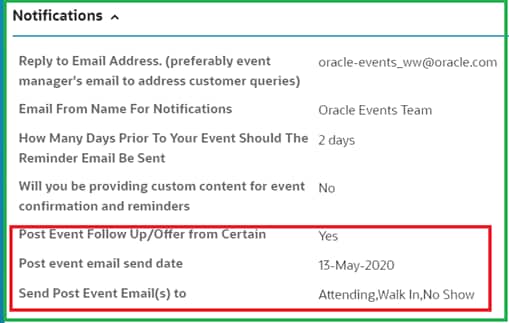
DC Responsibility:
- Kindly Review the content provided in TB, and follow-up with requester if any missing
-
DO NOT Connect the post event emails in the Canvas until the content is ready and approved.
PRO TIP
● Allow contacts to enter the campaign more than once should be unchecked.
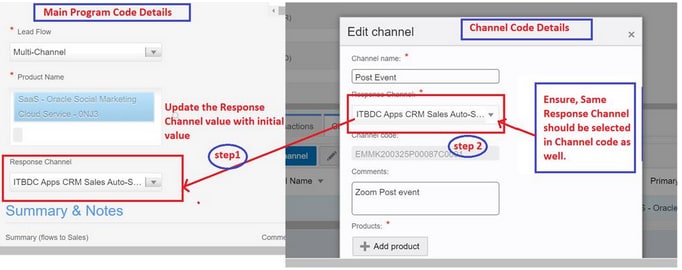
Create a new Channel
-
-
Select the Lead Flow “Multi Channel”, so that it enables channel code creation.
- Create Channel #1 and name it Registered; remember to set the Response Channel, Lead Flow and Product to the value chosen by the marketer; click on Add Channel in order to save it.
-
Click on +Add button again to create Channel #2 and name it PostEvent; remember to set the Response Channel, Lead Flow and Product to the value chosen by the marketer; click on Add Channel in order to save it.
Take the screenshot of the current program code details in MRM for reference purpose.
Related Topics
Nailed it?
If yes, click below to confirm completion of this topic.
Yes, I have understood this topic well
