Eloqua to Template Builder Integration
A two-way connection is built between Template Builder and Eloqua using Eloqua API. This enables Template builder users to upload the assets to Eloqua directly from Template Builder UI using Eloqua API.
Here you will learn:
- Uploading assets using Integration Feature
- Uploading a second email
- Eloqua Process and Review
- Useful Tips

 People
3 |
 Prep time
15 min |
 Time
1.5 h |
 Difficulty
Easy |
Video Tutorial
Uploading assets using Integration Feature
- Follow regular steps for your campaigns with respect to asset level edits - images, links. Complete missing Fields in Stage Properties and Asset Properities.
In Stage Properties, find the "Upload to Eloqua (Beta)" option. Click and select required assets to Upload and Proceed.
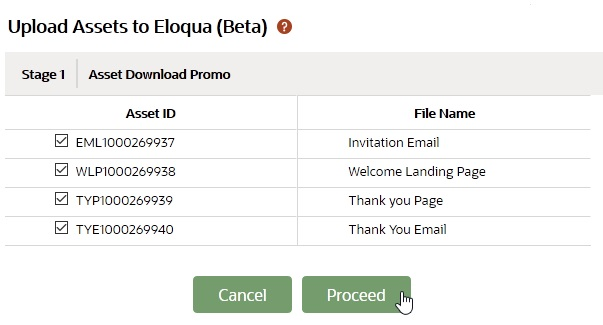
-
Once uploaded the LP Welcome Page URL, LP Thanks Page URL, Email ID and Autoresponse Email id can be found populated in Stage Properties.
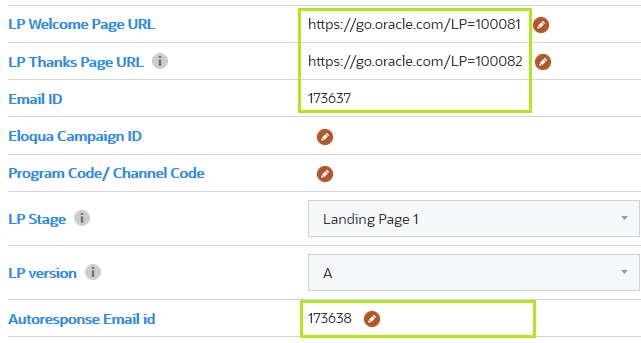
IMPORTANT NOTE: You need to re-upload the event assets into Eloqua once all Stage Properties sections are complete, so the codes carry over onto the final Eloqua pages.
- If there are further edits to assets, the changes can be made and then the process repeated from Step 1.
Uploading a second email
- Second email can be created in a new Stage.
- Follow regular steps for Email with respect to asset level edits - images, links. Complete missing Fields in Stage Properties and Asset Properities.
- In Stage Properties second stage, find the "Upload to Eloqua (Beta)" option. Click and select required assets to Upload and Proceed.
-
Once uploaded the Email ID can be found populated in Stage Properties.
Eloqua Process and Review
- Landing Page: Use the LP Welcome page URL created to review the Landing page.

- Email: Open email asset in Eloqua using the Email ID populated in Stage Properties.

⚬ Open asset with Email ID in Eloqua
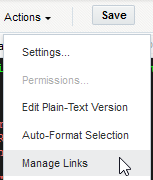
⚬ Go to Actions -> Manage Links and check links as per standard process.
⚬ Update 'Reply to name' manually if required. (Please note: From name will be automatically populated with the name updated in Template Builder.)
⚬ Take a Test email as per the standard process to review the email.
Useful Tips
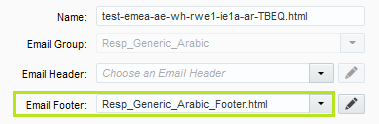
- Identifying Asset Origin: Template Builder generated assets using Upload Beta can be identified with the prefix "TBEQ" in the asset name.

- Email Group
Email group will be mapped to Eloqua according to Template Builder selection initially. For future modifications to the footer, the changes can be updated manually under Actions -> Settings
Related Topics
Nailed it?
If yes, click below to confirm completion of this topic.
Yes, I have understood this topic well
